Skip to content
LogoTechnipages
technipages logo
  • Topics
        • Android
        • Browsers
        • Gaming
        • Hardware
        • Internet
        • iPhone
        • Linux
        • macOS
        • Office
        • Reviews
        • Software
        • Windows
        • Definitions
  • Product Reviews
  • Downloads
  • About

Word: Merge Comments and Changes from Multiple Documents

Madalina DinitaDecember 23, 2020 Comments (0)
microsoft word merge comments changes multiple documents

If several persons are working on revising the same document, you’ll end up with multiple changes and comments. So far, so good. After all, that’s the goal. But all these comments and changes will be available on different documents.

So, how do you merge the comments and revisions from multiple Word documents? You can do that by using the Compare and Combine options in Word.

Important Notes:

There’s a limit to the number of documents you can merge at a time. More specifically, you can only combine two documents at a time.

In other words, you can merge the original document and the first revision. Save the document. That’s step number one.

The new document will then serve as the starting point for merging the second revision. And so on. You need to repeat these steps until you’ve merged all the revised versions.

Steps to Merge Comments and Changes from Multiple Files

  1. Launch Microsoft Word and click on the Review menu.
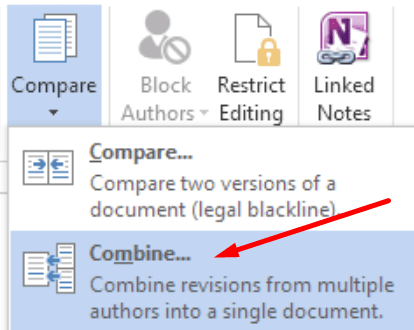
  2. Then click on Compare → Combine.microsoft word combine documents
  3. Select the original document and the first revised version.
    • Make sure to choose the document you sent for review. Double-check that. Working with multiple documents can sometimes be confusing.
    • The same applies to the revised documents. Make sure you’re selecting the right document.
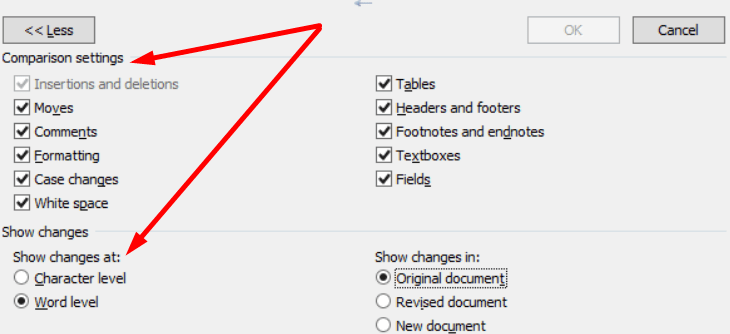
  4. Click on More for additional document merging options. Select the elements you want to merge (comments, formatting, etc.)word combine documents settings
  5. Go to Show changes and select New document.
    • For extra clarity, we suggest you display the changes in a new document.
    • The new document is visible in the middle of the screen. It is a combined version of the original file and the revised version.
    • You can easily keep track of all the changes with the help of the two secondary sections. The revisions are on the left, while the original document’s on the right.
  6. Name and save the new document.

To merge additional revisions and comments, you need to repeat the process we just described. The only difference is that the original document will now be the new document you just created at step 4.

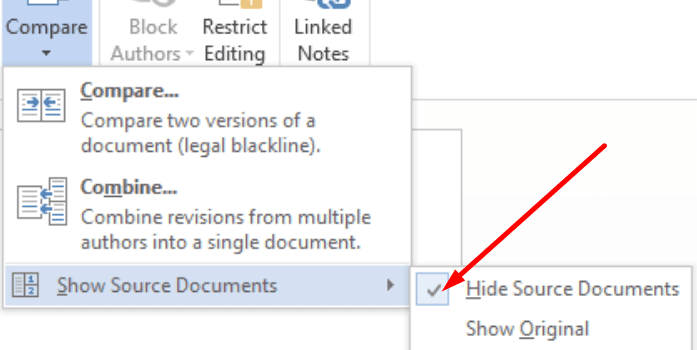
If you want to focus only on the end result, you can simply combine them while hiding the original and the revised version. To do this, go to Compare → Show Source Documents → Hide Source Documents.microsoft word hide source documents
And this is how you can merge changes from multiple documents using Microsoft Word.

Categories: Office

Author Madalina Dinita

You Might Also Like

  • Word 365: Enable or Disable AutoRecover Save

    Mitch BartlettOffice
  • Outlook Logo Header

    Turn Mail Notification Sound On/Off in Outlook 2016

    Mitch BartlettOffice
  • Outlook: “Library Not Registered” Error

    Mitch BartlettOffice
  • disable-top-results-outlook-search-results

    How to Disable Top Results from Outlook Search

    Madalina DinitaOffice

Leave a Reply

Your email address will not be published. Required fields are marked *

This site uses Akismet to reduce spam. Learn how your comment data is processed.

300x600
Turning on Triple Touch Zoom on Android

Turning on Triple Touch Zoom on Android

How to Connect Outlook 2023 to Gmail

How to Connect Outlook 2023 to Gmail

Netflix: Change Password

Netflix: Change Password

Everything You Need to Know About WhatsApp Delete for Me

Step-by-Step Guide: How to Use WhatsApp on Your Computer

Android: Enable or Disable Background Data

Android: Enable or Disable Background Data

300x250
profile pic

The Experts Behind Technipages

My name is Mitch Bartlett. I've been working in technology for over 20 years in a wide range of tech jobs from Tech Support to Software Testing. I started this site as a technical guide for myself and it has grown into what I hope is a useful reference for all.

Learn More

300x250 2
technipages logo white
linkedin icon

Technipages is part of Guiding Tech Media, a leading digital media publisher focused on helping people figure out technology. Visit guidingtechmedia.com to learn more about our mission and team.

© 2026 Guiding Tech Media All Rights Reserved

  • About Us
  • Contact
  • Legal & Privacy

© 2026 Guiding Tech Media All Rights Reserved

Information from your device can be used to personalize your ad experience.
Do not sell my personal information.