

Many Outlook users don’t really like the Top Results feature. They complained the option often pulls up inaccurate results, and some of those emails are older than twelve months. As a result, users prefer to disable the option. So, let’s jump right in and explore how you can get rid of Top Results.
⇒ Note: Keep in mind that Outlook may sometimes re-enable the feature on its own after installing the latest updates.
How Do I Get Rid of Top Results in Outlook Search?
You can turn off Top Results only in Outlook/Office 365; you can’t disable this feature in the base Windows Mail app that ships with Windows 10.
Disable Top Results on Outlook Desktop
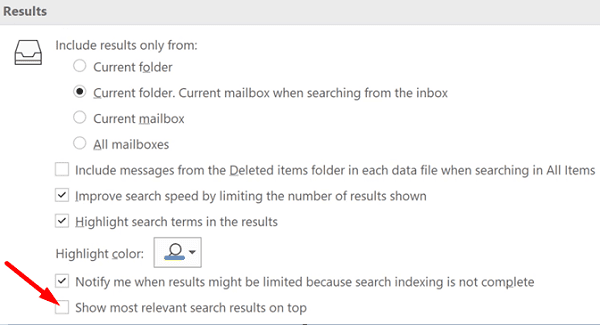
If you use the Outlook desktop client, click on File and select Options. Then go to the Search tab and untick the Show most relevant search results on top checkbox.
Disable Top Results on Outlook for Web
Launch Outlook for Web and go to Settings. Then click on View all Outlook settings and navigate to Search settings. Tick the Don’t show top results radio button to disable the option.

Many Outlook users criticized Microsoft for ramming Top Results down their throats. They say the company should focus on fixing all those annoying bugs plaguing users for years instead of enforcing features they never asked for.
As you can see, disabling Top Results is as simple as a walk in the park. Just follow the steps listed above to get the job done.
Conclusion
If you want to disable Outlook Top Results, navigate to outlook.com and click on the Settings icon (the cogwheel icon). Then go to Search Settings and simply uncheck the Top results option. Do you agree with other users when they say Outlook Top Results is a useless feature? Share your thoughts in the comments below.




Useless feature and like its been said above, “you can’t disable this feature in the base Windows Mail app that ships with Windows 10.”
So I’m SOL!
I have disable this option and still get top results on top :(
Gosh I have struggled with this terrible feature for months – finally decided to search today found your page
i’m on windows and i did
search tab
search tools
search options
untick, show most relevant search results at top
thank goodness for you
Thank you! This worked for me on desktop version as well.
Thanks! Why do developers think that EVERYONE is going to love their new “feature”? Your solution gave me back my sanity!
Perfect! Thank you for helping me put an end to this annoying “feature.” Helpful screenshots also.
The Outlook for Web fix worked, although the setting was “List three most relevant results”. Unchecked that and no more confusing search experience. Thank you!
Why should I need a desktop to disable an app feature, especially as on the app it takes up most your screen! It’s awful and it appears Microsoft central is trying to invade my choice over which emails to read.
I didn’t expect “New Outlook” to create it’s own views of my mail that exclude important mail, so I didn’t notice “Top results’ and missed some new, important incoming mail that wasn’t “above the fold”, but normally would have been.
Changing the UX without telling the user what you are doing is just daft. Or as Dr. Strangelove says: Of course, the whole point of a Doomsday Machine is lost, if you *keep* it a *secret*! Why didn’t you tell the world, EH?
This fix did not work on the desktop version for me