

You’ve saved passwords on Chrome and on Windows. But now, you need to access the saved passwords. Maybe you need to share the saved password with a friend or family member, but you don’t know it by heart. The good news is that Windows 11 allows you to access your saved passwords.
How to Find Windows 11 Passwords
To find your saved passwords on your Windows 11 computer, you need to click on the Windows Start menu, go to Settings, and search for the Control Panel.
Once you’re in Control Panel, click on Network and Sharing Center. If the view is a little on the difficult side, you can always switch from View by Category to Large Icons.

In Network Sharing, you’re going to see the name of your WiFi connection to the right of Connections. Make sure to click on it. When the WiFi Status window appears, click on the Wireless Properties option in the middle.

In Wireless Properties, choose the Security tab, followed by the Show characters tab. Now you can see what your current password is.

How to Find Your Current Password from Settings – Windows 11
If you’re already in Settings, you can see what your current password is by going to:
- Start
- Setting (Windows and i keys)
- Network and Internet
- Advanced Network Settings

Once you’re in Advanced network settings, go to the Related Settings section and click on the More Network adapter options.
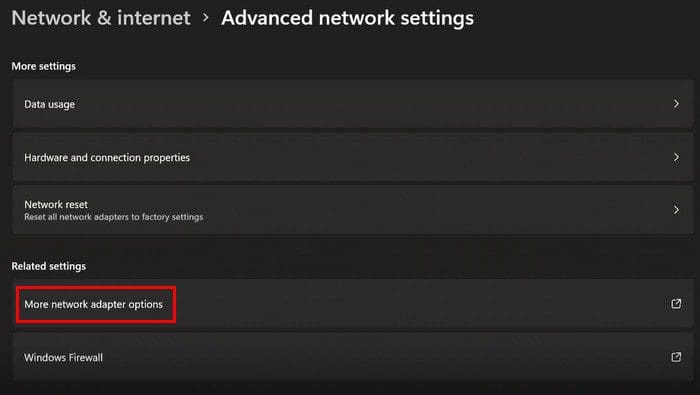
Once you reach this step, you can simply follow the same steps to find the current password to get to the option that shows you the characters of your password. If it’s faster for you, you can also access the Network Connections window by using the Control Panel by typing ncpa.cpl in the Run dialog box.
Command Prompt: How to Find Your Current and Past Passwords
It’s also possible to view your current and past passwords using the Command Prompt. You can do this by searching for the Command Prompt and running it as an Administrator.
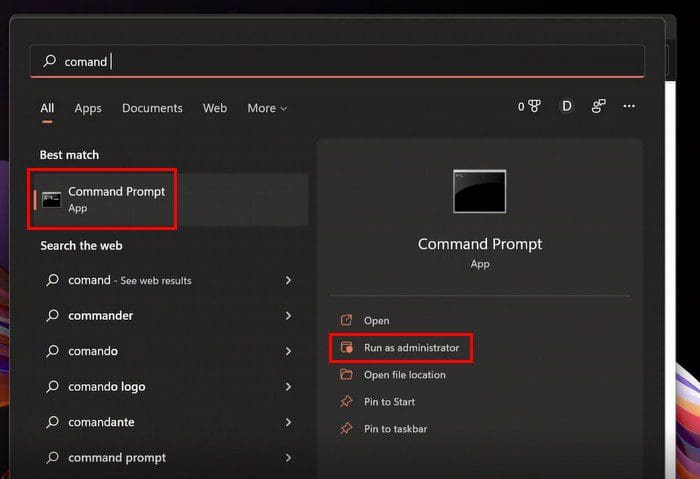
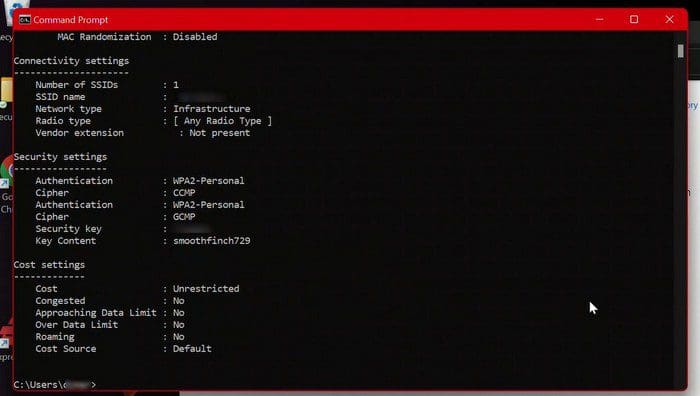
Once the Command Prompt is open, type the following command: netsh wlan show profiles. When you press Enter, you should immediately see all the profiles on your computer.
Now, type the following command: netsh wlan show profilename=WifiConnectionName key=clear. Make sure to replace WiFiConnectionName with the name of your network. What’s to the right of Key content is your network’s password.
Conclusion
That’s all there is to it to view your current passwords or previously saved passwords. You can use the Command Prompt, or you can go through Settings. Whatever is easier for you. Make sure to only share your passwords with people you trust. Which method do you think you’re going to go with? Share your thoughts in the comments below, and don’t forget to share the article with others on social media.



If, as I was, you are tearing your hair out because you can’t find the list of stored passwords for websites you visit, don’t panic. As with all things Microsoft, they don’t like to make it too obvious. It takes 3 clicks. 1) click on the 3 dots ‘…’ at the top right of the screen, 2) click on ‘settings’, 3) scroll down and click on ‘passwords’.
To view individual passwords you have to select the one you want, click on the eye shape and you will need to enter your Microsoft account name and password – the one you use if you’re logging in to your computer – then it opens.
Note that if you normally use a PIN and can’t remember your Microsoft password, you’ll have to find a way to reset your Microsoft password first..
NO! Windows 10 saved passwords for web sites as I requested. Windows 11 seems to save new web passwords, but I don’t know where. Win 10 allowed me to look at the file passwords were saved in. With Win 11 I am constantly having to change passwords!
Totally unhelpful – it the saved passwords for the sites I visit that I want
Why does it have to be so complicated?
Where is the password manager for web sites?
These instructions only get me the password for the network. I know what that is. I need to find where Windows stores the passwords for various sites I’ve visited. Your instructions rarely show what my screen shows. FWIW, I’m furious with Windows 11 AND Google.
I’m going to try the method using settings, simply because I’m inexperienced with the command prompt. I’d like to learn how to use it. Can you think of any good tutorials on how to use the command prompt app???
Following your pathway does not enter a black screen menu as you s=describe. It gives a nice clear list of items on use of computer on my Win 11