

It was nice while it lasted, but now it’s time to let go of your Microsoft Premium Account. Maybe you saw that you weren’t using it as much as you once did, or you need to cut down on things that are not that important. Whatever the reason is for you canceling your Microsoft Premium account, you’ve come to the right place.
The good news is that the process is not a complicated one, and you’ll be done before you know it. You surely have more important things to do than to spend who knows how much time trying to cancel something. Here are the steps to follow.
How to Delete Your Microsoft Premium Account
To say goodbye to your Premium account, you need to go to Services and subscriptions. Sign in to your Microsoft account and make sure it’s the one you used to purchase the subscription. Locate your subscription and choose Manage. You can also click on Show all my subscriptions for an easy find.
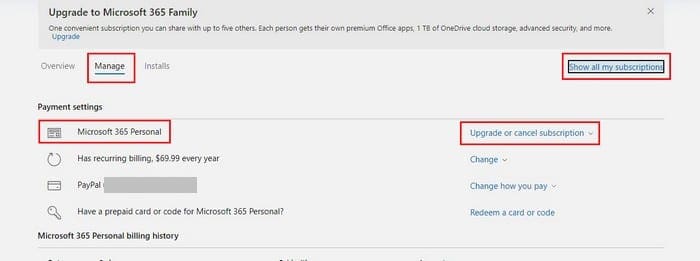
Click on where it says Upgrade; it cancel the subscription, and from the dropdown menu option, choose Cancel subscription. After that, follow the on-screen instructions to complete the cancellation.

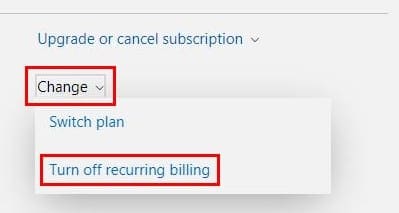
You can also turn off the recurring billing. Click on the change options for recurring payments and choose to disable it.
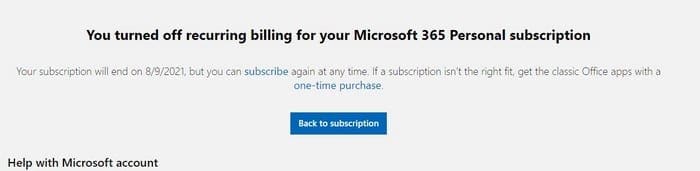
Once you turn it off, you’ll get a message letting you know it was done correctly. It’ll give you the date of when your subscription will end, but until that date comes, you’ll still have full access to your account and features. That way, you know how much time you have left if you ever change your mind.
Refund?
Don’t forget that you could also be entitled to a refund, but that’s going to depend on the date of the cancellation. Microsoft allows you to ask for a refund only for two reasons. The first one is if you purchased the subscription within the last 30 days. If you have a monthly subscription and the cancellation takes place within 30 days of the last time, you renewed your subscription.
If you decide to go through with the refund request, you’ll notice some changes in how your apps work. You won’t be able to edit documents, but you’ll have no problem is reading and printing documents. The 1TB storage on OneDrive will be gone, and your Skype minutes will be gone. You may also want to warn anyone you’re sharing the plan with since they will lose their access to it.
Conclusion
This doesn’t have to be goodbye forever. If things ever change in the future, you can always subscribe in the future again. Who knows, maybe Microsoft will send you some type of promo to get you back. I wouldn’t hold my breath, though. Is your cancellation permanent or temporary? Let me know in the comments below, and don’t forget to share the article with others on social media.


I would like to cancel my Microsoft subscription because of a medical problem.