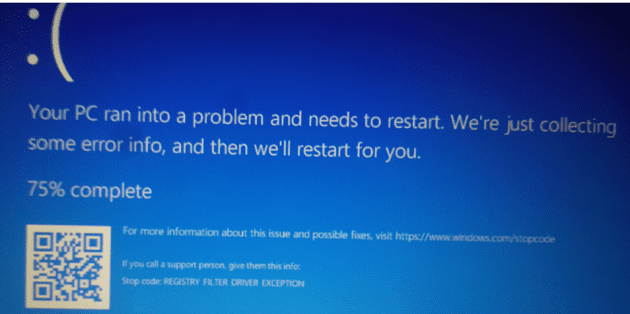
Blue Screen of Death errors are really annoying. Everybody hates them. If your computer just crashed with the Registry Filter Driver Exception BSOD error, here’s what troubleshooting steps you need to pursue in order to fix the problem.
Fixing Registry Filter Driver Exception Errors on PC
If you already unplugged external peripherals and restarted your computer, but the error persists, here’s what you need to do next.
Update, reinstall or roll back your drivers
Did you know that outdated or corrupted drivers often trigger BSOD errors? Updating or reinstalling your drivers may help you to get rid of that Registry Filter Driver Exception error.
- Launch the Device Manager.
- Then check if there are any yellow exclamation marks next to your drivers.
- If there are, right-click on that driver and select Update driver.

- If updating the drivers did not work, try reinstalling them. The steps to follow are the same. The only difference is that you’ll select Uninstall device this time.
- Restart your computer.

Note: On the other hand, if you received this error shortly after updating your drivers, try rolling them back. Right-click on your driver, select Properties and click on the Driver tab. Then select the Roll back button.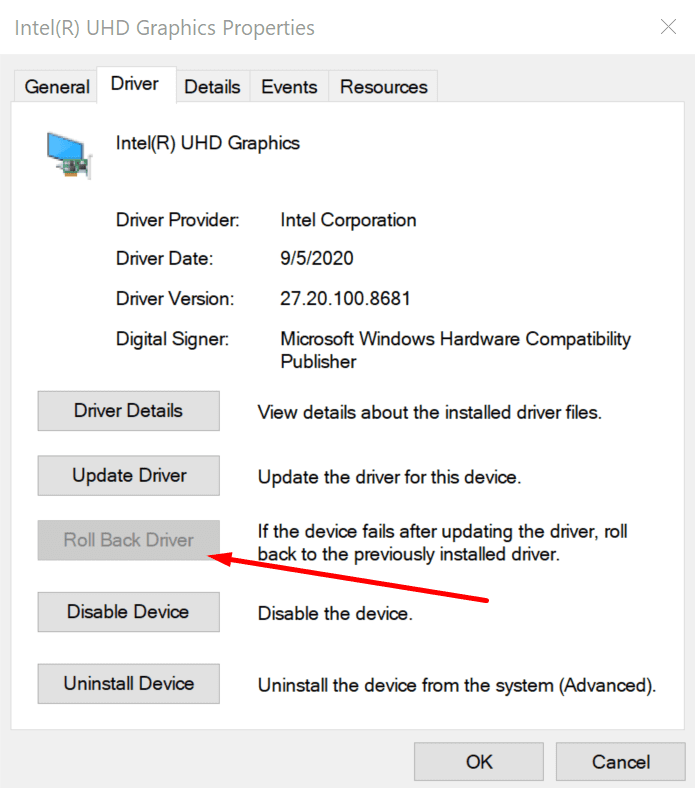
Update your OS
If you haven’t updated your OS in a long time and there are pending updates waiting to be installed, go ahead and install them.
Go to Settings → Update & Security → Windows Update → hit the Check for updates button.

Run SFC, CHKDSK and DISM
Corrupted or missing system files may trigger BSOD errors. Here’s how to iron them out:
- Type command in the Windows search box.
- Then, right-click on Command Prompt as select Run as administrator.
- Enter and run the sfc /scannow command.

- Then, run the chkdsk /x /f /r command.

- After that, restart your computer. Check if the problem persists.
- If it does, then enter the following commands and hit Enter after each one to repair any DISM issues:
- Dism /Online /Cleanup-Image /ScanHealth
- Dism /Online /Cleanup-Image /CheckHealth
- Dism /Online /Cleanup-Image /RestoreHealth.


Uninstall third-party programs
Third-party programs that are not compatible with your device may also trigger BSOD errors, including the Registry Filter Driver Exception error. Try uninstalling recently installed programs.
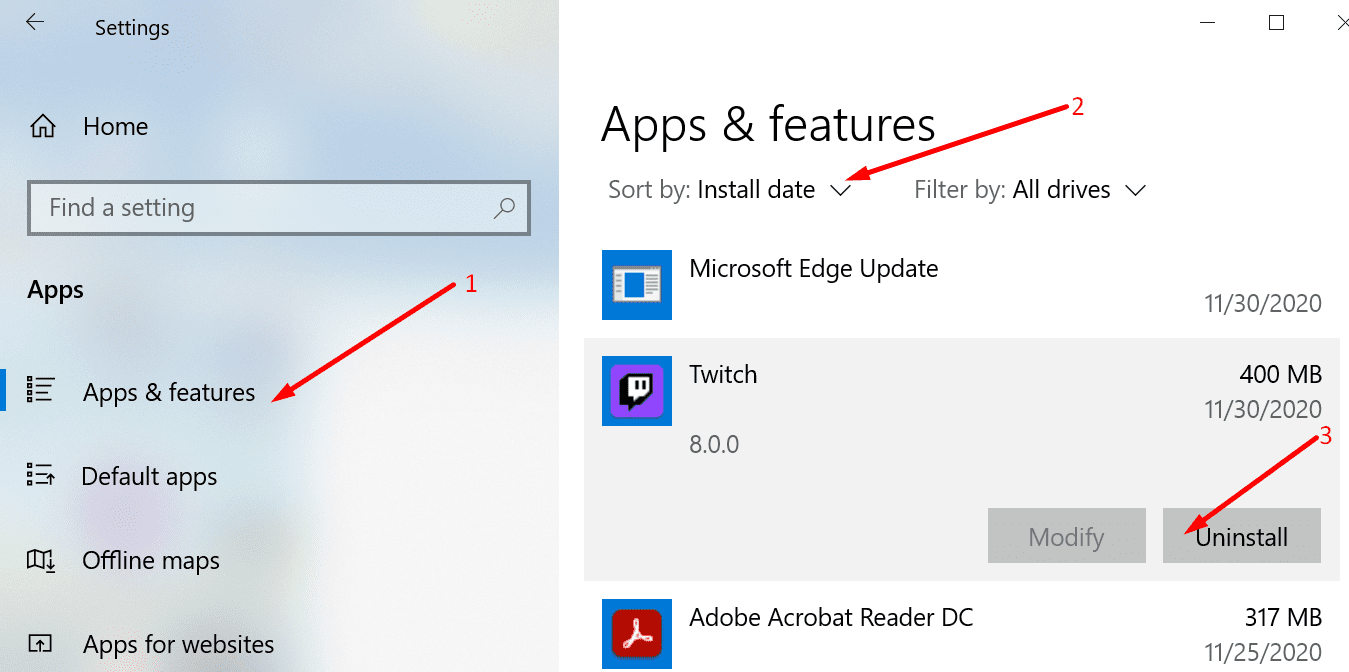
- Go to Settings.
- Select System.
- Then, go to Apps & features.
- Next, sort the apps by install date.
- Select the program you want to uninstall, and then hit the Uninstall button.
Overclocking tools often cause BSOD errors because they put too much strain on your hardware. Try disabling them first. If that did not work, uninstall your overclocking software.
Scan your computer for viruses
Virus or malware infections may also trigger this error. Use Windows 10’s built-in antivirus or a third-party antivirus to scan your computer for malware.
Run an in-depth scan although this may sometimes take more than an hour to complete. In this manner, you’ll make sure to scan all the files and folders on your device.
Check for overheating issues
If your computer’s temperature got abnormally high, your device may crash with various BSOD errors in order to prevent further hardware damage. Ensure your PC is placed in a well-ventilated place. Use a cooler or a cooling pad if you often run resource-hogging programs, such as video-processing tools or overclocking software.
Let us know if you managed to solve the problem.