

The reasons as to why you want to hide the Windows 10 taskbar can vary. Maybe, you want the display to look at least a little bigger or you feel that with the taskbar visible, your display to go away finally too cluttered.
But, what can you do when for some reason the taskbar won’t hide no matter what you do? There are a few methods you can try to see if you can get the taskbar to go away finally. Let’s start with the basics, shall we?
Check That You Haven’t Locked the Taskbar
If you always have something to do, it’s very easy to forget things you did a while back. Maybe you locked the taskbar for some reason by going to Settings and totally forgot about it. To check if that’s the cause right-click on an empty space on the taskbar and click on Taskbar settings.

Make sure that the Lock the taskbar option is not toggled on. The option that you will need to enable is the one right below it that says Automatically hide the taskbar in desktop mode. If you’re using a Windows 10 tablet, enable the option that will hide the taskbar in tablet mode.
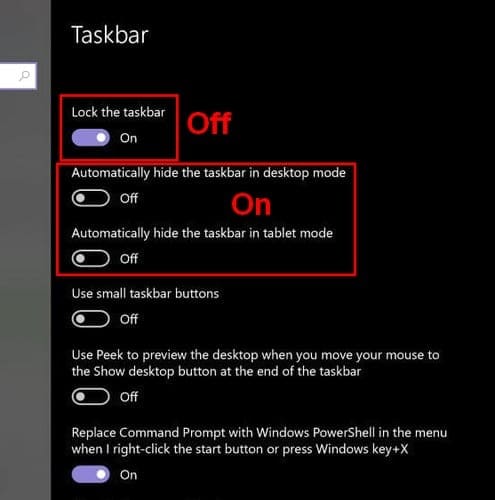
Also, make sure that the cursor is not touching the taskbar or else it won’t away. In some cases, click on an empty are can make the taskbar hide.
Hide the Taskbar by Restarting the Explorer Process
A quick way to open the Task Manager is by pressing Ctrl + Shift + Esc. It should open in the Processes tab and with all the details, but if you only see the basic interface, click on the more details option at the bottom left.
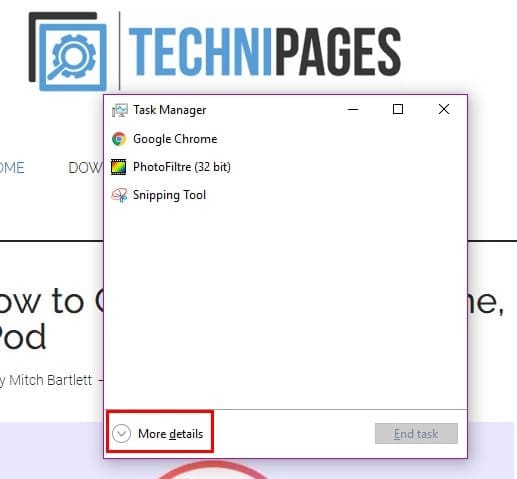
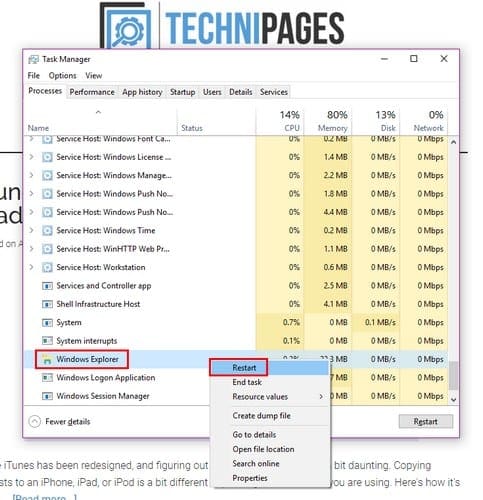
Scroll all the way down until you come across the Windows Explorer process. Right-click on the option and choose Restart.
Close and Restart Explorer from the Command Line
Open the Command Prompt by pressing the Windows and R keys. When the run box appears type cmd and press enter. When the Command Line appears, type taskkill /im explorer explorer.exe /f. In the new line type explorer > exit and press enter.
Check that Hidden Apps Don’t Have a Notification
If an app that’s visible from the taskbar has a notification, it will be easy to see. But, you could have apps that are only visible after you click on that small arrow on your taskbar. To prevent this from happening in the future, go into settings to make some changes.
Go to Settings < Personalization > Taskbar Scroll down until you see the Notification Area. Click on the option that says Select which icons appear on the taskbar and toggle on the option that says Always show all icons in the notification area.

That way, you will always be able to see when an app has a notification that you need to address. If you think that is what is preventing the taskbar from hiding, click on the app with the notification.
You probably only want to have important apps in the notification area and not a particular app. In that case, you can always turn off notifications for that app and check if there is anything new with it when you need to use it.
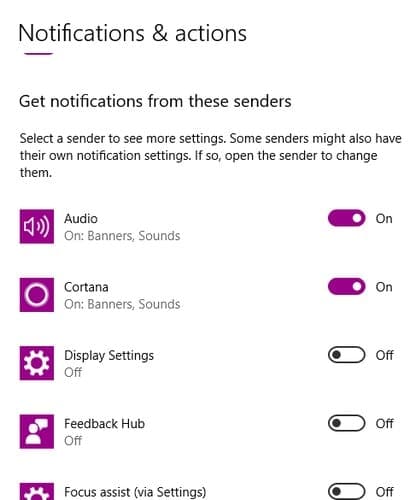
To disable notifications for a specific app go to Settings, followed by systems. The notifications and actions option will be the second option to the left. Find and toggle off the app whose notifications you want to make disappear.
Conclusion
When the Taskbar is visible you can access certain apps faster, but in the end, it’s all about personalization. Now you know what you can do if the Taskbar refuses to hide. Why do you like hiding the taskbar?

thankyou very muuuuuuuuuuuuuuuuuuuuuuch
Very good article.
I just discovered on Windows 10, at least for me, using {Windows key+tab} turns off “automatically hide the taskbar in desktop mode” – $#^%&$^!! You have to reset it.
wizard. could not hide my taskbar, your suggestion about restart explorer did it. Thanks!