
Not being able to use the copy-paste functionality in Microsoft Word can be really crippling, especially when you’re editing a document. The bad news is that this problem is more common than you’d think. In this quick guide, we’ll talk about what might be causing this issue and what you can do to fix it.
Why Is Copy-Paste Not Working in Word?
Clear the Clipboard
- Type cmd in the Windows Search bar, right-click on the Command Prompt app and select Run as administrator.
- Enter and run the cmd /c “echo off|clip” command.

- Note: Replace c with the letter of the drive where you installed Windows and Office.
- If the problem persists, run the sfc /scannow command to repair your system files.

Run Word in Safe Mode
To run Word in Safe Mode, press the Windows and R keys and open a new Run window. Then type in winword/safe and hit Enter. Check if the copy-paste functionality works as intended. If it does, disable your add-ins and re-enable them one by one to identify the culprit.
If you still can’t copy-paste in Word or you can’t start the app in Safe Mode, try repairing Office.
Repair Office
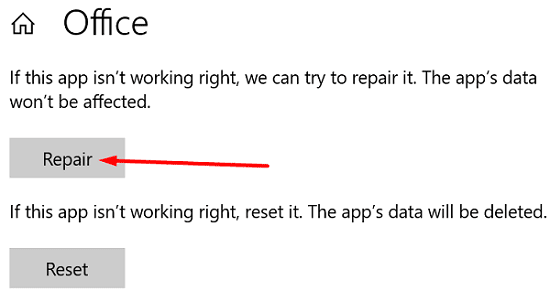
- Go to Settings, select Apps, and navigate to Apps and features.
- Select Office and click on Advanced settings.
- Select the Repair option and check if the issue is gone.
- If it persists, use the Reset option. Keep in mind that resetting Office means that the app’s data will be deleted.
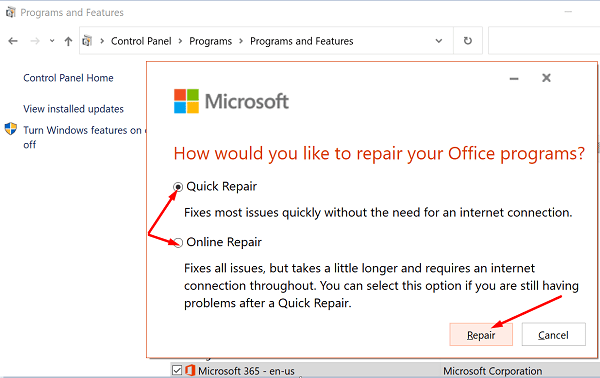
Alternatively, you can also go to Control Panel and select Programs. Go to Programs and Features, click on Office, and hit the Change button. Select the Quick Repair option first, and if the problem persists, run the Online Repair tool as well.
Disable Add-ins and Third-Party Apps
Disable all the apps running in the background and check if this workaround solved the problem. Maybe some of your apps are interfering with Word. As a matter of fact, PDF and OCR software may occasionally break certain Word functionalities. Launch the Task Manager, select the Processes tab, right-click on the programs you want to close and select End task.
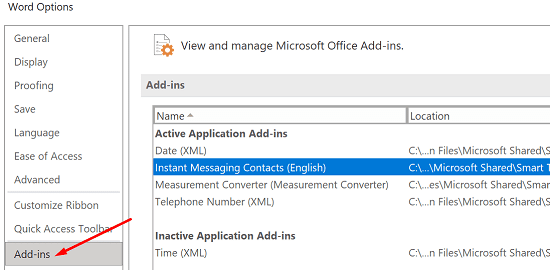
Additionally, disable your Word add-ins and check the results. Launch Word, go to Options and select Add-Ins. Select the add-in type and hit the Go button. Then disable all of your add-ins, restart Word, and check if the copy-paste issue is gone.
Reinstall Office
If the problem persists, go to Control Panel and select Uninstall a program. Select Office and click on the Uninstall option. Reboot your computer, and download Office again.
Additional Solutions
- Disable the Remote Desktop Connection app. Sometimes, the inability to copy and paste appears to be correlated with having RDC running on your computer.
- Try another keyboard. If the copy-paste shortcut works in other applications but not in Word, maybe the key combinations have been re-assigned. To check your settings, go to File → Options → Customize Ribbon → Keyboard shortcuts → Customize.
- Check for updates and make sure you’re running the latest Word version on your machine. Click on the File → Account → Update Options → Update Now. Update Windows as well.
- Scan your computer for malware.
- Set up a new user profile. If your current profile got corrupted, the copy-paste problem should not affect the new profile. Go to Settings → Accounts → Family & other users → Add someone else to this PC.
Conclusion
If copy-paste is not working in Microsoft Word, clear the Windows clipboard cache, launch Word in Safe Mode and check the results. Additionally, disable your add-ins and repair Office. If the issue persists, reinstall Office. Did these solutions work for you? Let us know in the comments below.




I have a text with a “header” produced frame made with Word XP, when attempting to copy/paste it to a Win 10/ Word 365 page the text prints but the picture frame is left out. Contracting for Word 365 I had hoped to enjoy progress, but Oh! Where is the good old XP? I was able to control my work and get remarkable results. But 365 limits me very much.
Tried everything but reinstalling Office. Restarting my system works, but then Word arbitrarily reverts to no copy/paste option, although copy/paste works in Notepad, browsers, etc. No add-ons except Grammarly, which I turned off.
Cut command works (but won’t go to clipboard), and I can highlight, then drag&drop text, but no Copy
Repair Office
This option is worked for me. Thanks a lot for the solution.
I have Windows 10 & Office 2015.
Went crazy as Word wouldn’t copy.
Your command prompt instruction worked like a charm – after I ran Scannow which repaired some corruptions.
Thanks
Mike Ling
Thank you for this help with copying and pasting in MWord. I was really in a panic, but it worked just fine.
Thanks again