

Are you in so many WhatsApp groups that it’s not even funny? You’re in the WhatsApp group for Work, School, Family, and not taking into consideration the one you’ve forgotten about. Some groups are not as annoying as others since you only get notifications for things that you consider important.
But, there are other groups whose conversations don’t seem to end, ever. You could silence your phone, but you could miss out on something important from an important group. The good news is that WhatsApp has added the feature all users have been waiting for. Silencing group notifications forever!
How to Disable WhatsApp Group Notifications Permanently
To get some peace and quiet, sometimes you have no choice but to mute someone. Muting someone isn’t going to prevent them from seeing your status or sending you more messages, but at least you won’t hear the notification sound for that group ever again. Or until you undo the muting.
To mute any WhatsApp group, open the app and find the group whose notification you want to silence. Long-press on the group and tap on the speaker icon with a line across it at the top. You’ll know that the process was done correctly when you see the speaker with the line across it at the group’s bottom right in the chat list.
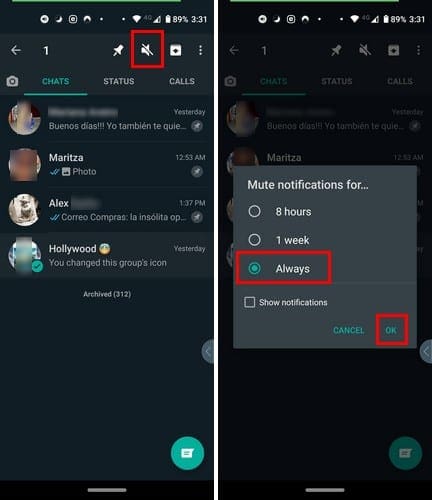
A new window will appear with options to mute the notification for eight hours, One hour, or Always. Before, WhatsApp could mute the notifications for a year, but that option has been replaced with the Always option.
You’ll need to repeat this process for all the groups whose notifications you want to mute. You can also mute group notification for WhatsApp through your device’s settings, but that will silence all groups. If that’s something you want to do, maybe to take a break from all notifications, you’ll need to do the following.
How to Disable WhatsApp Group Notifications Through Android Settings

To turn off group notifications via settings, open settings and go to App & notifications > All X apps > Choose WhatsApp > Notifications > Group Notifications.
How to UnMute WhatsApp Group Notifications
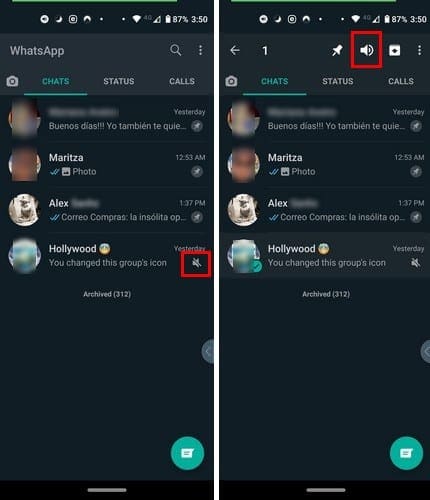
If you can’t continue to ignore a certain group’s notifications, you can unmute the group by locating it and long-press on it. The speaker icon will no longer have a line across it; it’ll have sound waves coming out of it. Tap on the speaker, and the speaker icon with the line across it on the chat will disappear.
Conclusion
As important as notifications maybe, taking a break from them from time to time is always a good thing. Some users just can’t resist checking their messages when they know they’ve received a WhatsApp message. Do you sometimes disable your WhatsApp group notifications?



If I turned off my notifications on my group WhatsApp chat will the members be able to see this?