Skip to content
LogoTechnipages
technipages logo
  • Topics
        • Android
        • Browsers
        • Gaming
        • Hardware
        • Internet
        • iPhone
        • Linux
        • macOS
        • Office
        • Reviews
        • Software
        • Windows
        • Definitions
  • Product Reviews
  • Downloads
  • About

WhatsApp: Enable/Disable Read Receipts

Mel HawthorneMarch 16, 2020 Comments (0)

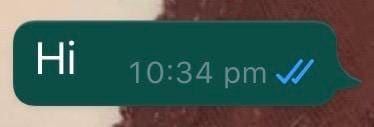
Read Receipts allow users to see whether or not their conversation partner has seen their message. Although there can be some inaccuracies with these, the white and blue checkmarks in WhatsApp are a pretty good indication of when your messages have arrived.

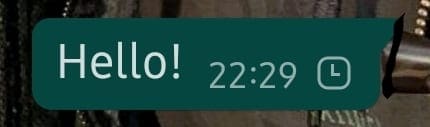
There are four ‘stages’ to a message. You can see what they look like below.

  1. Sending – the message has not yet been sent
  2. Sent – the message has been sent from your phone
  3. Received – the message has arrived at the other side
  4. Read – the message has been seen by the other side
Reid receipts feel stressful for some users, as they allow others to exactly pinpoint when they’ve seen a message, and not everybody wants that. The good news is that you can turn them off.

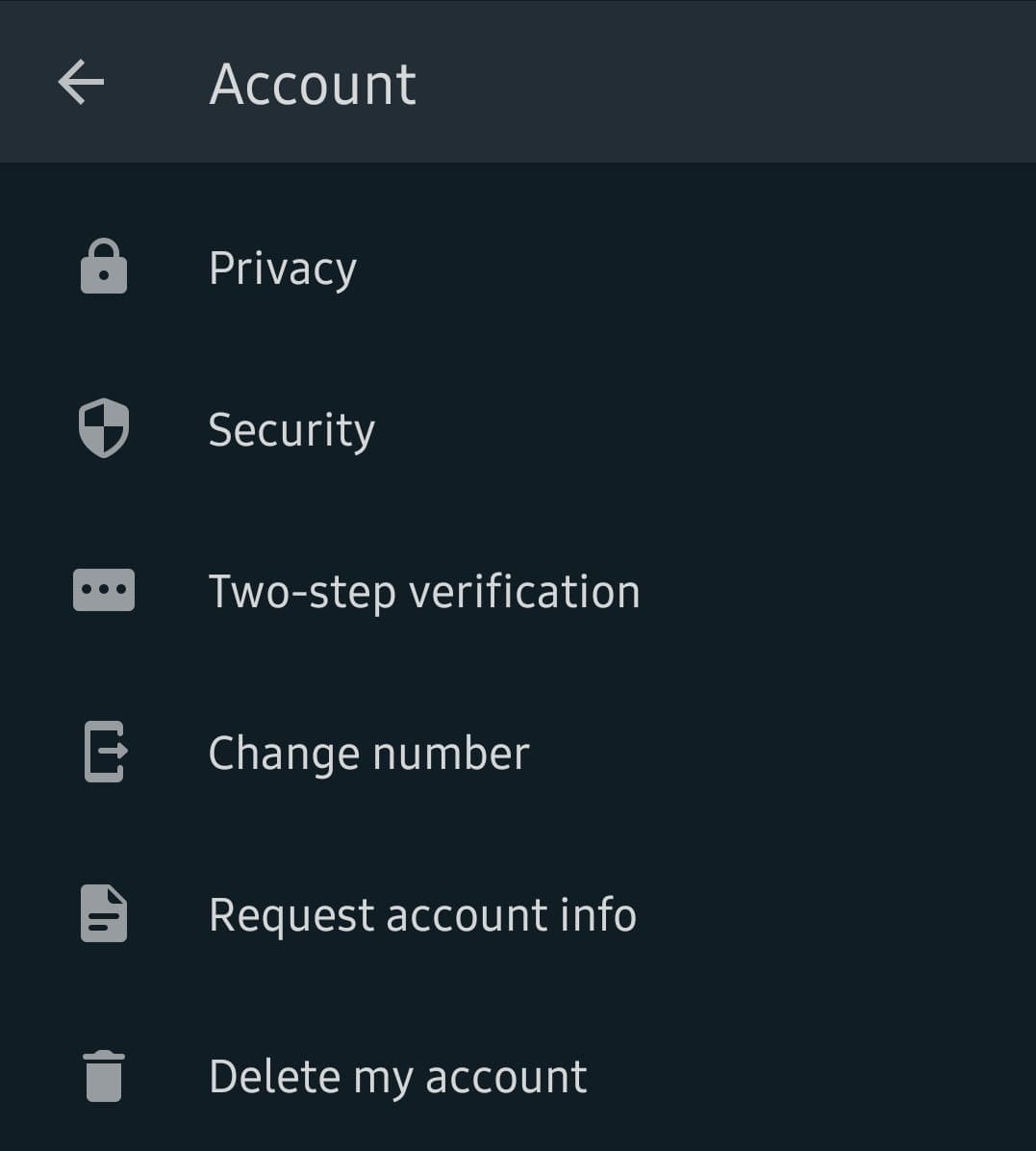
To do so, you need to open your WhatsApp app, and then go to your Settings menu. On Android, click on the three dots in the top right corner, on iOS tap on the Settings button in the top right corner.
The Settings

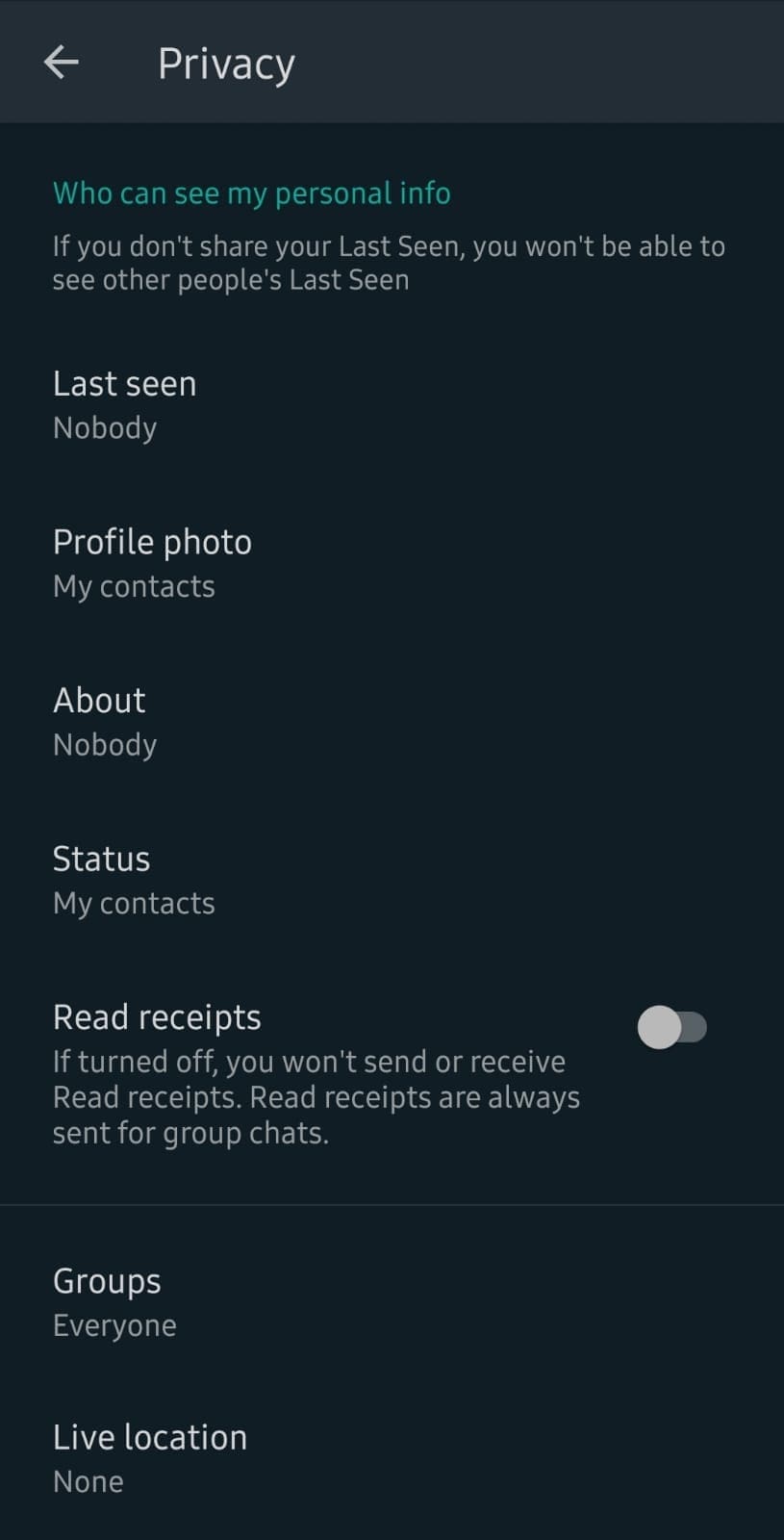
On the next screen, tap Account, then Privacy.
Options

Scroll down until you find the slider labelled Read Receipts. Depending on whether you use Android or iOS, your options may be in slightly different orders, but the read receipts setting is in the same place.

Turn the slider off to disable read receipts.

What it does:

Doing so will disable the blue tick – you will still be able to see the first three stages of a message, but not the fourth. You turning your read receipts off also means that nobody you have a conversation with gets them for their chat with you.

In other words, in order for read receipts to be visible in a chat between two people, both need to have them enabled. If only one party uses them, neither party can see them in that chat.

The only exception to this is group chats – here, you can’t turn read receipts off. They will appear once everyone in a group has seen the message.

Categories: Software

Author Mel Hawthorne

You Might Also Like

  • How To Mute Channels on Slack

    MonaSoftware
  • How to Send a Repeated Message in WhatsApp

    Judy SanhzSoftware
  • 100+ Best Snapchat Lenses for Cool Selfies in 2023

    100+ Best Snapchat Lenses for Cool Selfies in 2023

    Martin ClarkAndroid

Leave a Reply

Your email address will not be published. Required fields are marked *

This site uses Akismet to reduce spam. Learn how your comment data is processed.

300x600
Turning on Triple Touch Zoom on Android

Turning on Triple Touch Zoom on Android

How to Connect Outlook 2023 to Gmail

How to Connect Outlook 2023 to Gmail

Netflix: Change Password

Netflix: Change Password

Everything You Need to Know About WhatsApp Delete for Me

Step-by-Step Guide: How to Use WhatsApp on Your Computer

Android: Enable or Disable Background Data

Android: Enable or Disable Background Data

300x250
profile pic

The Experts Behind Technipages

My name is Mitch Bartlett. I've been working in technology for over 20 years in a wide range of tech jobs from Tech Support to Software Testing. I started this site as a technical guide for myself and it has grown into what I hope is a useful reference for all.

Learn More

300x250 2
technipages logo white
linkedin icon

Technipages is part of Guiding Tech Media, a leading digital media publisher focused on helping people figure out technology. Visit guidingtechmedia.com to learn more about our mission and team.

© 2026 Guiding Tech Media All Rights Reserved

  • About Us
  • Contact
  • Legal & Privacy

© 2026 Guiding Tech Media All Rights Reserved

Information from your device can be used to personalize your ad experience.
Do not sell my personal information.