
If you want to access a hard drive or folder remotely, you need to map it first. You can then access it as if it were a local drive or folder. Many users prefer to map their network drive to free up space on their computers or share files with other users. Unfortunately, your Windows computer may sometimes fail to map your network drive. Let’s see how you can fix the problem.
Fix: Windows Won’t Map Network Drive
Update Your Computer
Go to Windows Update, and update your computer to the latest version. Then try to map your network drive again. Many users confirmed they solved this problem after installing the latest OS updates. Give this quick workaround a try and check the results.
Disconnect Your Peripherals
Disconnect all the peripherals connected to your machine, and try to map your network drive again. Your peripherals may sometimes break certain OS functionalities. These events are pretty rare but they do occur. If the issue persists, restart your computer leaving your peripherals unplugged, and try to map your network drive again.
Give Access Rights to Everyone
Right-click on the folder you want to share, click on the Sharing tab and let everyone access it.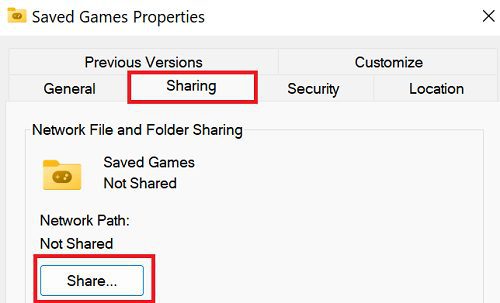
Then, try to connect to the respective folder via \\ComputerName\ShareName. Double-check the name of the server and shared resource.
Additionally, you can also disable password-protected sharing on both your computers.
- Launch Control Panel and go to Network and Internet.
- Select Network and Sharing Center.
- Go to Advanced sharing settings.
- Scroll down to All Networks.
- Disable password-protected sharing.

- Save the changes.

Enable Network discovery as well. Restart your computer and try again.
Enable File Sharing Support for Client and Server
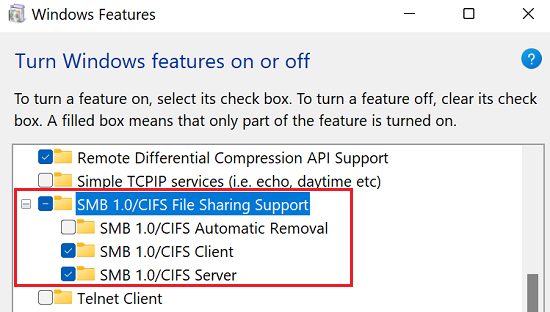
Tweak your file-sharing settings, and enable Client and Server CIFS File Sharing Support.
- Launch Control Panel.
- Click on Programs and go to Programs and Features.
- Select Turn Windows features on or off.
- Then scroll down to SMB 1.0/CIFS File Sharing Support.
- Check the Client and Server checkboxes.

- Wait until Windows updates the new options.
- Restart your computer.
You need to follow the steps above on both systems.
Set ProviderFlags Value Data to 1
- Open the Registry Editor.
- Navigate to HKEY_CURRENT_USER\Network\Drive Letter.
- Select your drive and right-click on an empty area in the right-hand pane.
- Select New → DWORD (32-bit) Value.
- Name the new key ProviderFlags.

- Double-click on the new key and set its value data to 1.

Alternative Solution
If the issue persists after changing the ProviderFlags value, go back to HKEY_CURRENT_USER\Network\Drive Letter, and delete your Drive Letter folder.
Then, go to HKEY_CURRENT_USER\SOFTWARE\Microsoft\Windows\CurrentVersion\Explorer\Map Network Drive MRU. Delete the entry for your drive.
After you do that, remap your drive and add the ProviderFlags key again. If you don’t do that, your network drive won’t connect after a reboot or shutdown.
Conclusion
If Windows can’t map your network drive, update your computer, and disconnect all peripherals. Additionally, give everyone access rights to the folder you want to share. Then enable file sharing support for Client and Server. If the issue persists, tweak your Registry Editor and set ProviderFlags value data to 1.
Did you manage to solve the problem? Which of these solutions worked for you? Let us know in the comments below.



Hey I have a question.
Conference room device (windows device) joined to domain and 5 users have login to that device and give presentation when required, they need to map network shares. Connectivity is there to AD but on each user profile I can’t able to map shared folder for 1 user I mapped but when I switc user to another user profile and try to map but its not working.
Thanks
Yes! yes! it worked “Enable File Sharing Support for Client and Server” saved my life!!!! Can’t thank you enough!
Can’t thank you enough, I have been trying to do this for weeks with no success.
“Enable File Sharing Support for Client and Server” worked for me.
Again thank you so much.
Phil Smith