

Many Windows 11 users complained about getting error code 0x800f0950 when trying to install a new language pack. The error reads as follows: “Sorry, we’re having trouble getting this feature installed. You can try again later. Error code: 0x800F0950“. If you already restarted your computer but the error persists, pursue the troubleshooting steps below.
How to Fix Windows 11 Error 0x800f0950
Download the Language Pack Again
Try downloading the problematic language pack again after restarting your computer. Maybe Microsoft’s servers were 0verloaded when you first tried to download the pack. Try again and check if you’re luckier this time around.
- Navigate to C:\Windows\SoftwareDistribution\Download.
- Then delete all the files and folders from the Download folder.

- Make sure to delete all the files from the SoftwareDistribution Folder as well.
- Try to download the problematic language pack again.

Check Your Connection
This error seems to occur more frequently on computers connected to a Wi-Fi network than on devices using a cable connection. So, if you’re on a Wi-Fi connection, switch to a cable connection and check if the error persists.
Additionally, unplug your router and leave it unplugged for one minute. Then power up the device and make sure to disconnect all the other devices using the same connection. Try using a different connection, such as a mobile hotspot, and check the results.
Check Your Date and Time Settings
Make sure your date and time settings are correct. If they’re incorrect, Microsoft’s servers will block the connection request for security reasons.
- Go to Settings, and select Time and Language.
- Then select Date and time.
- Let your computer set up the date and time settings automatically.

- Restart your machine and check if you can install the language pack now.

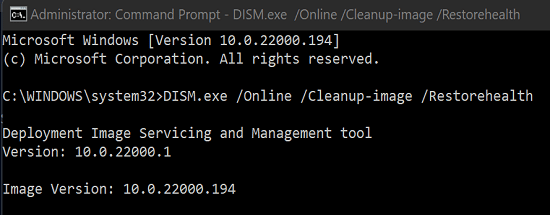
Run DISM and SFC
Run DISM and SFC to detect and repair disk and system file errors.
- Launch Command Prompt with admin rights.
- Then run the following commands one by one, and press Enter after each command:
- sfc /scannow
- DISM.exe /Online /Cleanup-image /Scanhealth
- DISM.exe /Online /Cleanup-image /Restorehealth

- Restart your computer and check if the issue is gone.
Conclusion
If error 0x800f0950 is preventing you from installing a new language pack on Windows 11, restart your computer and router. Then go to the SoftwareDistribution folder and delete all the files from the Download folder. Additionally, let your computer set up the date and time settings automatically. If the issue persists, run DISM and SFC to repair your disk and system files.
Did you manage to get rid of error code 0x800f0950? Which of these methods worked for you? Let us know in the comments below.




Nothing has worked! Can’t install additional language pack features due to this error.