When using a new computer, new mouse or even playing a new game, you may notice the mouse not moving in quite the way you’d expect. This effect is likely caused by a feature called mouse acceleration. For some users, mouse acceleration can be helpful, but for others, it can be annoying.
What does mouse acceleration do?
When using a mouse, you would normally expect the distance the cursor moves to be purely based on how far you move the mouse. With mouse acceleration enabled, this isn’t the case. Mouse acceleration increases the distance that the cursor moves when the mouse is moved quickly.
The easiest way to demonstrate this issue is to snap your mouse from one side of your mousepad to the other as fast as you can, then slowly drag it back to the starting point. You would probably expect your cursor to end up where it started, this is the case with mouse acceleration disabled. With mouse acceleration enabled, however, the cursor will not move back to where it started.
Why is mouse acceleration a feature?
Mouse acceleration can be helpful in some scenarios. If you have limited mobility or minimal space to move your mouse, it can allow you to move the cursor further while not having to move your mouse as much. It can also be helpful for people using a laptop touchpad.
Unfortunately for gamers, mouse acceleration changes how your mouse reacts to your input, making it harder to make accurate movements. This lack of reliability and accuracy can make all the difference when competing against other players, so the majority of gamers disable mouse acceleration wherever possible.
Disabling mouse acceleration
There are three main places you can find mouse acceleration settings. In your mouse driver software, in the settings menus or configuration files of video games, and in the Windows mouse settings. The exact location of the setting will change between device driver software and video game, however, disabling mouse acceleration in Windows is pretty easy to do.
To disable mouse acceleration in Windows, you need to open the Settings app. You can skip to the right page, by pressing the Windows key, typing “Mouse”, and hitting enter. On the right-hand side of the mouse settings page, click the link to “Additional mouse options”.

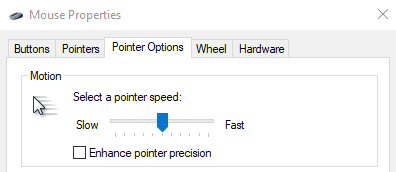
In the “Mouse Properties” window, switch to the “Pointer Options”, then ensure that “Enhance pointer precision” is disabled. You just need to click “Apply” and “OK” to save the change.