Skip to content
LogoTechnipages
technipages logo
  • Topics
        • Android
        • Browsers
        • Gaming
        • Hardware
        • Internet
        • iPhone
        • Linux
        • macOS
        • Office
        • Reviews
        • Software
        • Windows
        • Definitions
  • Product Reviews
  • Downloads
  • About

Notepad++: How to Use “Column Mode”

Mitch BartlettJune 3, 2018 Comments (8)

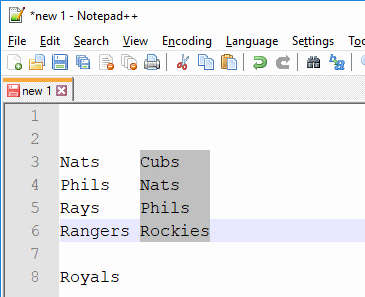
Sometimes if you’re using Notepad++, you need to select text as though it were a column in a spreadsheet. You can do this using the following steps.

  1. Place your cursor at the beginning position where you want to begin selecting text.
  2. Press and hold the “Shift” and “Alt” keys on your keyboard.
  3. Continue holding “Shift” and “Alt” while using the “Down” and “Right” arrow keys on your keyboard to select the text as desired.
Categories: Software

Author Mitch Bartlett

My name is Mitch Bartlett. I've been working in technology for over 20 years in a wide range of tech jobs from Tech Support to Software Testing. I started this site as a technical guide for myself and it has grown into what I hope is a useful reference for all. Mitch's Favorite Gear ATX Graphics Card CanaKit Raspberry Pi 3

You Might Also Like

  • Slack: How To Configure Who Can See the Email Addresses of Workspace Members

    Mel HawthorneInternet
  • Fix Zoom Error The Media Could Not Be Loaded

    Fix Zoom Error: The Media Could Not Be Loaded

    Madalina DinitaSoftware
  • Slack: How to Configure Who Can Purchase Paid Subscriptions for Your Workspace

    Mel HawthorneSoftware

Comments

  1. John Willett says:
    August 25, 2023 at 5:47 pm

    I am in Notepad 11, and this does not work for me. I place the cursor as directed at the upper left corner of the two columns that I want to copy, press shift and Alt and scroll down to the bottom right of the section I want to copy. It does not illuminate only the columns of interest, instead it lights up to the end of each line, and on to the last row at which I stopped my cursor.

  2. Mike says:
    May 30, 2023 at 9:42 am

    I used this method to select data at a starting position for the whole file, copy it, delete it, and then paste the entire sequence of lines further to the right in the file, effectively swapping “columns” of data. It worked beautifully! Thank you. This is much better than other approaches I tried.

  3. Rinaldo Mazzoni says:
    January 3, 2023 at 4:32 am

    I would find it very comfortable setting or unsetting a mode “column” and select text freely

  4. Mohammed Althaf HUSSAIN says:
    April 29, 2022 at 6:55 am

    But that copy 50 lines eachtime. How can we select more than 50 ?

  5. Sarah Betts says:
    September 13, 2021 at 10:39 am

    I have rows of text that I was to separate into three distinct columns, there is currently only a space separating them. How can I make them into three distinct columns?

  6. DJS says:
    October 21, 2019 at 11:07 am

    Step 1 identifies one corner of your column edit. After doing that, you can hold SHIFT and ALT and drag to complete the area selection.. Dragging past the edge of the window will scroll the text for selections larger than the height or width of your window.

  7. rainy says:
    April 7, 2019 at 9:03 pm

    For a better column mode experiment, you can try the plugin ConyEdit, it can be used in notepad++.

  8. D says:
    June 6, 2018 at 8:40 am

    You can make a vertical selection in most of text editors running under Windows, by holding Alt and selecting with a mouse. A bit more comfortable then with pure keys, as for me.

Leave a Reply

Your email address will not be published. Required fields are marked *

This site uses Akismet to reduce spam. Learn how your comment data is processed.

300x600
Turning on Triple Touch Zoom on Android

Turning on Triple Touch Zoom on Android

How to Connect Outlook 2023 to Gmail

How to Connect Outlook 2023 to Gmail

Netflix: Change Password

Netflix: Change Password

Everything You Need to Know About WhatsApp Delete for Me

Step-by-Step Guide: How to Use WhatsApp on Your Computer

Android: Enable or Disable Background Data

Android: Enable or Disable Background Data

300x250
profile pic

The Experts Behind Technipages

My name is Mitch Bartlett. I've been working in technology for over 20 years in a wide range of tech jobs from Tech Support to Software Testing. I started this site as a technical guide for myself and it has grown into what I hope is a useful reference for all.

Learn More

300x250 2
technipages logo white
linkedin icon

Technipages is part of Guiding Tech Media, a leading digital media publisher focused on helping people figure out technology. Visit guidingtechmedia.com to learn more about our mission and team.

© 2026 Guiding Tech Media All Rights Reserved

  • About Us
  • Contact
  • Legal & Privacy

© 2026 Guiding Tech Media All Rights Reserved

Information from your device can be used to personalize your ad experience.
Do not sell my personal information.