Skip to content
LogoTechnipages
technipages logo
  • Topics
        • Android
        • Browsers
        • Gaming
        • Hardware
        • Internet
        • iPhone
        • Linux
        • macOS
        • Office
        • Reviews
        • Software
        • Windows
        • Definitions
  • Product Reviews
  • Downloads
  • About

Slack: How to Configure Who Can Purchase Paid Subscriptions for Your Workspace

Mel HawthorneFebruary 15, 2021 Comments (0)

Slack is a powerful productivity tool; even without paying for anything, the service offers a fantastic range of features. That said, there are also some pretty interesting perks to the premium packages, and buying them is pretty straightforward. So easy, in fact, that anyone can do it.

That doesn’t mean that you want everyone to be able to purchase paid subscriptions for your workspace. By default, Slack allows any member of your workspace to pay for a subscription. This can be great if you’re a relatively small community workspace with no funding.

It’s less ideal if you’re a business with procedures in place for paying, and then someone just bypasses them all. Here’s how to restrict who can purchase paid subscriptions for your workspace.

How to Configure Who Can Purchase a Slack Subscription for Your Workspace

To restrict who can purchase the subscription for your workspace, you need to go into the billing settings. Unfortunately, there’s no direct way to get there from the main Slack application. You’ll instead need to go through the member management settings.

To get there, you first need to click on the workspace name in the top-right corner. Next, in the dropdown menu, select “Settings & administration,” then “Manage members” to open the Member management page in a new tab.

To get to the workspace settings, click on the workspace name in the sidebar, then select “Settings & administration” and “Manage members.”

Once you’re on the member management page, click on the burger menu icon in the top-left corner, then select “Billing” from the list.

In the billing section, switch to the “Settings” tab, then scroll to the bottom of the page. Here you can restrict who can purchase Slack subscriptions by clicking the radio button labeled “Workspace owners only.” Once you’ve configured this setting, click the bottom “Save settings” button to apply the change.

Tip: The top “Save settings” button only applies to the form above and will not use this setting.
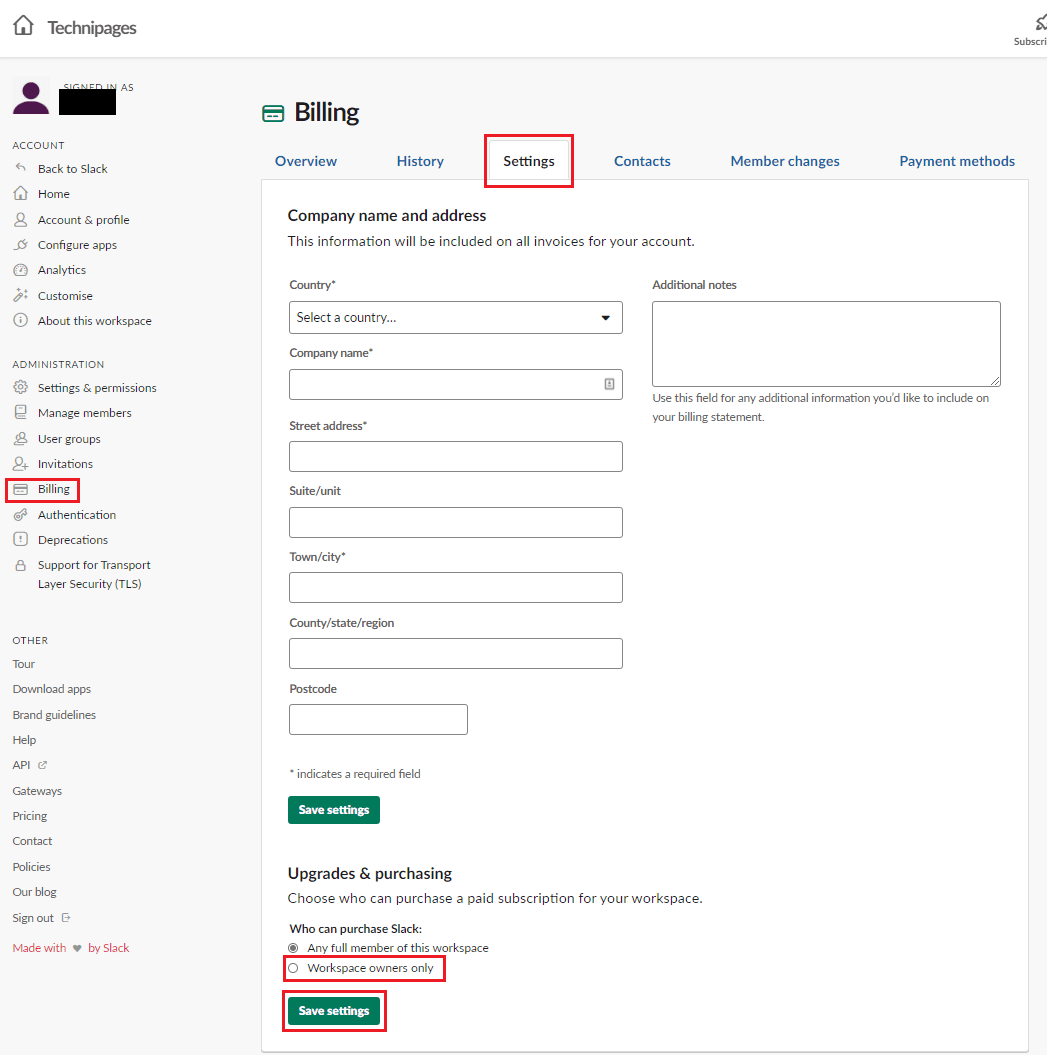
In the “Settings” tab of the billing settings, select the “Workspace owners only” radio button and click the bottom “Save settings” button.

It would be nice in many scenarios if someone volunteered to pay for your workspace’s Slack subscription. This isn’t always the case ho. If you follow the steps in this guide, you’ll be able to restrict who can purchase a subscription for your workspace.

Categories: Software

Author Mel Hawthorne

You Might Also Like

  • How to Disable Word Wrap in Sublime Text 3

    Mel HawthorneSoftware
  • bing redirect took over browser

    Why Is Bing My Default Search Engine?

    Madalina DinitaSoftware
  • 15 Best ChatGPT Alternatives for 2023 for Relevant Answers

    15 Best ChatGPT Alternatives for 2023 for Relevant Answers

    Martin ClarkSoftware
  • iMovie Windows Header

    9 Best iMovie Equivalents for Windows 11

    Martin ClarkSoftware

Leave a Reply

Your email address will not be published. Required fields are marked *

This site uses Akismet to reduce spam. Learn how your comment data is processed.

300x600
Turning on Triple Touch Zoom on Android

Turning on Triple Touch Zoom on Android

How to Connect Outlook 2023 to Gmail

How to Connect Outlook 2023 to Gmail

Netflix: Change Password

Netflix: Change Password

Everything You Need to Know About WhatsApp Delete for Me

Step-by-Step Guide: How to Use WhatsApp on Your Computer

Android: Enable or Disable Background Data

Android: Enable or Disable Background Data

300x250
profile pic

The Experts Behind Technipages

My name is Mitch Bartlett. I've been working in technology for over 20 years in a wide range of tech jobs from Tech Support to Software Testing. I started this site as a technical guide for myself and it has grown into what I hope is a useful reference for all.

Learn More

300x250 2
technipages logo white
linkedin icon

Technipages is part of Guiding Tech Media, a leading digital media publisher focused on helping people figure out technology. Visit guidingtechmedia.com to learn more about our mission and team.

© 2026 Guiding Tech Media All Rights Reserved

  • About Us
  • Contact
  • Legal & Privacy

© 2026 Guiding Tech Media All Rights Reserved

Information from your device can be used to personalize your ad experience.
Do not sell my personal information.