Skip to content
LogoTechnipages
technipages logo
  • Topics
        • Android
        • Browsers
        • Gaming
        • Hardware
        • Internet
        • iPhone
        • Linux
        • macOS
        • Office
        • Reviews
        • Software
        • Windows
        • Definitions
  • Product Reviews
  • Downloads
  • About

VR Oculus Quest 2: How to Configure the Color of Your Guardian Boundary

Mel HawthorneFebruary 20, 2021 Comments (0)
Oculus

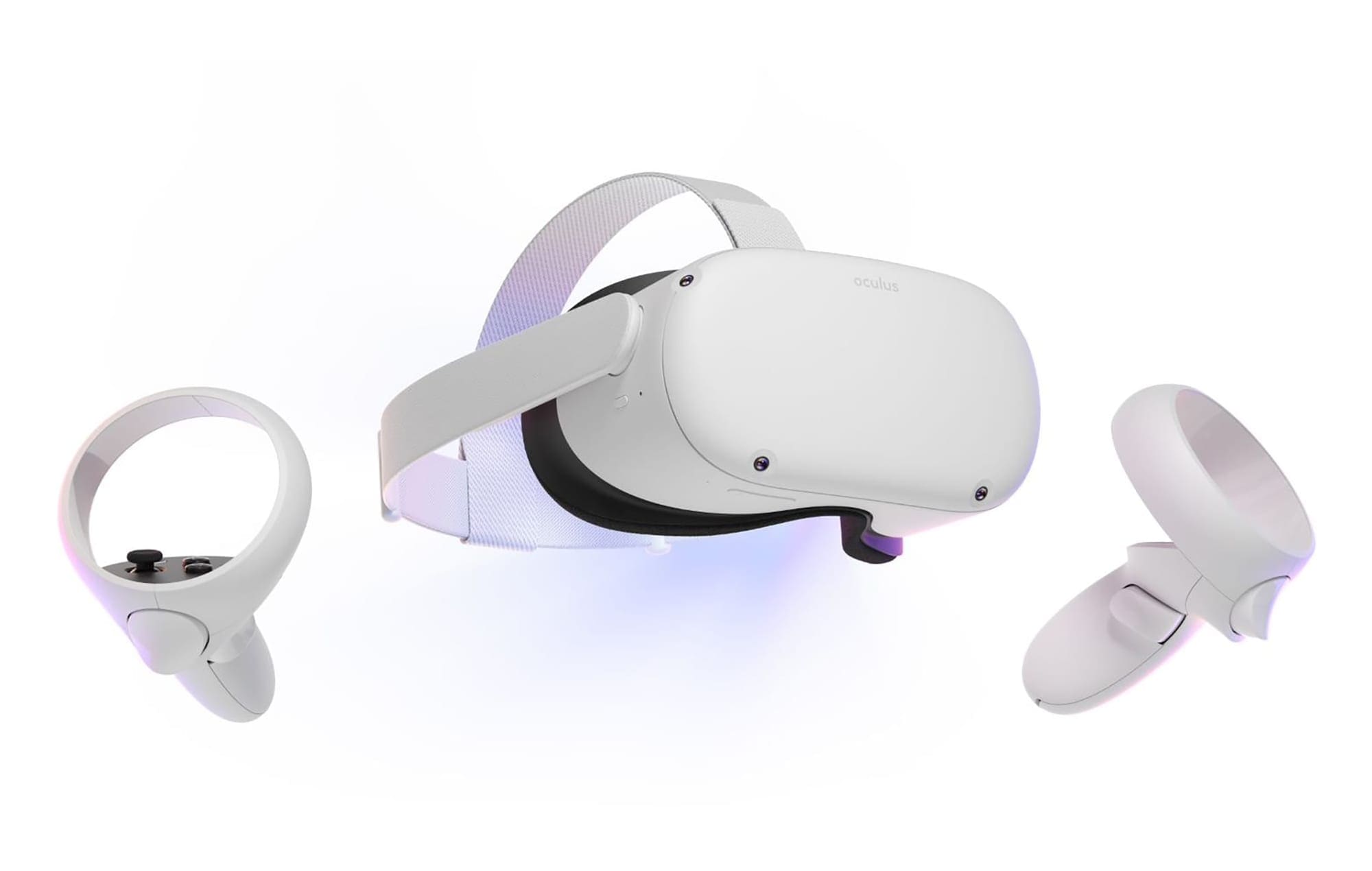
The Quest 2’s Guardian Boundary feature is one of its best safety features – it makes sure that you know where you can and can’t go, and when set up correctly, it will actively prevent you from banging into things.

If you have a small play space or get a bit overexcited when moving around, you might end up seeing your barrier fairly often. Between that and the different games you can play, you may find yourself wanting to change the Guardian Boundary – or, more specifically, its color.

While it will always go red as you get close to breaching it (or when you actively do), its default color can be changed. Normally it’s blue – but you can also change it to yellow or purple. Why?

A blue Guardian Boundary

One of the primary reasons is to make sure it’s visually distinct from the game you’re playing. If you play something set in the desert, you may struggle to see a yellow border or a blue one in a water- or snow environment. You can change the color any time, even mid-game, so don’t hesitate to switch to something you can easily see!

Changing Your Color

To change your Boundary color, press the Oculus button on your right controller. The menu will pop up. Click on the cogwheel on the far-right to get to your Settings. There, on the left-hand side, you can find a section labeled Guardian.

The Guardian menu option

Here, scroll a little until you see the option labeled Boundary Color. It’s a drop-down menu where you can pick from three options. Blue, yellow and purple. Adjust this whenever you feel your boundary color doesn’t suit what you’re playing!
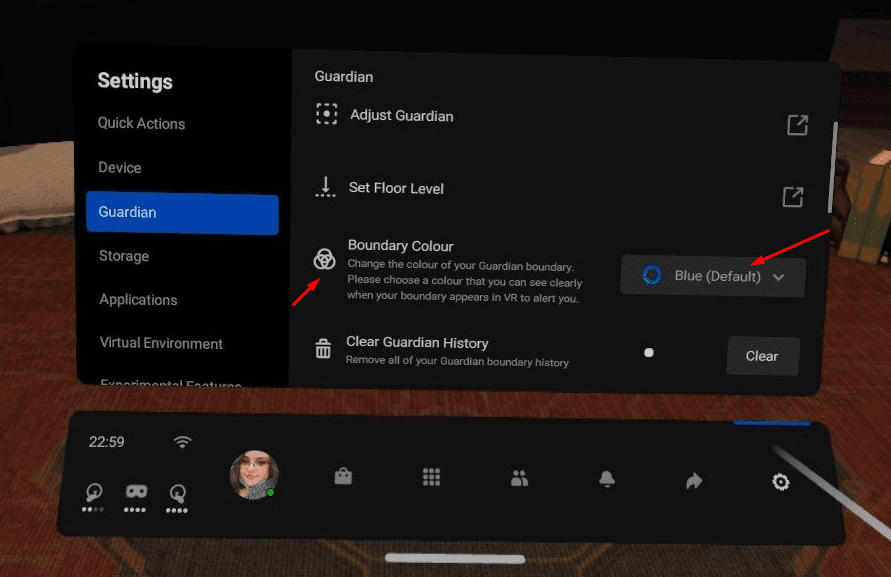
The color options

Tip: In this section of the menu, you can also find some other options for adjusting the Guardian – such as sensitivity, how soon it becomes visible, and more. It’s also where you can draw a new Guardian Boundary if you need to!

We usually use yellow or purple. What’s your favorite Boundary color? Share your thoughts in the comments below.

Categories: Gaming | Hardware

Author Mel Hawthorne

You Might Also Like

  • fix xbox error 0x800704cf

    Troubleshooting Xbox One Error 0x800704cf

    Madalina DinitaGaming
  • Oculus

    VR Oculus Quest 2: How to Adjust the Lens Position

    Mel HawthorneGaming
  • Oculus

    VR Oculus Quest 2: How to Cast to a Mobile

    Mel HawthorneGaming
  • Oculus

    VR Oculus Quest 2: How To Customise Your Default Room

    Mel HawthorneGaming

Leave a Reply

Your email address will not be published. Required fields are marked *

This site uses Akismet to reduce spam. Learn how your comment data is processed.

300x600
Turning on Triple Touch Zoom on Android

Turning on Triple Touch Zoom on Android

How to Connect Outlook 2023 to Gmail

How to Connect Outlook 2023 to Gmail

Netflix: Change Password

Netflix: Change Password

Everything You Need to Know About WhatsApp Delete for Me

Step-by-Step Guide: How to Use WhatsApp on Your Computer

Android: Enable or Disable Background Data

Android: Enable or Disable Background Data

300x250
profile pic

The Experts Behind Technipages

My name is Mitch Bartlett. I've been working in technology for over 20 years in a wide range of tech jobs from Tech Support to Software Testing. I started this site as a technical guide for myself and it has grown into what I hope is a useful reference for all.

Learn More

300x250 2
technipages logo white
linkedin icon

Technipages is part of Guiding Tech Media, a leading digital media publisher focused on helping people figure out technology. Visit guidingtechmedia.com to learn more about our mission and team.

© 2026 Guiding Tech Media All Rights Reserved

  • About Us
  • Contact
  • Legal & Privacy

© 2026 Guiding Tech Media All Rights Reserved

Information from your device can be used to personalize your ad experience.
Do not sell my personal information.