Have you ever regretted uninstalling an app? You thought another app would be better but decided to return to the one you used. The problem is that you can’t remember the app’s name. Whatever the reason, the good news is that there is a way to get a list of your recently uninstalled apps so you can install the ones you want to use again. Or you can also see how you can erase an app from the uninstalled list.
How to See Your Uninstalled Apps on Android
Another benefit of seeing a list of uninstalled apps is that you won’t make the mistake of installing them again. If you uninstalled it, it was for a reason. Maybe you’re looking for a good collage app and aren’t sure if you have already tried that app. So, before installing it and accepting all those terms and conditions, you can check the list.
You can find the list of uninstalled apps by opening the Google Play app and tapping on your profile picture. Tap on Manage apps and device, followed by the Manage tab at the top. In the Manage tab, the Installed option will be highlighted. Tap on it and choose Not Installed.
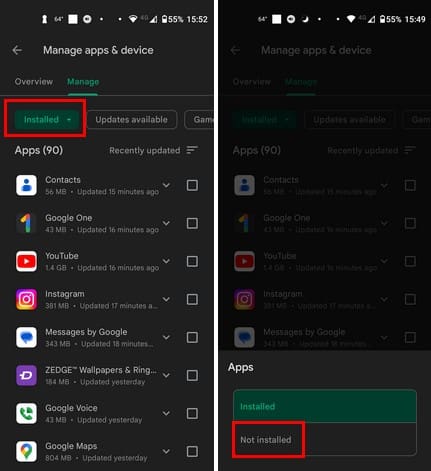
After tapping on Not installed, you’ll see a list of your uninstalled apps. If you only want to install one app, you can tap on the app and tap on the Install button. There are two ways you can view the apps. You can view them by name or by recently added. To choose one of these options, tap on the three uneven lines at the top right.
If you want to install one or more apps, check the box for the ones you want to add and tap the download option at the top. It looks like an arrow pointing down, and it’s to the left of the trash icon. That app will be installed as soon as you tap on this option.
Erasing an App from the Uninstalled List
It’s also possible to erase an app from your uninstalled list. Check the box for the app you want to erase from the list and tap the trash icon. You’ll see a message asking if you’re sure that you want to erase the app; confirm, and the app will be erased from the list.
Remember that if you can’t download an app, it may be because the app is no longer available. It may have been poorly coded and caused users too many problems.
Further Reading
Speaking of uninstalling apps, here is how you can prevent apps from being uninstalled on Android. But if you’re looking to batch uninstall apps on Android, here are the steps to follow. If you’re looking for a specific topic, you can always use the search bar to look for more articles.
Conclusion
When you know how to view the apps you uninstalled on your Android device, you can easily install them if you ever need to. Maybe things didn’t work out with another app, and the one you uninstalled was the one after all. It’s also possible to erase an app from the uninstalled list, just in case you want to keep that private.