

PowerPoint is still a pretty popular presentation software despite the growing competition offering alternative nifty tools and features to create better, more engaging presentations compared to their PowerPoint counterparts.
Well, if you prefer to stick to PowerPoint but you’re having trouble saving your presentations, we’ve got a few potential solutions ready for you.
How to Fix PowerPoint Error Saving File
Make sure the file you’re trying to save is not a read-only file. You can’t edit and save read-only files.
1. Create a new presentation
As a quick workaround, you can open a new presentation file, copy all the slides from the presentation that won’t save and then paste the slides in the new presentation.
Save the new file on your desktop using the Save as option, don’t use the keyboard shortcut. Try saving it as a PPT if you can’t save it as a PPTX file.
2. Sign out using the PowerPoint button
Signing out of PowerPoint using the account options within the app could solve this issue.
Go to File → click on Account → click on the Sign out button. Then sign back in and check if that helped.
3. Repair PowerPoint
If the first workarounds did not work, try repairing PowerPoint.
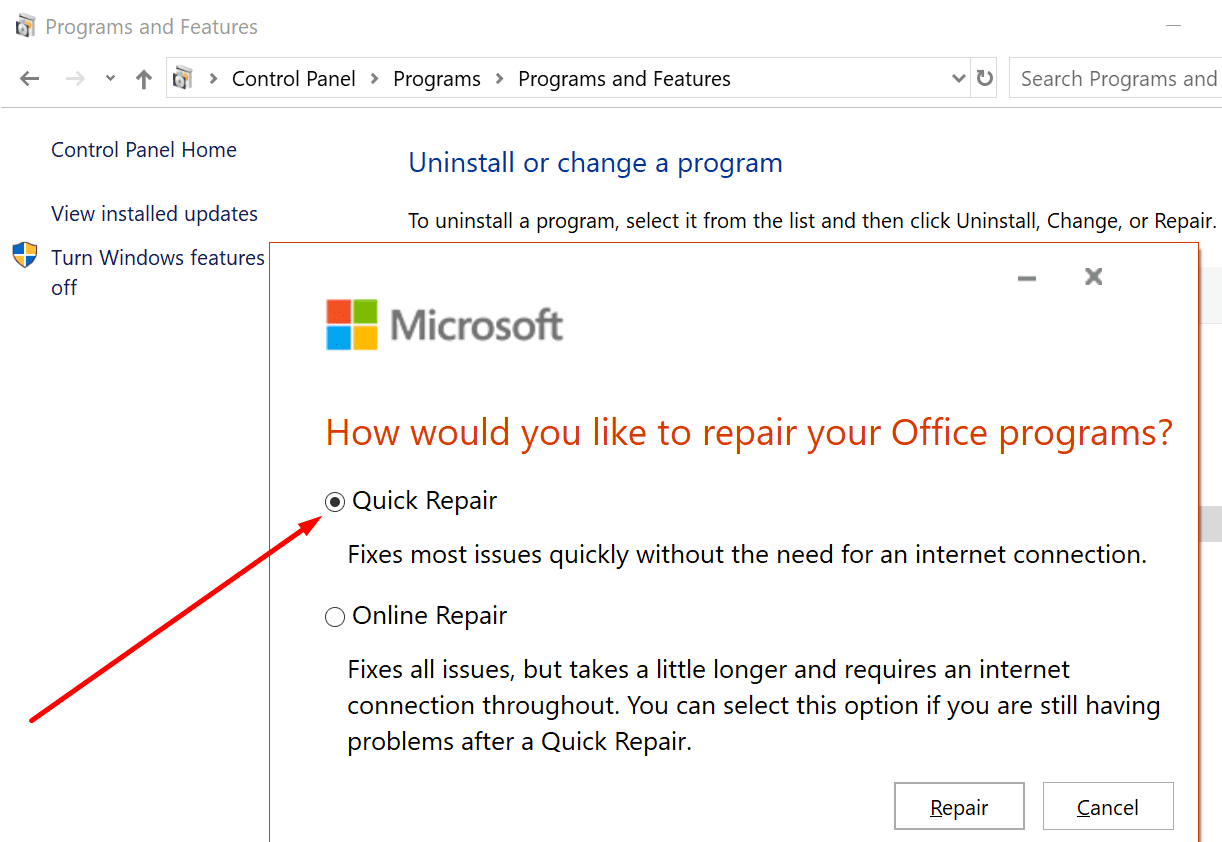
- Go to Control Panel and navigate to Programs → Programs and Features
- Select Office 355/ Microsoft 365 and click on Change
- You’ll be prompted to allow the app to make changes to your device, select Yes
- Select Quick Repair and wait until the troubleshooter has fixed your issues

- If the Quick Repair did not work, use the Online Repair option and check if you can now save your presentation.
4. Check for corrupted slides/diagrams/images
If you can’t save the file, check if there’s a problematic slide that’s breaking the save feature. It’s not uncommon for certain types of diagrams or images to cause this problem.
If there’s a slide or a group of slides that would not copy-paste, delete the diagrams and images from those slides and save the file. Removing the problematic objects should do the trick.
5. Disable Preview Pane in File Explorer
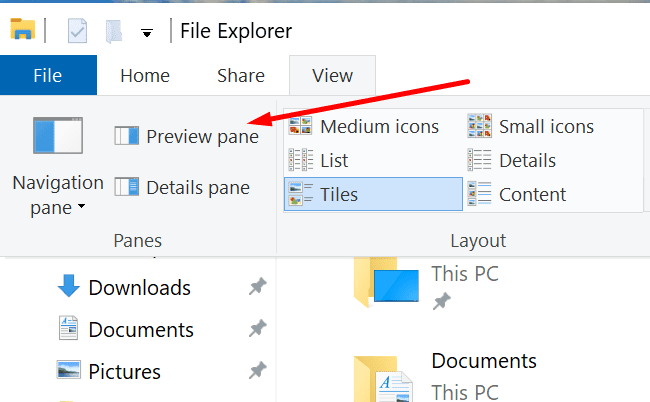
If Preview Pane is enabled in File Explorer, the feature counts as another user having the file open before you. As a result, the system places the file in Read-Only mode.
To bypass this glitch, open File Explorer, click View and deselect the Preview Pane option.
6. Reinstall PowerPoint
Reinstalling a fresh copy of PowerPoint could get you out of trouble.
- Open the Control Panel → select Uninstall a Program
- Select Microsoft Office → click Uninstall and follow the instructions to uninstall Office

- Reboot your computer and reinstall Office from Microsoft.

How to Avoid Save Errors in PowerPoint
Here are some pieces of advice to help you avoid similar problems in the future:
- Keep Office up-to-date
- Don’t use special characters in your PowerPoint file name
- If you need to add diagrams and images on your slides, do it on a blank slide and don’t add text on the respective slide
- Disable Preview Pane in File Explorer.


THANK YOU! I was about to close my file and lose a whole morning of work. I saved it as a .ppt. There were some compatibility warnings but I didn’t lose anything noticeable. I closed Powerpoint. Copy and pasted everything into a fresh file. Now things seem to be ok again.
This helped. I eliminated a bad graphic and now I can save PPTX files.
Thnaks for carefully walking through the options.
hello i am using a mac pls i dont have control panel and file explorer