Skip to content
LogoTechnipages
technipages logo
  • Topics
        • Android
        • Browsers
        • Gaming
        • Hardware
        • Internet
        • iPhone
        • Linux
        • macOS
        • Office
        • Reviews
        • Software
        • Windows
        • Definitions
  • Product Reviews
  • Downloads
  • About

How to Turn a Picture Upside Down in Microsoft Word

Judy SanhzAugust 28, 2020 Comments (0)
Word Logo Header

When you need to do some picture editing, Microsoft Word might not be your first choice. But, the good news is that it does have some basic photo editing features you can use. If what you need to do is very little, you could very well get it done without having to open another program.

One of those basic options Microsoft Word has is the option of turning an image upside down or to the sides. The process is beginner-friendly, and it won’t take you very long.

How to Rotate a Picture Upside down in Microsoft Word

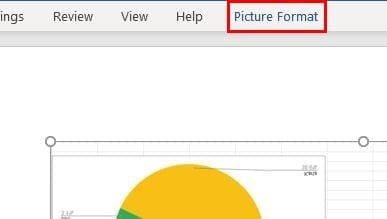
First, make sure that the document you have open has the image you want to flip. Go the image and click on it, so you see white dots around it, that means you’ve selected it correctly. Click on the Picture Format tab at the top.
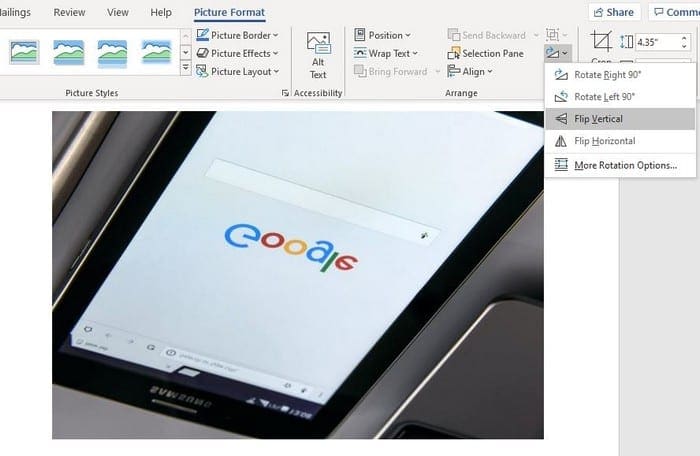
Go to the Rotate Objects icon (it looks like a triangle) and click on the drop-down menu. You’ll see options to rotate your image right 90 degrees, left 90 degrees, flip horizontal, or flip vertical. Make sure to click on the Flip Vertical option.

Microsoft Word will show you a preview of how your image will be flipped only by placing the cursor over an option. If you like what you see, just click on it to make the change permanent.
If you don’t like what you see and what to flip the image again, you can follow the same steps you did to flip it in the first place, or to undo you can simply press the Ctrl + Z keys for Windows or Cmd + Z for Mac users.

Conclusion

Knowing how to flip an image can come in handy, but it’s also a great way to play a prank on someone when they leave their work area. You can sneak in and flip the image while they’re gone and watch them freak out from a reasonable distance. What will you be flipping the image for? Share your thoughts in the comments below.

Categories: Office

Author Judy Sanhz

You Might Also Like

  • Word 365: Enable or Disable AutoRecover Save

    Mitch BartlettOffice
  • Outlook Logo Header

    Turn Mail Notification Sound On/Off in Outlook 2016

    Mitch BartlettOffice
  • Outlook: “Library Not Registered” Error

    Mitch BartlettOffice
  • disable-top-results-outlook-search-results

    How to Disable Top Results from Outlook Search

    Madalina DinitaOffice

Leave a Reply

Your email address will not be published. Required fields are marked *

This site uses Akismet to reduce spam. Learn how your comment data is processed.

300x600
Turning on Triple Touch Zoom on Android

Turning on Triple Touch Zoom on Android

How to Connect Outlook 2023 to Gmail

How to Connect Outlook 2023 to Gmail

Netflix: Change Password

Netflix: Change Password

Everything You Need to Know About WhatsApp Delete for Me

Step-by-Step Guide: How to Use WhatsApp on Your Computer

Android: Enable or Disable Background Data

Android: Enable or Disable Background Data

300x250
profile pic

The Experts Behind Technipages

My name is Mitch Bartlett. I've been working in technology for over 20 years in a wide range of tech jobs from Tech Support to Software Testing. I started this site as a technical guide for myself and it has grown into what I hope is a useful reference for all.

Learn More

300x250 2
technipages logo white
linkedin icon

Technipages is part of Guiding Tech Media, a leading digital media publisher focused on helping people figure out technology. Visit guidingtechmedia.com to learn more about our mission and team.

© 2026 Guiding Tech Media All Rights Reserved

  • About Us
  • Contact
  • Legal & Privacy

© 2026 Guiding Tech Media All Rights Reserved

Information from your device can be used to personalize your ad experience.
Do not sell my personal information.