

Do you want to learn how you can stop Microsoft Teams users from creating new channels or teams? Then this guide is for you.
Microsoft Teams: Prevent Users From Creating Channels
Method 1 – Microsoft Teams Free
As a team owner, you can stop team members from creating new channels or teams.
- Select your team, click on More options and navigate to Manage Team → Settings.

- Expand Member Permissions.
- Untick the checkbox that says Allow members to create and update channels.
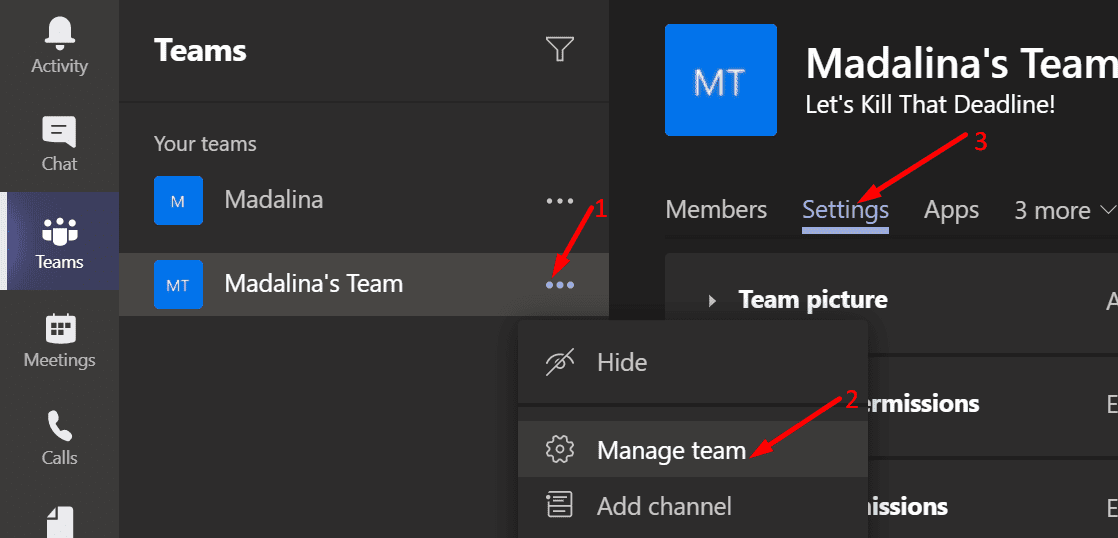

After you uncheck this option, the members of your team won’t be able to create new private channels.
However, keep in mind that you cannot hide the Join or create a Team button inside of the Teams client. The option remains visible on the app interface even if you lock it. Of course, when a user clicks on that button in an attempt to create a new team, they will get denied.
Method 2 – Office 365 Groups
On the other hand, things get a bit more complicated if you’re an IT admin and you want to block Office 365 users from creating new teams.
By the way, you need to install the Azure AD Module to do that. More specifically, you need the AzureADPreview. To do this, launch PowerShell with admin rights and run the Install-module AzureADPreview command.
How to Block Office 365 From Creating New Teams
- Navigate to your Office 365 Admin Center.
- Then select Groups → Add a Group.
- Select Security as the Group type. Set up the group, name it, add a quick description, and hit the Create Group button.
- Select Members and start adding all the users you want to be able to create new teams and groups.
- Note: Users that are not part of the Security group won’t be able to create Microsoft Teams groups.
- And here comes the tricky part. If you already installed AzureAD Module, you need to uninstall it before you can run AzureADPreview. Launch PowerShell and run the Uninstall-Module AzureAD command. Only then can you install AzureADPreview.
- Then run the PowerShell script below. Don’t forget to replace <SecurityGroupName> with the name the security group you created earlier.
PowerShell Script to Use:
$GroupName = "<SecurityGroupName>"

$AllowGroupCreation = $False
Connect-AzureAD
$settingsObjectID = (Get-AzureADDirectorySetting | Where-object -Property Displayname -Value “Group.Unified” -EQ).id
if(!$settingsObjectID)
{
$template = Get-AzureADDirectorySettingTemplate | Where-object {$_.displayname -eq “group.unified”}
$settingsCopy = $template.CreateDirectorySetting()
New-AzureADDirectorySetting -DirectorySetting $settingsCopy
$settingsObjectID = (Get-AzureADDirectorySetting | Where-object -Property Displayname -Value “Group.Unified” -EQ).id
}
$settingsCopy = Get-AzureADDirectorySetting -Id $settingsObjectID
$settingsCopy[“EnableGroupCreation”] = $AllowGroupCreation
if($GroupName)
{
$settingsCopy[“GroupCreationAllowedGroupId”] = (Get-AzureADGroup -SearchString $GroupName).objectid
}
else {
$settingsCopy[“GroupCreationAllowedGroupId”] = $GroupName
}
Set-AzureADDirectorySetting -Id $settingsObjectID -DirectorySetting $settingsCopy
(Get-AzureADDirectorySetting -Id $settingsObjectID).Values
For more information, you can check out Microsoft’s support page.
Using this method also brings another advantage. When Office 365 users create an Outlook group, the system no longer creates a Team associated with it.


Is there a way to do Method 1 at the global/tenant level?