Having a gyroscopic sensor on the Steam Deck greatly enhances the gaming experience for users. By integrating this technology into the Steam Deck, users would be able to control their games using motion-based input, in addition to the traditional joystick and button inputs. This means that users could tilt or turn the Steam Deck to control in-game movements or camera angles, which would create a more immersive and intuitive gaming experience.
Additionally, gyro controls are more precise than joystick controls, which can make a big difference in games where accuracy is crucial. For example, first-person shooters or racing games would greatly benefit from gyro controls, as they require precise aiming and steering. The use of gyro controls would also reduce the strain on the thumb sticks, which can be a concern over time for heavy gamers.
Turn Off Gyro on Steam Deck for Specific Games
Furthermore, gyro controls are a feature that is increasingly becoming standard in gaming. Many modern consoles and controllers have gyro sensors, and it has become a popular way to play games on mobile devices. Therefore, by including this technology on the Steam Deck, it would ensure that the device is competitive and up-to-date with current gaming trends.
However, you might find that having gyro enabled on your Steam Deck is actually interfering with the game that you’re playing. Thankfully, it’s possible to turn off gyro on Steam Deck for specific games. Here’s how you can do so:
- Press the Steam button on your Steam Deck.
- Highlight and select Library.

- Locate the game that you want to turn off Gyro for.
- Open the game listing.
- Highlight and click the Controller button on the right side.
- Locate the Gyro Behavior option under the Quick Settings section.
- Click the drop-down menu.
- Select None.
- Press the B button to save your changes and go back.


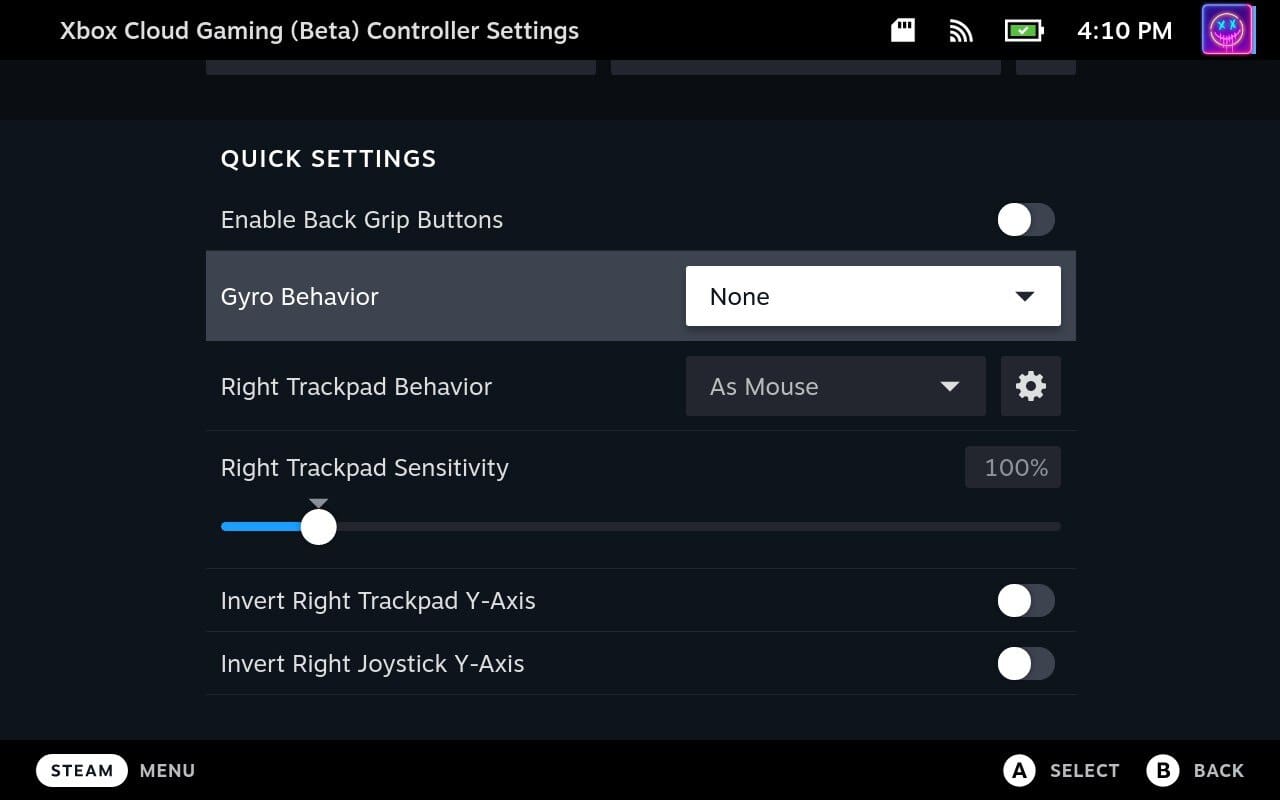

Once the settings have been changed and saved, you’ll be able to jump back into the game and enjoy it the way that you want. And of course, if you ever change your mind, you can always go back and turn the gyro back on.
Can You Turn Off Gyro For All Steam Games?
At this point, the Steam Deck has been available for more than a year, and we have seen quite a few changes and improvements made to the software. This includes bringing more features and options to the SteamOS interface, along with improving the Desktop Mode for those who want to enjoy a bit of a “Linux kick.”
That being said, there was a time when Steam made it possible for you to turn off gyro on Steam Deck for all games. Unfortunately, that’s no longer the case, as you can only turn off gyro on a per-game basis. Hopefully, we’ll see the universal setting return to the Steam Deck and SteamOS at some point in the future.