
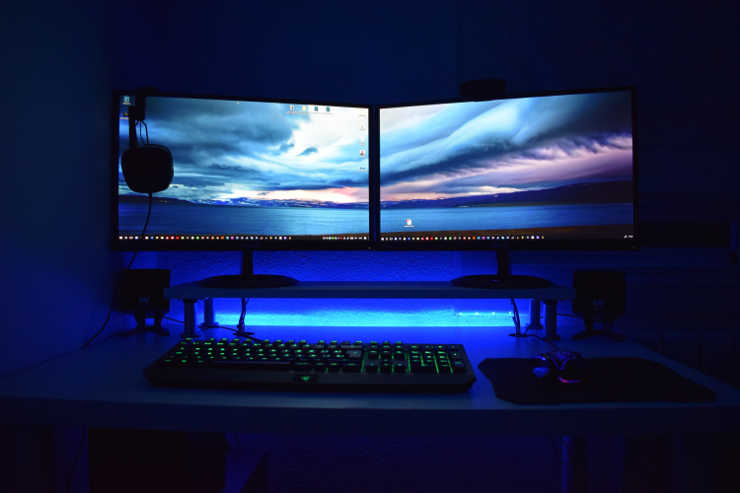
Gaming on two monitors is always more fun than gaming on a single monitor. You get to enjoy better game details and you can focus on the elements you’re interested in more easily.
But there are certain limitations when it comes to playing your favorite games on two monitors. For example, many gamers are wondering how they can move the mouse on the second monitor when gaming.
Being able to move your mouse between the two monitors is a handy option, especially when it comes to changing music.
This is exactly the topic of this guide.
How to Move Your Mouse Between Monitors While Gaming
Use Borderless Windowed Mode
- Navigate to your game’s graphics options.
- Locate the display mode settings. Enable the Borderless Windowed option.

- Note: Turning on this option may trigger FPS issues on certain hardware configurations. If you’re not using low-specs gaming gear, you should not even notice the FPS changes.
- Check your Aspect Ration settings.

- If they changed after you enabled Borderless Windowed, change them back. Otherwise, your game window will be either too small or too big.
- Click on the other monitor (the game won’t minimize).
- To switch between the two monitors, you need to press Alt + Tab.
- Bring the mouse back to the main game window to switch back. Or you can use the same Alt + Tab key combo if that’s more convenient to you.


Note: If you continue to hold down the Alt key, the list of the windows you opened will appear on the screen. Press Tab and go to the window you want.
Extend the Displays
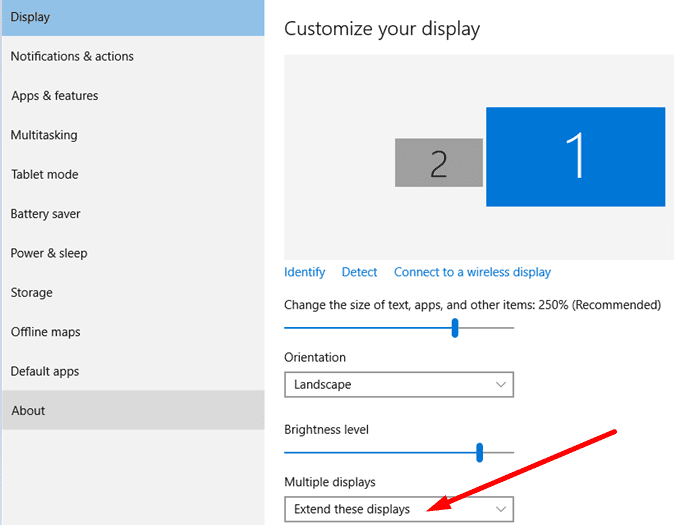
You also have the option to extend your monitors. By enabling this option, your mouse cursor will automatically appear on the second screen when it goes out on the main one.
Note: Some games won’t support extended displays.
- Go to Settings and select System.
- Then click on Display.
- Scroll down to Multiple displays.
- Once your computer has detected both your monitors, use the drop-down menu and select Extend these displays.

- Save the changes and launch your game.
Conclusion
If you want to move your cursor between two monitors, you need to enable the Borderless Windowed Mode. This will allow you to move your mouse from the main monitor to the second monitor and the other way around using Alt + Tab. And the game window won’t minimize.
Or you can extend the displays if your game supports this option.

