Skip to content
LogoTechnipages
technipages logo
  • Topics
        • Android
        • Browsers
        • Gaming
        • Hardware
        • Internet
        • iPhone
        • Linux
        • macOS
        • Office
        • Reviews
        • Software
        • Windows
        • Definitions
  • Product Reviews
  • Downloads
  • About

Slack: How To See Message Timestamps in a 24-Hour Clock Format

Mel HawthorneJanuary 21, 2021 Comments (0)

Everyone has their own personal preferences about a great many things. Most of these personal preferences involve how you like to do certain things, but they can also involve how you prefer to see certain things. One of the most common preferences that people have is the appearance of the clock.

The standard appearance of the clock varies around the world. Most countries use a twenty-four-hour clock while a handful of countries, primarily English-speaking ones, typically prefer the twelve-hour clock instead. Of course, while the majority of people will use their country’s standard clock layout, every country will also have people that prefer to use the other layout.

Slack defaults to using a twelve-hour clock for its message timestamps. If you prefer to use the twenty-four-hour clock, however, Slack does allow you to change this. To be able to change the clock format in Slack you need to go into your preferences. To do so, click on your profile picture in the top-right corner, then click on “Preferences”.
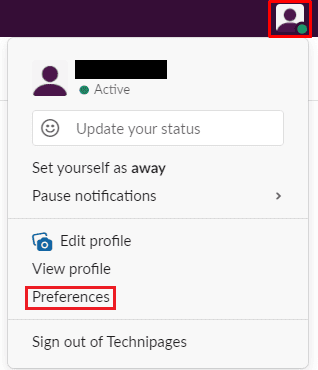
Click on your profile picture in the top-right corner, then click on “Preferences”.

Once in your preferences, switch to the “Messages & media” tab. To switch to the twenty-four-hour clock format, you need to scroll down to the “Additional options” section, then tick the checkbox labelled “Show times with 24-hour clock”. The setting will apply as soon as you tick the checkbox, you don’t need to worry about clicking an “Apply” or “Save” button.

Note: Slack doesn’t let you have full control over the configuration of the clock. While you can choose between twelve- and twenty-four-hour layouts you can’t choose to have leading zeroes for example.
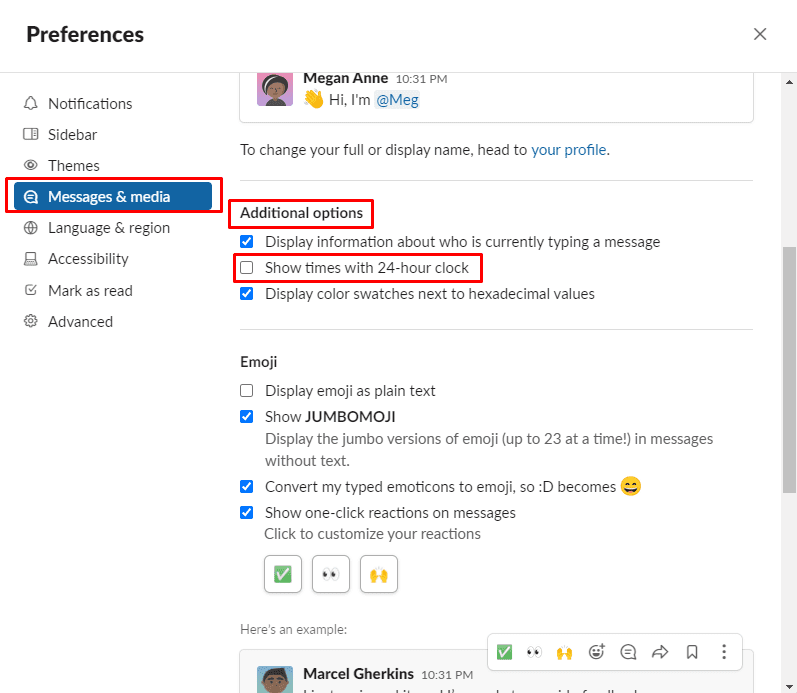
You can change the clock to the twenty-four-hour format in the “Additional options” section of the “Messages & media” tab in the preferences popup.

Having clocks styled in your preferred formatting can make them quicker and easier to understand at a glance. By following the steps in this guide you’ll be able to switch the message timestamps in Slack to the twenty-four-hour format.


Categories: Internet

Author Mel Hawthorne

You Might Also Like

  • Facebook Header

    Facebook: Add Admin to Group or Page

    Mel HawthorneInternet
  • Accessing Google Services on PC

    MonaInternet
  • how-does-google-know-if-store-is-busy

    How to See What Apps Have Access to Your Account

    Judy SanhzInternet
  • delete-photos-from-phone-after-backup-to-google-photos

    Google Photos: How to Customize Your Memories

    Judy SanhzInternet

Leave a Reply

Your email address will not be published. Required fields are marked *

This site uses Akismet to reduce spam. Learn how your comment data is processed.

300x600
Turning on Triple Touch Zoom on Android

Turning on Triple Touch Zoom on Android

How to Connect Outlook 2023 to Gmail

How to Connect Outlook 2023 to Gmail

Netflix: Change Password

Netflix: Change Password

Everything You Need to Know About WhatsApp Delete for Me

Step-by-Step Guide: How to Use WhatsApp on Your Computer

Android: Enable or Disable Background Data

Android: Enable or Disable Background Data

300x250
profile pic

The Experts Behind Technipages

My name is Mitch Bartlett. I've been working in technology for over 20 years in a wide range of tech jobs from Tech Support to Software Testing. I started this site as a technical guide for myself and it has grown into what I hope is a useful reference for all.

Learn More

300x250 2
technipages logo white
linkedin icon

Technipages is part of Guiding Tech Media, a leading digital media publisher focused on helping people figure out technology. Visit guidingtechmedia.com to learn more about our mission and team.

© 2026 Guiding Tech Media All Rights Reserved

  • About Us
  • Contact
  • Legal & Privacy

© 2026 Guiding Tech Media All Rights Reserved

Information from your device can be used to personalize your ad experience.
Do not sell my personal information.