Skip to content
LogoTechnipages
technipages logo
  • Topics
        • Android
        • Browsers
        • Gaming
        • Hardware
        • Internet
        • iPhone
        • Linux
        • macOS
        • Office
        • Reviews
        • Software
        • Windows
        • Definitions
  • Product Reviews
  • Downloads
  • About

Slack: How To Change Your Display Name

Mel HawthorneJanuary 15, 2021 Comments (0)

On almost any service you need to sign up with an email address. Your email address is used as it allows you to utilise well recognised ways of recovering your account if you happen to forget your password. On websites and services where you can interact with other users, you can generally configure a visible username or display name; this is done so that your email address isn’t just made public to anyone using the service.

Slack is primarily used by work colleagues to communicate at work, as such the email addresses used tend to be corporate addresses and so the privacy of your email address is less important than on other platforms. Nevertheless, Slack offers two different customisable username fields, a feature that is especially important for the privacy of non-corporate users. You can configure both your full name and a separate display name. By default, the full name is taken from your email address and the display name isn’t filled. The display name is intended to be for more informal nicknames, while the full name is supposed to be your name.

Tip: You should configure both fields as some users may purely use the display name, while other users may use the full name.

If you want to change your display name in Slack, click on your profile picture in the top-right corner, then click on “Edit profile”.
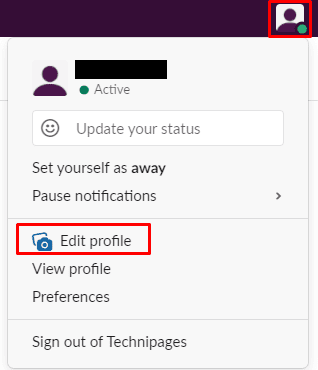
Click on your profile picture in the top-right corner, then click on “Edit profile”.

In the edit profile popup, type your preferred nickname in the “Display name” text box. It’s also recommended that you configure your “Full name”.

Enter your preferred nickname in the “Display name” box and optionally edit your “Full name” too.

Hopefully, this article has helped you to configure your name in Slack so it appears as you want it to.


Categories: Internet

Author Mel Hawthorne

You Might Also Like

  • Google Duo: How To Prevent Your Media Messages From Being Saved

    Mel HawthorneInternet
  • Google Photos: How to Take out the Trash

    Judy SanhzAndroid
  • Slack: How to Manage the Workspace Members

    Mel HawthorneInternet
  • Dropbox: How to Change Your Display Name

    Mel HawthorneInternet

Leave a Reply

Your email address will not be published. Required fields are marked *

This site uses Akismet to reduce spam. Learn how your comment data is processed.

300x600
Turning on Triple Touch Zoom on Android

Turning on Triple Touch Zoom on Android

How to Connect Outlook 2023 to Gmail

How to Connect Outlook 2023 to Gmail

Netflix: Change Password

Netflix: Change Password

Everything You Need to Know About WhatsApp Delete for Me

Step-by-Step Guide: How to Use WhatsApp on Your Computer

Android: Enable or Disable Background Data

Android: Enable or Disable Background Data

300x250
profile pic

The Experts Behind Technipages

My name is Mitch Bartlett. I've been working in technology for over 20 years in a wide range of tech jobs from Tech Support to Software Testing. I started this site as a technical guide for myself and it has grown into what I hope is a useful reference for all.

Learn More

300x250 2
technipages logo white
linkedin icon

Technipages is part of Guiding Tech Media, a leading digital media publisher focused on helping people figure out technology. Visit guidingtechmedia.com to learn more about our mission and team.

© 2026 Guiding Tech Media All Rights Reserved

  • About Us
  • Contact
  • Legal & Privacy

© 2026 Guiding Tech Media All Rights Reserved

Information from your device can be used to personalize your ad experience.
Do not sell my personal information.