Skip to content
LogoTechnipages
technipages logo
  • Topics
        • Android
        • Browsers
        • Gaming
        • Hardware
        • Internet
        • iPhone
        • Linux
        • macOS
        • Office
        • Reviews
        • Software
        • Windows
        • Definitions
  • Product Reviews
  • Downloads
  • About

Dropbox: How to Change Your Display Name

Mel HawthorneFebruary 22, 2021 Comments (0)

When you sign up for an account on most platforms, you need to use your email address. Your email address is used as it is a good point of contact for account ownership verification and any future communications. Communicating with other users via their email address or only ever being referred to by your email address would feel pretty silly, though. It’s also a privacy issue. To prevent that, most sites allow you to set a preferred display name used in almost all scenarios.

There are some situations, however, where you may want to change your display name. For example, you may have originally set up your account with a joke name but are now wanting to do something serious with it and want to appear professional.

Alternatively, you may have set up your account with your real name but now want to use it with groups that you don’t want to know your real name. You could also have changed your name, perhaps when getting married, for example.

Your display name is always important, as it means that the website or service refers to you correctly. However, it is obviously more important on websites where you can interact with other users, as that is the name that they will see.

How to Change Your Display Name

Dropbox allows you to interact with other users through file requests and shared files and folders. To be able to change your Dropbox display name, you need to be within your account settings. To be able to do so, sign in to the Dropbox website, then click on your profile icon in the top-right corner, and click “Settings.”

In the default “General” settings tab, click on “Edit” for the second entry in the list, labeled “Name.”

In the default “General” settings tab, click on “Edit” for the second entry in the list, labeled “Name.”

Within the change name popup that appears, there are two unlabelled text boxes. Enter the name you want to appear first in the top textbox, then your second name in the bottom one. Once you’re done, click “Change name” to apply the change.

Tip: Unfortunately, you can’t choose to leave either box blank.
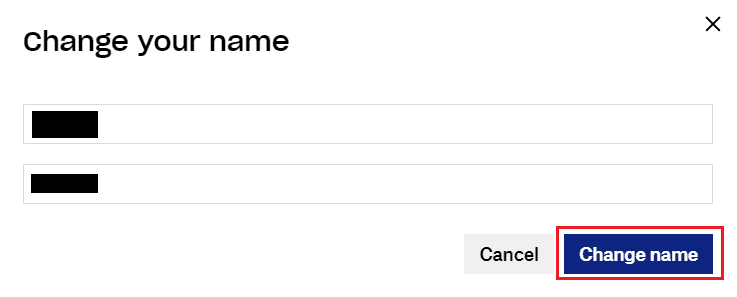
Enter your first name in the top textbox and surname in the bottom textbox.

It’s nice to be correctly named or to be able to use a different one whenever you want. By following the steps in this guide, you can change your name in Dropbox.

Categories: Internet | Software

Author Mel Hawthorne

You Might Also Like

  • How to Add a Friend in Discord

    Mel HawthorneInternet
  • Google Duo: How To Create a Group Chat

    Mel HawthorneInternet
  • Slack: How to Manage the Workspace Members

    Mel HawthorneInternet
  • Dropbox: How To Review Your Security Settings

    Mel HawthorneInternet

Leave a Reply

Your email address will not be published. Required fields are marked *

This site uses Akismet to reduce spam. Learn how your comment data is processed.

300x600
Turning on Triple Touch Zoom on Android

Turning on Triple Touch Zoom on Android

How to Connect Outlook 2023 to Gmail

How to Connect Outlook 2023 to Gmail

Netflix: Change Password

Netflix: Change Password

Everything You Need to Know About WhatsApp Delete for Me

Step-by-Step Guide: How to Use WhatsApp on Your Computer

Android: Enable or Disable Background Data

Android: Enable or Disable Background Data

300x250
profile pic

The Experts Behind Technipages

My name is Mitch Bartlett. I've been working in technology for over 20 years in a wide range of tech jobs from Tech Support to Software Testing. I started this site as a technical guide for myself and it has grown into what I hope is a useful reference for all.

Learn More

300x250 2
technipages logo white
linkedin icon

Technipages is part of Guiding Tech Media, a leading digital media publisher focused on helping people figure out technology. Visit guidingtechmedia.com to learn more about our mission and team.

© 2026 Guiding Tech Media All Rights Reserved

  • About Us
  • Contact
  • Legal & Privacy

© 2026 Guiding Tech Media All Rights Reserved

Information from your device can be used to personalize your ad experience.
Do not sell my personal information.