Skip to content
LogoTechnipages
technipages logo
  • Topics
        • Android
        • Browsers
        • Gaming
        • Hardware
        • Internet
        • iPhone
        • Linux
        • macOS
        • Office
        • Reviews
        • Software
        • Windows
        • Definitions
  • Product Reviews
  • Downloads
  • About

How to Add a Friend in Discord

Mel HawthorneSeptember 24, 2020 Comments (0)

Discord is a great communication platform that’s designed for gamers. Support for text, voice, and video communications makes Discord particularly flexible and suitable for every type of communication.

The main way that a lot of people communicate in Discord is through servers. Discord servers allow many people to communicate in an open or invite-only platform. Many people also like to communicate privately through “Direct Messages” aka DMs. DMs can be either one to one or set up as a group message.

When Discord opens though, it defaults to opening the “Friends” screen. Being friends with someone in Discord allows you to easily see them and what games they’re playing, assuming that they have Discord set to report their game activity.

How to add a friend when you don’t share a server

There are a couple of ways to add a friend in Discord. If you don’t already share a server, you need to ask them for their Discord Tag. A user’s Discord Tag is their username followed by a hash symbol and a few numbers.

Tip: Neither the username nor the tag numbers are unique on their own; however, the combination of username and tag number are unique.

You can find out what your Discord Tag is by hovering your mouse over your username in the bottom left corner, you can even click it to copy your Discord Tag to the clipboard.

You can see your Discord Tag in the bottom left corner by hovering your mouse over your username, clicking it copies it to the clipboard.

Alternatively, you can open Discord’s settings, and see your Discord Tag in the default “My Account” tab.

In the “My Account” tab of the settings, you can see your full Discord Tag.

Tip: You can change your username at any time in the “My Account” tab of Discord’s settings. You can even change the tag number; however, you will need to pay for Discord Nitro to do so.

Once your friend has sent you their Discord Tag, you can add them as a friend by going to the initial “Friends” screen, then clicking the green “Add Friend” button at the top of the window. Simply type or paste their Discord Tag into the “Add Friend” box, then click “Send Friend Request”. Once you’ve sent a request, you just need to wait for your friend to accept it.

Tip: Discord usernames are case sensitive, so if you’re typing it out, ensure that you’ve got the case correct.

How to add a friend if you share a server

If you are already in the same server or group message as someone, it’s much easier to add them as a friend. Simply right-click on their name anywhere it appears and then select “Add Friend”, an invite will instantly be sent.
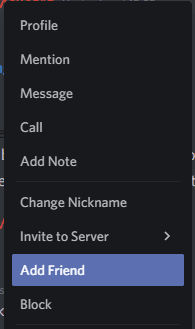
Right-click on someone’s username, then click “Add Friend” and a friend invite will be sent.

Categories: Internet | Software

Author Mel Hawthorne

You Might Also Like

  • How to Add a Bot to a Discord Server

    Mel HawthorneInternet
  • Slack: How to Delete a Workspace

    Mel HawthorneInternet
  • Dropbox: How To Transfer a Large File To Friends

    Mel HawthorneInternet
  • Dropbox: How To Review Your Security Settings

    Mel HawthorneInternet

Leave a Reply

Your email address will not be published. Required fields are marked *

This site uses Akismet to reduce spam. Learn how your comment data is processed.

300x600
Turning on Triple Touch Zoom on Android

Turning on Triple Touch Zoom on Android

How to Connect Outlook 2023 to Gmail

How to Connect Outlook 2023 to Gmail

Netflix: Change Password

Netflix: Change Password

Everything You Need to Know About WhatsApp Delete for Me

Step-by-Step Guide: How to Use WhatsApp on Your Computer

Android: Enable or Disable Background Data

Android: Enable or Disable Background Data

300x250
profile pic

The Experts Behind Technipages

My name is Mitch Bartlett. I've been working in technology for over 20 years in a wide range of tech jobs from Tech Support to Software Testing. I started this site as a technical guide for myself and it has grown into what I hope is a useful reference for all.

Learn More

300x250 2
technipages logo white
linkedin icon

Technipages is part of Guiding Tech Media, a leading digital media publisher focused on helping people figure out technology. Visit guidingtechmedia.com to learn more about our mission and team.

© 2026 Guiding Tech Media All Rights Reserved

  • About Us
  • Contact
  • Legal & Privacy

© 2026 Guiding Tech Media All Rights Reserved

Information from your device can be used to personalize your ad experience.
Do not sell my personal information.