Skip to content
LogoTechnipages
technipages logo
  • Topics
        • Android
        • Browsers
        • Gaming
        • Hardware
        • Internet
        • iPhone
        • Linux
        • macOS
        • Office
        • Reviews
        • Software
        • Windows
        • Definitions
  • Product Reviews
  • Downloads
  • About

Show Full Version of Gmail on iPad or iPhone

Mitch BartlettNovember 10, 2018 Comments (5)

Gmail provides a mobile version of their site for users who access the site from a slower Internet connection or smaller screen. The mobile version of the site will be displayed by default when using an Apple iPad or iPhone to visit the site. If you have a speedy Internet connection, you may want to force your device to show the full version of Gmail so that you can access many more features. Just follow these steps.


Option 1 – Safari Setting

  1. Login to the mobile Gmail site with your username and password.
  2. Tap the  option at the bottom of the screen.
  3. Choose “Request Desktop Site“.

Option 2 – Desktop Link

  1. Login to the mobile Gmail site with your username and password.
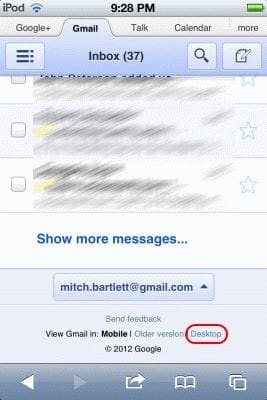
  2. Once logged in, go to the bottom of the page and select the “Desktop” link.
    Desktop version link on Gmail
  3. The full desktop version of Gmail is displayed in the browser.
    Desktop version of Gmail on iOS

Option 3 – Use Chrome

If you use Google Chrome as your web browser instead of the standard Apple Safari browser, the app provides a nice “Request Desktop Site” option for any website you visit.
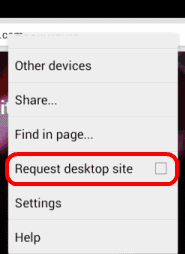
Android Chrome request desktop site

Categories: iPhone

Author Mitch Bartlett

My name is Mitch Bartlett. I've been working in technology for over 20 years in a wide range of tech jobs from Tech Support to Software Testing. I started this site as a technical guide for myself and it has grown into what I hope is a useful reference for all. Mitch's Favorite Gear ATX Graphics Card CanaKit Raspberry Pi 3

You Might Also Like

  • Apple logo

    How to Reset iPhone X & 8

    Mitch BartlettiPhone
  • iPhone & iPad: How to Clear Safari Browser Cache

    Mitch BartlettiPhone
  • Apple Maps Header

    iPhone Maps Navigation Won’t Work (Gets Stuck)

    Mitch BartlettiPhone

Comments

  1. Denise says:
    November 7, 2019 at 8:15 am

    I can’t find any of the links. Option 1 just shows same options as it does for anything on iPad (send via message, ,mail, etc; print, bookmark)

    Option 2: I only get the choice of Mobile or install the app (I found the app clunky & very limited, so I deleted it)

    Option 3: This seems a cop out. Google has more info about me than I like already. Plus having to use Chrome is a way of saying they don’t care about mobile site users.

  2. Annie Mcgurk says:
    September 3, 2019 at 2:15 am

    I normally use the version on my tablet. To make new folders/labels I have to use laptop! Can’t find my labels on laptop – there is no ‘more’ on the left hand pane. Am I going mad? It’s quite a while since I tried to access this as I use tablet all the time

  3. Peter says:
    July 17, 2019 at 6:20 pm

    It’s a mess. Screen layout always changes and impossible to set it permanently to standard desktop.

  4. Nicola says:
    July 17, 2018 at 12:03 pm

    Yes it did, thank you! I used option 1 and now have the full desktop version restored. For some reason I could only get the desktop version in html format.

  5. Vivek says:
    May 31, 2018 at 8:09 am

    Even then am trying hard to get back to normal classic site in iPhone …. it’s displayed in HTML format… kindly help

Leave a Reply

Your email address will not be published. Required fields are marked *

This site uses Akismet to reduce spam. Learn how your comment data is processed.

300x600
Turning on Triple Touch Zoom on Android

Turning on Triple Touch Zoom on Android

How to Connect Outlook 2023 to Gmail

How to Connect Outlook 2023 to Gmail

Netflix: Change Password

Netflix: Change Password

Everything You Need to Know About WhatsApp Delete for Me

Step-by-Step Guide: How to Use WhatsApp on Your Computer

Android: Enable or Disable Background Data

Android: Enable or Disable Background Data

300x250
profile pic

The Experts Behind Technipages

My name is Mitch Bartlett. I've been working in technology for over 20 years in a wide range of tech jobs from Tech Support to Software Testing. I started this site as a technical guide for myself and it has grown into what I hope is a useful reference for all.

Learn More

300x250 2
technipages logo white
linkedin icon

Technipages is part of Guiding Tech Media, a leading digital media publisher focused on helping people figure out technology. Visit guidingtechmedia.com to learn more about our mission and team.

© 2026 Guiding Tech Media All Rights Reserved

  • About Us
  • Contact
  • Legal & Privacy

© 2026 Guiding Tech Media All Rights Reserved

Information from your device can be used to personalize your ad experience.
Do not sell my personal information.