Skip to content
LogoTechnipages
technipages logo
  • Topics
        • Android
        • Browsers
        • Gaming
        • Hardware
        • Internet
        • iPhone
        • Linux
        • macOS
        • Office
        • Reviews
        • Software
        • Windows
        • Definitions
  • Product Reviews
  • Downloads
  • About

iPhone Maps Navigation Won’t Work (Gets Stuck)

Mitch BartlettFebruary 27, 2023 Comments (13)
Apple Maps Header

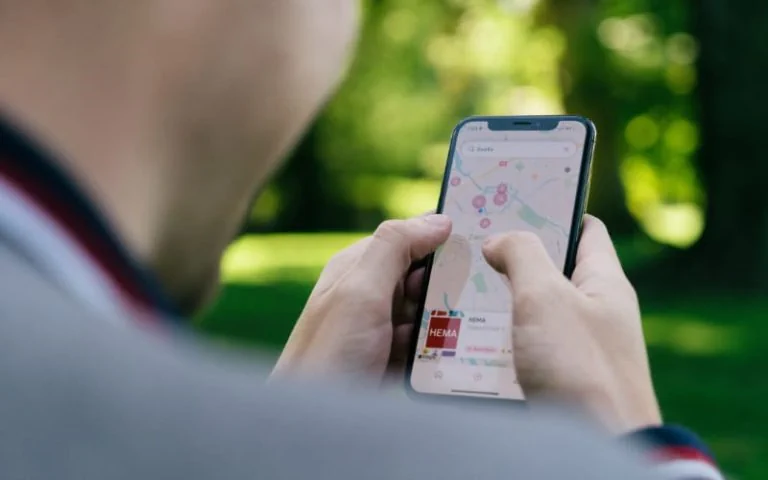
My Apple iPhone navigation feature seems to not work properly when I travel. I use both the Apple Maps and Google Maps apps, and both have the same issue where it simply will not go into navigation mode. After researching this issue thoroughly, there are some things you can do to solve this issue.

Note: This post assumes you have GPS enabled.


1. Restart the iPhone

Restarting the iPhone will force it to grab new wireless tower information. Press and hold the “Power” button, then power it off, then back on.


2. Enable Data Roaming

Make sure your iPhone can connect to as many wireless towers as possible by enabling data roaming under “Settings” > “Cellular” > “Roaming” and turn “Data Roaming” to “On” (green).


3. Enable Wi-Fi

Navigation features can use nearby Wi-Fi networks to determine where you are. Make sure Wi-Fi is enabled under “Settings” > “Wi-Fi“. You don’t have to be connected to a Wi-Fi network for it to help you navigate.


4. Ensure “Precise Location” is Enabled

Have a look under “Settings” > “Privacy & Security” > “Location Services” > “Maps” and make sure that “Precise Location” is selected.


These steps have helped me greatly. As soon as I did all three of these steps, navigation in Maps worked flawlessly.

Categories: iPhone

Author Mitch Bartlett

My name is Mitch Bartlett. I've been working in technology for over 20 years in a wide range of tech jobs from Tech Support to Software Testing. I started this site as a technical guide for myself and it has grown into what I hope is a useful reference for all. Mitch's Favorite Gear ATX Graphics Card CanaKit Raspberry Pi 3

You Might Also Like

  • iTouch button to delete multiples

    How to Delete Video From iPhone & iPad

    Mitch BartlettiPhone
  • How to Connect iPad to a Projector

    Mitch BartlettiPhone
  • How to Get a Refund on the Apple App Store

    Judy SanhziPhone
  • Setting Weather Text Messages For Your Smartphone

    MonaAndroid

Comments

  1. BRS says:
    November 15, 2019 at 2:40 pm

    How to get Maps app working again; VERY simple solution that worked for me on my iphone 7 and hopefully works for you; please follow this path:

    Open up Google app>tap on ‘More’ (bottom lower right)>tap on ‘Settings’>tap on ‘General’>tap on ‘Default apps>check Open Maps in: ‘Google Maps’ (sets this as default).

    Kindly post this solution on other tech sites, including Apple please, to help others as well, thanks!

  2. Pete Moortgat says:
    June 16, 2019 at 7:59 am

    No this did not help. I even deleted app and reinstalled it

  3. Mariam says:
    June 12, 2019 at 6:52 am

    I am having the same problem .My navigation starts working when I start driving then it stops .

  4. Nabil says:
    November 20, 2017 at 3:47 am

    it works once then it stops

  5. Santiago says:
    August 31, 2017 at 7:51 am

    Restarting works but next day i have to do it again.. Do I have to upgrade my phone.. mpas its upgraded

  6. Janet L. Thomas says:
    June 28, 2017 at 10:48 am

    My maps app has stopped working. When I touch my maps app it brings up my phone contacts list.

  7. Michele says:
    December 3, 2016 at 7:44 pm

    My navigator speaks to me when I start off then stops. What am I doing wrong?

  8. S gough says:
    August 17, 2016 at 5:16 am

    Can’t get my navigation to play through my speakers

  9. Justin says:
    July 25, 2016 at 1:44 pm

    Restarting works temporarily. Next day, I have to restart it again. App Store affected too.

  10. Adam says:
    June 21, 2016 at 3:13 am

    Hi there mine is still not working
    Is the any other way

  11. Mitch Bartlett says:
    March 15, 2016 at 7:32 pm

    Seems like you have selected the mode that gives transit directions. Try changing it to driving, walking, or biking.

  12. Amy knight says:
    March 14, 2016 at 8:31 pm

    When trying to use maps it says…transit directions are not available between these locations

  13. Rodger Riley says:
    August 31, 2015 at 11:38 am

    hey we did what you said and it worked great, thanks for sharing you knowledge, Rodger and Terri

Leave a Reply

Your email address will not be published. Required fields are marked *

This site uses Akismet to reduce spam. Learn how your comment data is processed.

300x600
Turning on Triple Touch Zoom on Android

Turning on Triple Touch Zoom on Android

How to Connect Outlook 2023 to Gmail

How to Connect Outlook 2023 to Gmail

Netflix: Change Password

Netflix: Change Password

Everything You Need to Know About WhatsApp Delete for Me

Step-by-Step Guide: How to Use WhatsApp on Your Computer

Android: Enable or Disable Background Data

Android: Enable or Disable Background Data

300x250
profile pic

The Experts Behind Technipages

My name is Mitch Bartlett. I've been working in technology for over 20 years in a wide range of tech jobs from Tech Support to Software Testing. I started this site as a technical guide for myself and it has grown into what I hope is a useful reference for all.

Learn More

300x250 2
technipages logo white
linkedin icon

Technipages is part of Guiding Tech Media, a leading digital media publisher focused on helping people figure out technology. Visit guidingtechmedia.com to learn more about our mission and team.

© 2026 Guiding Tech Media All Rights Reserved

  • About Us
  • Contact
  • Legal & Privacy

© 2026 Guiding Tech Media All Rights Reserved

Information from your device can be used to personalize your ad experience.
Do not sell my personal information.