

Aren’t you tired of having to take a screenshot of a picture you see on someone’s WhatsApp status? After taking the pic, you have to crop it and do who knows what else to it.
If it’s a video that you want, you may have no choice but to just write to the person and ask them to send it to you. But, thanks to the following apps that won’t be necessary anymore.
1. Status Saver for WhatsApp
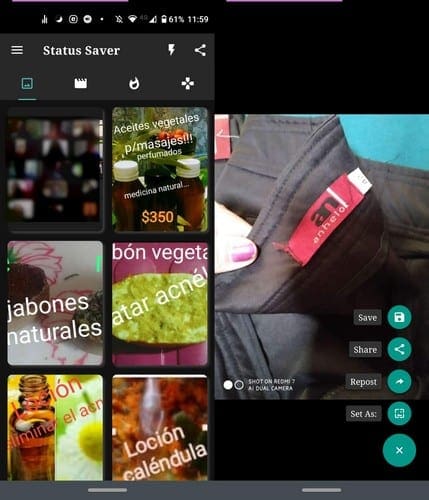
On the top of the list is Status Saver for WhatsApp. It’s a free app that will save your WhatsApp status images and videos as well. All the photos will be organized in the first tab and all the videos in the second.
When you see a pic or video you want to save, tap on it to open it. At the bottom right you’ll see a plus sign. Tap on it, and you’ll see options such as:
- Save
- Share
- Repost
- Set As
The app is easy to use and has an excellent design. It also gets frequent updates, which is also a plus. It’s the app I have on my phone.
2. Status Saver for WhatsApp – Save & Download Status

Status Saver for WhatsApp – Save and Download is similar to the first app, but with one difference. This app has fewer tabs and one of those you’ll find the status’ you saved; that’ll prevent you from keeping the same status image or video twice.
The app will also send you notifications when someone uploads a new WhatsApp status, that way you won’t have to check every few minutes.
To save a picture or video from the app, tap on it, and at the top right, you’ll see a download icon. To the side of the download icon, you’ll see a pair of arrows pointing in opposite directions. That option is to send the picture/video to someone on WhatsApp directly.
As soon as you tap on the options, WhatsApp will open for you to choose a contact. The share option will open all the apps you can share the status to, whether it’s WhatsApp or not.
3. Status Saver – Downloader for WhatsApp

Status Saver – Downloader for WhatsApp has a different design than the rest of the app on the list. This app has its tabs at the bottom, and the status images and videos are all mixed up.
By not separating the images and videos in separate tabs, it’s only going to make you lose more time in finding what you want. But, if that’s the style you like, you know that this app offers that style.
To download any video or image, select what you want and tap on the purple download button at the bottom. You’ll know that the download was successful thanks to the Done message that’ll pop up.
4. Status Saver for WhatsApp Video – Status Downloader
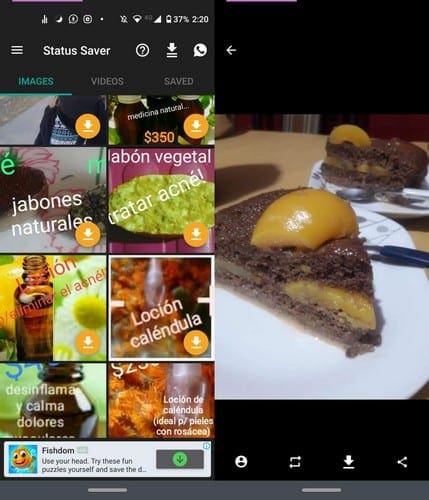
Status Saver for WhatsApp Video makes saving any status image or video easier. Tap on the arrow pointing down with the two lines below it and tap on the blank squares that appear.
Once you’ve chosen what you want, tap on the download button at the top, and all the images you selected will be mass downloaded. As long as you have the pictures selected, you’ll also have the option of erasing the chosen images as well.
When you open an app, the person icon will open the Set As option, the double arrows will open WhatsApp, Download, and apps you can share the image on will open.
Conclusion
You see the funniest things on people’s WhatsApp status, and by having one of these apps, you avoid having to ask that person to send you that file. Each of these apps offers something different, which one will you be choosing?


