Skip to content
LogoTechnipages
technipages logo
  • Topics
        • Android
        • Browsers
        • Gaming
        • Hardware
        • Internet
        • iPhone
        • Linux
        • macOS
        • Office
        • Reviews
        • Software
        • Windows
        • Definitions
  • Product Reviews
  • Downloads
  • About

Spotify: How to Hide or Unhide a Song

Judy SanhzOctober 16, 2022 Comments (0)
Loop-Song-Spotify

There are various reasons why you may want to hide a song. Maybe it brings back bad memories, or you don’t like it anymore. The good news is that Spotify offers its users the option o hide songs. But you can also bring them back if you change your mind.

How to Hide a Song on Spotify

There are some things to remember: you can only hide a song from the Android or iOS app. It’s impossible to hide a song from the desktop or web version. Also, you can only hide songs on a public playlist or were made by Spotify. If you’re ready to continue, you can hide the song by doing the following.

Once the playlist is open, find the song you want to remove. Tap on the dots to the right. If you’ve chosen the right playlist, the Hide this song option should be the second one from the top.

Hide Spotify Song

After you tap on the Hide button, it’ll be marked. From now on, as long as you listen to songs from this playlist, you won’t have them come up. If you tap on the dots to the right of the song, you’ll see that the song has been hidden.
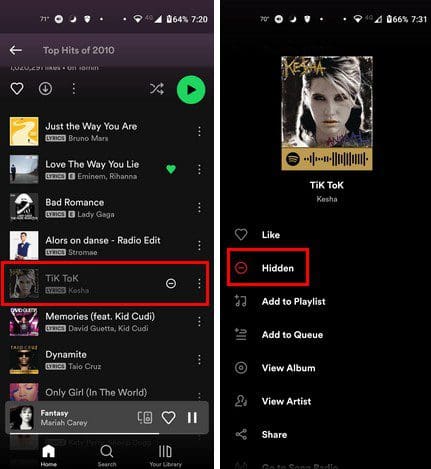
Spotify Hide Song

How to Unhide a Song on Spotify

When you’re ready to hear that song again, scroll through the playlist until you come across that hide and tap on the icon on it. Immediately the song will be playable again. That’s all there is to it.

Conclusion

There are some songs you would rather forget about and not have come up while listening to your favorite playlist. That’s where the Hide song option comes up. But if you ever change your mind, you can always unhide the song by following some simple steps. How many songs will you be hiding? Share your thoughts in the comments below, and don’t forget to share the article with others on social media.

Categories: Android

Author Judy Sanhz

You Might Also Like

  • How to Troubleshoot Bluetooth Headphones on Android

    Mel HawthorneAndroid
  • How to Use Android Phone as Google TV Remote

    Andrew MyrickAndroid
  • Android Logo Header

    How to Set up a New Android Phone

    Andrew MyrickAndroid
  • How to Use Multi-Window With Galaxy Tab S8

    Andrew MyrickAndroid

Leave a Reply

Your email address will not be published. Required fields are marked *

This site uses Akismet to reduce spam. Learn how your comment data is processed.

300x600
Turning on Triple Touch Zoom on Android

Turning on Triple Touch Zoom on Android

How to Connect Outlook 2023 to Gmail

How to Connect Outlook 2023 to Gmail

Netflix: Change Password

Netflix: Change Password

Everything You Need to Know About WhatsApp Delete for Me

Step-by-Step Guide: How to Use WhatsApp on Your Computer

Android: Enable or Disable Background Data

Android: Enable or Disable Background Data

300x250
profile pic

The Experts Behind Technipages

My name is Mitch Bartlett. I've been working in technology for over 20 years in a wide range of tech jobs from Tech Support to Software Testing. I started this site as a technical guide for myself and it has grown into what I hope is a useful reference for all.

Learn More

300x250 2
technipages logo white
linkedin icon

Technipages is part of Guiding Tech Media, a leading digital media publisher focused on helping people figure out technology. Visit guidingtechmedia.com to learn more about our mission and team.

© 2026 Guiding Tech Media All Rights Reserved

  • About Us
  • Contact
  • Legal & Privacy

© 2026 Guiding Tech Media All Rights Reserved

Information from your device can be used to personalize your ad experience.
Do not sell my personal information.