

I’ve mentioned before how much I rely on Google Docs. If you are not already utilizing this amazing suite of tools, you are missing out. I won’t bother extolling the virtues at this point. You honestly just need to get busy and make the switch.
Many of the features and options within each separate program in Docs works much the same as Microsoft Office tools do. You will easily be able to find what you need and figure out your way around. However, not everything is simple to find at first. Believe me – I have had to sit and search for where something is located far too many times. Today, I’m going to quickly help you figure out how to put a line through text in Google Docs.
How to Put a Line Through Text in Google Docs
There may be times when you are working on something – especially when collaborating with others – and need to make changes to a document. Yet, you are not quite ready to delete any of your original wording. This is where drawing a line through your text – called a Strikethrough can come in handy.
Personally, I make a ridiculous amount of lists in Google Docs, and am able to access them on my phone. Being able to Strikethrough things on my list as I buy/finish them but still have them visible is nearly miraculous for my forgetful mind!
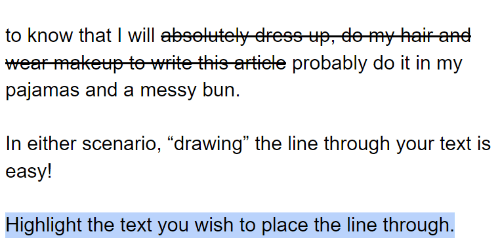
Some people also use the Strikethrough to convey the true meaning behind their words. For instance, I want you to know that I will absolutely dress up, do my hair and wear makeup to write this article probably do it in my pajamas and a messy bun.
In either scenario, “drawing” the line through your text is easy!
Highlight the text you wish to place the line through.
Now, click on ”Format” at the top of the page, hover your cursor over ”Text” and then choose ”Strikethrough” from the pop-out menu.

You’re done! How cool is that?
Alternatively, if you are a shortcut kind of gal like me, you can simply highlight your text and hold down ”ALT”, ”Shift” and the number ”5” keys at the same time.
Note: If you are using a Mac, the shortcut for this would be to hold down the ”CMD”, ”Shift” and ”X” keys.
What other types of Google Docs questions can I help you answer?




Another tip is to use the strikethrough text editor on Wonhowto. Use it anywhere even on facebook #wonhowto