Skip to content
LogoTechnipages
technipages logo
  • Topics
        • Android
        • Browsers
        • Gaming
        • Hardware
        • Internet
        • iPhone
        • Linux
        • macOS
        • Office
        • Reviews
        • Software
        • Windows
        • Definitions
  • Product Reviews
  • Downloads
  • About

Prevent Android Apps from Opening Your Browser

Madalina DinitaDecember 4, 2020 Comments (1)
android-prevent-app-from-opening-browser

If you want to stop Android apps from opening web browsers, you need to tweak a series of settings. We’ll show you exactly what steps you need to follow.

How to Stop Apps from Launching URLs in Browser

Clear defaults

  1. The first step is to open the Settings app.
  2. Then tap Apps.
  3. Locate your default browser.
  4. Select the Open by default section.
  5. Tap the Clear defaults option.
  6. You should now see the message ‘No defaults set.’
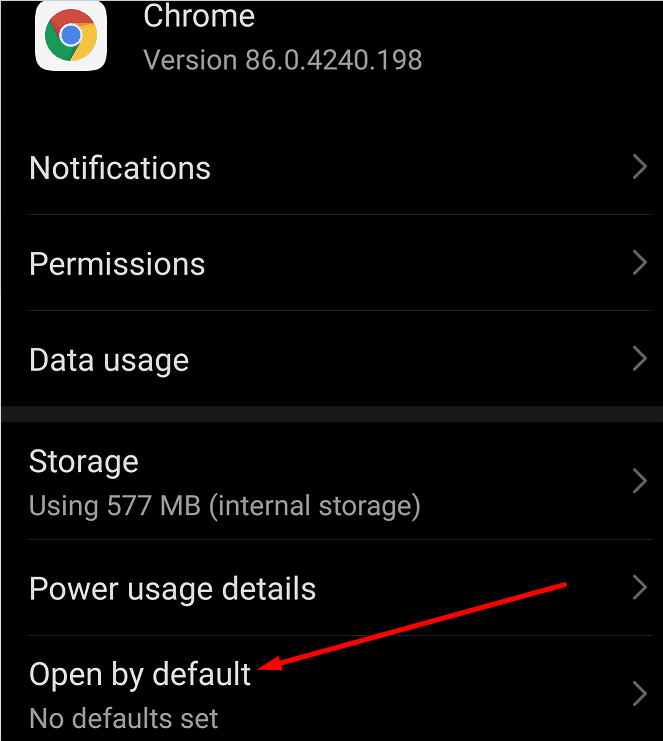
chrome open by default

Open Supported Links Within the App

On the other hand, if you want to change how you open supported links, locate the option called Open supported links in this app.

For example, let’s say you want to open Facebook supported links.

  1. Navigate to Settings.
  2. Select Apps.
  3. Locate the Facebook app.
  4. Tap Open by default.
  5. Locate the option called Open supported links in this app.
  6. Select it and set it to Always allow. In this manner, you’ll open all the supported Facebook links within the app.

allow-supported-links-facebook

On the other hand, if you don’t like the idea of opening supported links in the app, you can set the option to Don’t allow.

Or, if you’re not sure, you can select Ask every time. You’ll be prompted to select how you want to open the links every time you tap one.

Don’t Like Your Current Browser?

Speaking of Android browsers, we totally understand if you no longer like your current browser. Maybe you want a faster, more secure browser. Or a browser that brings more features to the table.

If you want to change the default browser on Android, check out this guide. We listed all the steps you need to follow to replace your current browser with a different one.
Categories: Android

Author Madalina Dinita

You Might Also Like

  • Google Assistant

    Quick Tip: How to Turn Off Google Assistant

    Judy SanhzAndroid
  • Android keyboard

    Android 10: How to Adjust the Keyboard Size

    Judy SanhzAndroid
  • How to Quickly Secure Your WhatsApp Account

    Judy SanhzAndroid
  • Are you having problems with the Galaxy S21 Wi-Fi? Here’s how you can fix it

    Andrew MyrickAndroid

Comments

  1. Michael Le says:
    November 3, 2022 at 2:34 pm

    I think this might be out of date. I’m experiencing an app opening a webpage ad/spam, and the solution steps listed don’t match what I’m seeing as available options.
    Chrome: 107.0.5304.91
    Android version 12
    Software version V600VM30d

Leave a Reply

Your email address will not be published. Required fields are marked *

This site uses Akismet to reduce spam. Learn how your comment data is processed.

300x600
Turning on Triple Touch Zoom on Android

Turning on Triple Touch Zoom on Android

How to Connect Outlook 2023 to Gmail

How to Connect Outlook 2023 to Gmail

Netflix: Change Password

Netflix: Change Password

Everything You Need to Know About WhatsApp Delete for Me

Step-by-Step Guide: How to Use WhatsApp on Your Computer

Android: Enable or Disable Background Data

Android: Enable or Disable Background Data

300x250
profile pic

The Experts Behind Technipages

My name is Mitch Bartlett. I've been working in technology for over 20 years in a wide range of tech jobs from Tech Support to Software Testing. I started this site as a technical guide for myself and it has grown into what I hope is a useful reference for all.

Learn More

300x250 2
technipages logo white
linkedin icon

Technipages is part of Guiding Tech Media, a leading digital media publisher focused on helping people figure out technology. Visit guidingtechmedia.com to learn more about our mission and team.

© 2026 Guiding Tech Media All Rights Reserved

  • About Us
  • Contact
  • Legal & Privacy

© 2026 Guiding Tech Media All Rights Reserved

Information from your device can be used to personalize your ad experience.
Do not sell my personal information.