There is always going to be something you’ll need to search for. You may need to know what the weather will be like to make your weekend plans. But With so many options to choose from when it comes to browsers, why only use one? Keep reading to see how you can switch between various browsers as your default choice, whether you have a Samsung or non-Samsung phone. However, the options you have to switch will depend on the browser apps you already have on your Android device.
Change the Default Browser on Android for Non-Samsung Phones
To change your default browser on your non-Samsung phone, you must go to Settings, followed by Apps and notifications. If you don’t see Default Apps on the list, you may need to tap on the Advanced options, and after that, you should see the option.

Tap on the Browser app option at the top. If you’ve never added one, then you won’t have chosen any browsers. The browser appearing on the list will depend on the ones you have installed on your Android device. Tap on your new default browser, and that’s all there is to it. The steps for Samsung Phones are slightly different. If you have a Samsung Phone, keep reading to see how to change the default browser.
How to Change the Default Browser for Samsung Phones
Samsung users will need to open the Settings app and tap on Apps. Choose Default apps, followed by Default browser app.
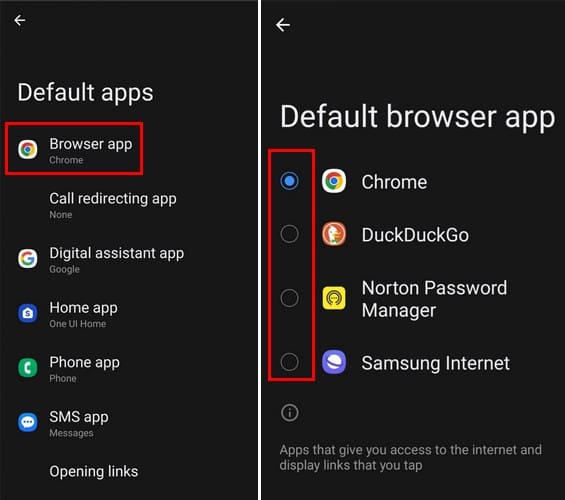
Just like for non-Samsung phones, the list of options will depend on the apps you have on your phone. If there is a browser you need to have, you can quickly download it on Google Play, and when you go back to this section, you’ll see your newly installed browser on the list. A browser that you won’t have to worry about installing is Chrome.
Further Reading
Speaking of changing the default search engine, if you want to change the default search engine for the Edge browser, here are the steps to follow. Remember, you can also set Chrome as your default browser on Windows. If you want to do that, follow these steps. There are more topics you can read about, and you can find them by using the search bar at the top right.
Conclusion
Changing the default browser on your Android device is quick and easy. Whether you’re using a Samsung or non-Samsung phone, you’ll be able to change it in no time. When you want to change browsers again, you’ll already know what steps you’ll need to follow. Which browser are you going to switch to? Let me know in the comments below and don’t forget to share the article with others on social media.