

Do you have a collection of Steam games on your PC? Do you want to play Steam games on an iPad or iPhone? Follow these simple steps, and you’re all set!
Playing games on an iPad or iPhone is more relaxing than sitting in front of the PC for long hours. However, a mobile device may not be enough to play PC games like High On Life, Assassins Creed Valhalla, and more. Here comes streaming PC games on your iPad or iPhone with gaming control via Steam Link.
How to Play Steam Games on iPad or iPhones
Playing Steam games on an iPad or iPhone essentially broadcasts your Steam gameplay on a PC to a mobile device. Here, you don’t just sit and watch as you do in YouTube live streams.
You can play the game on your iPad or iPhone using a Steam controller, touch control, or any Apple MFi-certified gamepad.
You stream the content of your PC screen. Hence, the mobile device doesn’t need extensive hardware configuration like your PC. Your iPad or iPhone has enough processing, memory, and graphics rendering capability to handle the stream and gaming controls.
What Do You Need to Play Steam Games on iPadOS or iOS?
First off, you need the Steam Link app on your mobile device. You can get it on Apple Store for free. The app is compatible with Mac, iPad, iPhone, and Apple TV. So you can use all these devices to play Steam games from a PC.
Here is a list of other major requirements to play Steam games on iPad/iPhone:
- High-speed Wi-Fi internet
- Both the host PC and iPad/iPhone use the same Wi-Fi network
You may get a Steam controller or Apple MFi-certified gamepad. It’s an optional requirement. Using a game controller, you can enjoy comfortable gameplay on your iPad or iPhone.
If you don’t own a gamepad, that’s okay. The Steam Link app also offers touch controls to play Steam games on iPad.
Once you have arranged all the above, we can begin setting up the host PC where you’ll run the game.
Play Steam Games on iPad or iPhone: Setting Up the PC
It would be best if you made some quick adjustments in your Steam app on the PC before playing Steam games on the iPad, iPhone, Apple TV, or Mac. Try these steps on your end:
- Open the Steam app on your PC.
- On the top menu, click View and select Settings from the drop-down list.
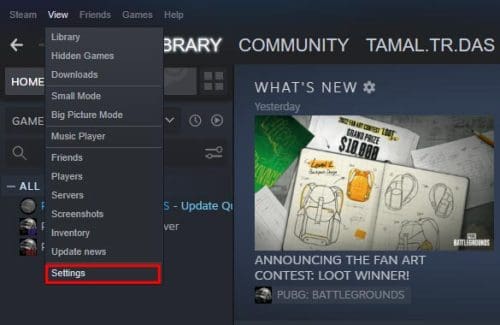
- Within the Settings screen, choose Remote Play from the left-side navigation pane.
- Inside the Remote Play screen, checkmark the Enable Remote Play option.

- On the same screen, click on the Advanced Host Options button.
- Checkmark Use NVFBC capture on the NVIDIA GPU option.
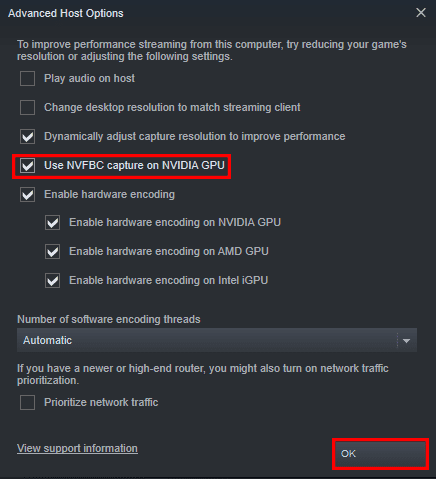
- Select Okay to save the changes.
Play Steam Games on iPad or iPhone: Set Up the Mobile Device
Once the PC Steam app is ready, head over to the iPad or iPhone to set it up for Steam streaming. Here are the steps you can try on your mobile device:
- Go to Apple Store and look for the Steam Link by Valve.
- Install the app on your iPhone/iPad/Apple TV/Mac.
- Start the app and select Get Started.

- The app will scan the same Wi-Fi network to locate the PC with a Steam app.
- Choose the PC of choice in the Connect to Computer screen.

- A PIN will show up. Use the PIN to authorize your iPad/iPhone on the PC Steam app.
- Steam Link app will now perform a network test. Click Okay when it is complete.
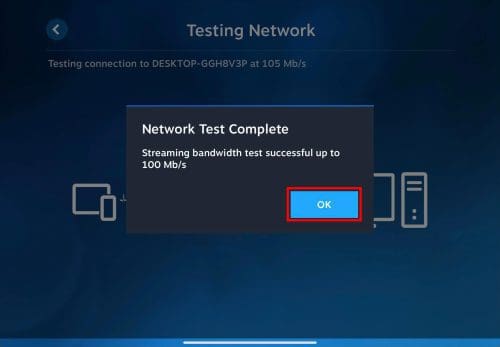
- Click Start Playing to stream Steam games from the PC to iPad/iPhone.

Start Playing Steam Games on iPad or iPhone
You’re all set to start playing amazing Steam games on iPad, iPhone, or Apple TV. The game will also run on your PC while streaming to your iPad. So, don’t allow someone else to use the PC while you’re using it to stream Steam games.

Using the left-side navigation buttons, you can control the app on the Steam app home screen.
For example, tapping the up arrow will highlight options on the left-side and right-side menus of the Steam PC app. Furthermore, you can use the left and right arrows to choose several items on the Steam app library.
You’ll also notice four touch buttons on your mobile device’s right side of the Steam Link stream. These are X for Search, Y for Filter, B for Back, and A for Select.
Without a gamepad, you might feel navigation on the Steam stream is a bit challenging. Therefore, choose a game, start it from the PC using the mouse, and play it on your iPad using touch controls.
Conclusion
Now you know how to play Steam games on an iPad or any other Steam Link app-compatible Apple device.
You may also have the following question in your mind:
How Do I Play Steam Games on iOS Without a Computer?
Steam doesn’t support iPads or iPhones for apparent reasons like CPU, GPU, RAM, etc., requirements that a mobile device may not support. Hence, you can’t play Steam games on iOS without a PC.
If you play Steam games on your Apple devices in any other interesting way, don’t forget to mention that in the comment box below. Next up is a collection of the best gaming CPUs in 2023.


GeForce Now lets you play through safari on your ipad…