
Skip to content
LogoTechnipages
technipages logo
  • Topics
        • Android
        • Browsers
        • Gaming
        • Hardware
        • Internet
        • iPhone
        • Linux
        • macOS
        • Office
        • Reviews
        • Software
        • Windows
        • Definitions
  • Product Reviews
  • Downloads
  • About

Mint for Android: How to Change the User-Agent

Mel HawthorneOctober 16, 2020 Comments (0)

One of the many pieces of metadata your browser sends to webservers when making requests as part of the request headers is a “user-agent”. The user-agent is a string that can be used to identify the type of device making the request. It generally identifies the rough operating system running and the name of the browser.

There is no particular standard for what value the user-agent should have, or what it should be used for. By convention, the user-agent provides information about the user’s device and this data is generally used to help replicate any bugs in how the website is displayed.

Some users may not be comfortable with their browser advertising this data about what operating system and browser they are using and so may want to change the user-agent string. Most desktop browsers have a way to override the user-agent with a different pre-set or custom string. Few mobile browsers offer a similar feature. One browser that does is the Mint browser on Android.

To change the user-agent, you need to go through the in-app settings. To be able to do so, you first need to tap the triple-dot icon in the top-right corner of the app.
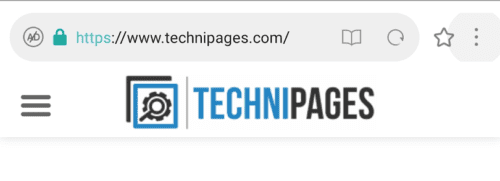
Tap the triple-dot icon in the top-right corner of the app to be able to access the in-app settings.

Next, to open the settings themselves, tap the cogwheel icon in the top-left corner of the drop-down menu.
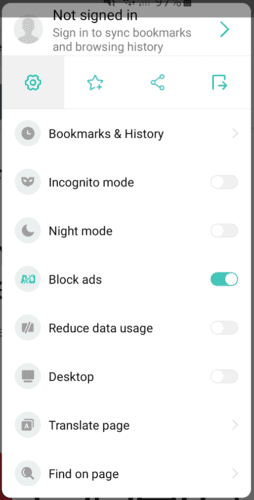
Tap the cogwheel icon in the top-left of the drop-down menu.

Once in the settings list, scroll down and tap “Advanced”, which will be the fifth option from the bottom.
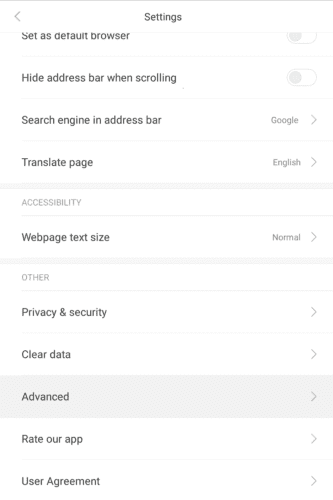
Tap “Advanced”, which will be the fifth option from the bottom of the main settings list.

In the advanced settings, tap the bottom-most option “User agent string” to open the user-agent selection menu. In this menu you can choose to use the default “Android” user-agent string, a user-agent that says you’re using a desktop operating system, or one that matches an iPhone or iPad.

Simply tap your preferred user-agent and it will be used for any future web requests.

Note: It’s unfortunately not currently possible to create entirely custom user-agent strings in the Mint browser.
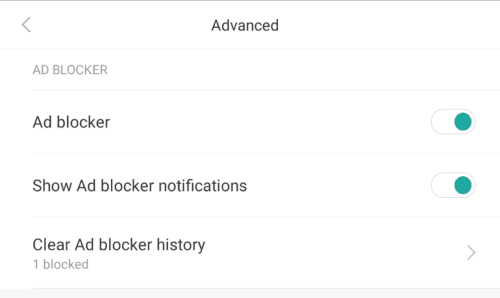
Select the user-agent you want to send with your web requests.

Categories: Android | Internet

Author Mel Hawthorne

You Might Also Like

  • How to Set Up a VPN on Android

    Mel HawthorneAndroid
  • Dolphin for Android: How to Change Homepage

    Mel HawthorneAndroid
  • automatically-delete-emails-gmail

    Enable Dark Mode in Gmail with These Simple Steps

    Judy SanhzAndroid
  • Google Docs Header

    How to Use Pageless Format in Google Docs

    Judy SanhzAndroid

Leave a Reply

Your email address will not be published. Required fields are marked *

This site uses Akismet to reduce spam. Learn how your comment data is processed.

300x600
Turning on Triple Touch Zoom on Android

Turning on Triple Touch Zoom on Android

How to Connect Outlook 2023 to Gmail

How to Connect Outlook 2023 to Gmail

Netflix: Change Password

Netflix: Change Password

Everything You Need to Know About WhatsApp Delete for Me

Step-by-Step Guide: How to Use WhatsApp on Your Computer

Android: Enable or Disable Background Data

Android: Enable or Disable Background Data

300x250
profile pic

The Experts Behind Technipages

My name is Mitch Bartlett. I've been working in technology for over 20 years in a wide range of tech jobs from Tech Support to Software Testing. I started this site as a technical guide for myself and it has grown into what I hope is a useful reference for all.

Learn More

300x250 2
technipages logo white
linkedin icon

Technipages is part of Guiding Tech Media, a leading digital media publisher focused on helping people figure out technology. Visit guidingtechmedia.com to learn more about our mission and team.

© 2026 Guiding Tech Media All Rights Reserved

  • About Us
  • Contact
  • Legal & Privacy

© 2026 Guiding Tech Media All Rights Reserved

Information from your device can be used to personalize your ad experience.
Do not sell my personal information.