
Microsoft Teams users may sometimes have a hard time accessing their accounts after logging off. When they hit the login button, error code CAA50021 may occasionally pop up on the screen. You’ll also get a message that says the number of retry attempts exceeds expectations. Let’s see how you can fix this problem.
How Do I Fix Microsoft Teams Error CAA50021?

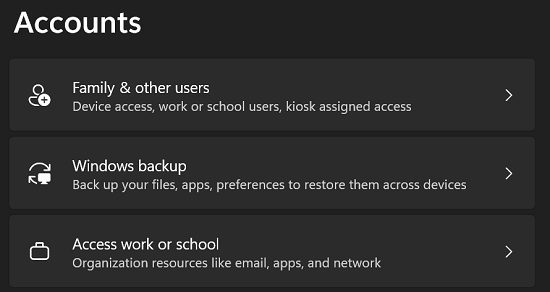
Link Your Device to Your Work or School Account
Although your device may appear as registered in Azure AD, when you check from your device’s side, that may not always be the case.
- Navigate to Settings, and select Accounts.
- Then click on Access work or school.

- Select the Link option to connect the device to Azure.
Update the App, and Delete Teams Credentials
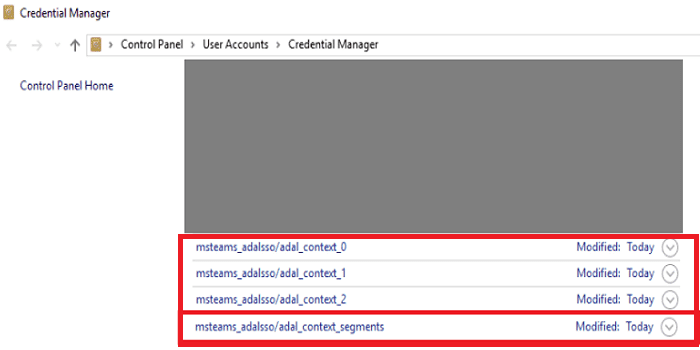
Update Teams to the latest version, and disable background processes, including your antivirus, to ensure nothing’s interfering with the app. Additionally, you can open the Windows Credential Manager and delete all the credentials that have Teams in their name. Restart your computer, and check if you notice any improvements.
Contact Your IT Admin
If none of these methods help, your admin is the only one who can help you get rid of this annoying error. Contact your IT admin and let them know you’re getting error code CAA50021 when you try to access your Teams account.
Register the Device With Azure AD
If you’re an admin, check if the device registration has expired. Many Azure AD users confirmed that re-registering the problematic device solved the problem.
First, you need to unregister the problematic device from Azure AD.
- Launch Command Prompt on the computer you want to unregister and run the dsregcmd /leave command.
- Make sure to delete the MS-Organization-Access and MS-Organization-P2P-Access entries from the certificate store.
- Run the dsregcmd /status command, and make sure AzureAdJoined is set to No.
After that, you need to register the problematic machine using Hybrid Azure AD Join.
- Launch Task Scheduler, and navigate to Library.
- Select Microsoft, and click on Windows.
- Select Workplace Join.
- Launch the Automatic-Device-Join task.

If the error persists, try excluding the users experiencing this from the Multi-Factor Authentication system.
Conclusion
To fix Teams error CAA50021, link your device to Azure. Additionally, update the app to the latest version, and use the Windows Credential Manager to delete all the Teams credentials saved on your computer. If the issue persists, contact your IT admin. They’ll re-register your device with Azure AD using Hybrid Azure AD Join.
Let us know if you’re still getting error code CAA50021. If you found other solutions to solve the problem, feel free to share your ideas in the comments below.