Signing into your Microsoft Teams account should be an easy process. All you need to do is enter your email address and password and press Enter. Unfortunately, unexpected errors may sometimes occur preventing you from logging into your account. Error code CAA30190 is one such example. Let’s explore how you can quickly fix it on your Windows 10 computer.
How to Fix Microsoft Teams Error CAA30190
Quick Fixes
If you can’t sign in to the desktop app, try signing in to Teams on the web. Oftentimes, if the desktop app doesn’t work properly, Teams for Web can save the day.
After that, right-click on your Teams desktop shortcut and select Run as administrator. Launching Teams with admin rights may be the answer to your problem.
Additionally, right-click on Teams, and click on the Compatibility tab. Then run the program in compatibility mode for Windows 8 or Windows 7.

Equally important, you can also run the compatibility troubleshooter and check if you notice any improvements.
Clear the Cache and Reinstall the App
Some of the temporary files stored in the cache folder might be interfering with your current Teams session. For this purpose, clear the Teams cache and check if this solution solves the problem.
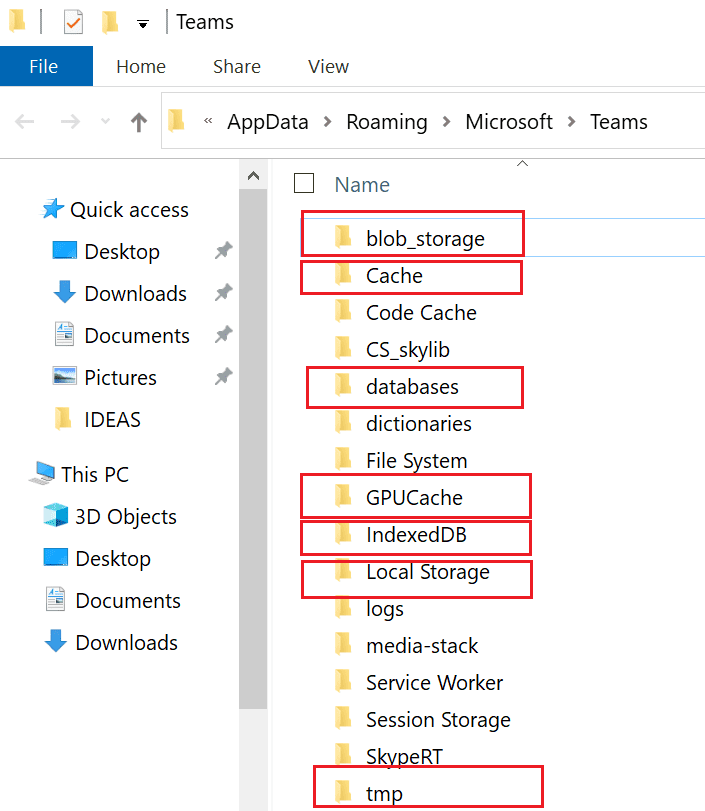
First, navigate to C:\Users\UserName\AppData\Roaming\Microsoft\Teams.
Then delete all the files from the following folders:
- %AppData%\Microsoft\teams\application cache\cache
- %AppData%\Microsoft\teams\blob_storage
- %AppData%\Microsoft\teams\databases
- %AppData%\Microsoft\teams\cache
- %AppData%\Microsoft\teams\gpucache
- %AppData%\Microsoft\teams\Indexeddb
- %AppData%\Microsoft\teams\Local Storage
- %AppData%\Microsoft\teams\tmp.
If you also use Teams on the web, you need to delete your browser cache as well. For example, if Chrome is your default browser, go to %LocalAppData%\Google\Chrome\User Data\Default. Delete the Cache, Cookies, and Web Data folders. If the issue persists, reinstall the application.
Clear the Credential Manager
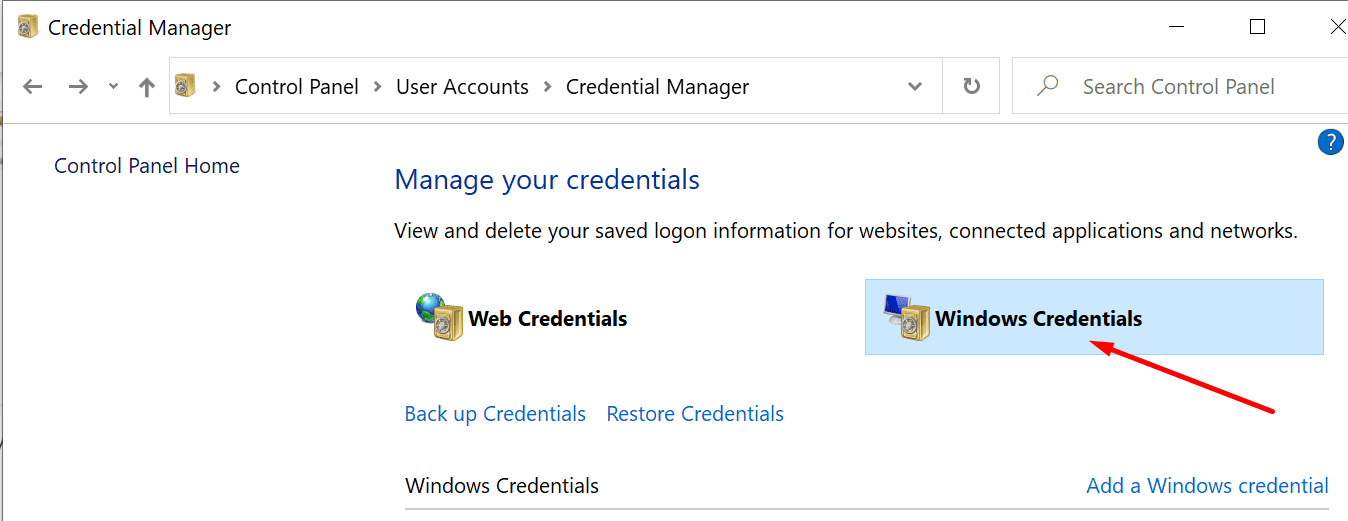
- Type credential manager in the Windows Search bar and launch the tool.
- Then click on Windows credentials.

- Locate your Microsoft Teams credentials.
- Select them and hit the Remove button.
- After that, launch Teams again and check if you can log in now.
Tweak the Settings.json File
- Exit Teams. Navigate to
C:\Users\UserName\AppData\Roaming\Microsoft\Teams\settings.json.
- Open the file in Notepad.
- Then locate the value “enableSso”: true. Change it to “enableSso”: false.

- Launch Teams again and try to log in.


If this method doesn’t work, delete the settings.json file and restart your computer.
Conclusion
To sum up, in order to fix Microsoft Teams error CAA30190, run the app in compatibility mode. Then, if the issue persists, clear your Teams login data from Windows Credentials. Additionally, tweak your settings.json file settings or simply delete the file. We’re really curious to learn which method worked for you. Let us know in the comments below.