
Microsoft Kaizala is an encrypted messaging and collaboration app powering thousands of organizations and millions of users worldwide. Employees and managers use Kaizala to send and receive messages, submit invoices, create and manage work tasks, and more. You can use the Kaizala web app on your computer, or download the Android and iOS app version on your mobile device.
Unfortunately, Kaizala may sometimes stop working. For example, the app fails to launch, closes unexpectedly, won’t send your messages, and so on. Let’s explore how you can quickly fix all these annoying issues.
⇒ Note: Keep in mind that since Kaizala is managed by your organization, you may not be able to follow all the troubleshooting steps below. Certain settings might be blocked on your user account. Contact your IT admin for further help.
Solutions to Fix MS Kaizala Web App
If the web app is not working as intended, you need to fix your browser.
Clear the Cache
Click on your browser’s menu, go to History, and click on Clear browsing data. Start by clearing your cache, cookies, and temporary files from the last four weeks. Restart your browser and check the results.
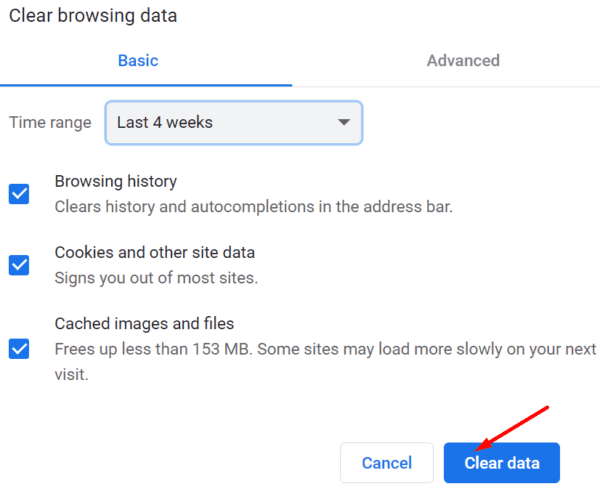
For step-by-step instructions on how to clear the cache on different browsers, use the guides below:
- How to Clear the Cache in Google Chrome
- How to Clear Safari Browser Cache
- Enable and Clear Cookies in Chrome, Firefox, and Chrome
Disable Your Extensions
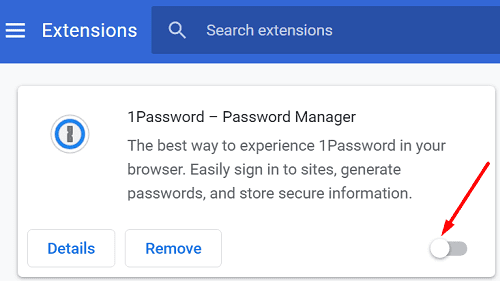
Your browser extensions might be interfering with Kaizala. It’s not uncommon for privacy and security extensions to alter or completely block website scripts. So, click again on your browser’s menu, go to Extensions and manually toggle off all of your extensions. Refresh your browser and check if Kaizala is working as intended.
Update Your Browser
Click again on your browser’s menu, go to Help and select About. Check for updates, install the latest browser version and restart your web browser. Check if installing a new browser version fixed the problem.
Use a Different Browser
If nothing’s working, switch to a different browser if that’s possible. Keep in mind that many organizations use a default browser and often prevent users from installing other programs on their devices.
How to Fix Kaizala on Android or iOS
Update the App
On Android, launch the Google Play Store app, search for Kaizala, and hit the Update button to get the latest app version.
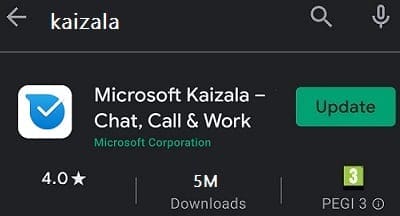
On iOS, launch the App Store, select your profile icon, and scroll down to pending updates. Tap the Update button next to Kaizala.
Clear the Cache
On Android, go to Settings, select Apps, go to All Apps and select Kaizala. Then tap Storage, and hit the Clear cache button.
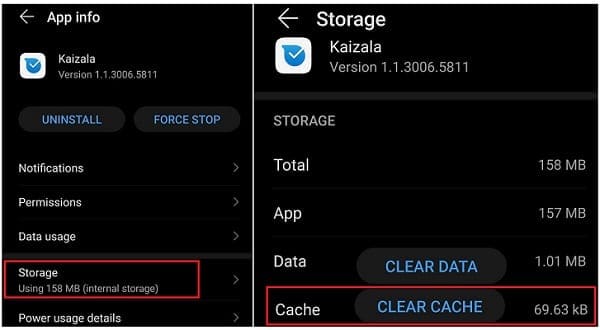
On iOS, go to Settings, scroll down and select Kaizala. Then, select Clear app cache on next launch.
Reinstall Kaizala
If the problem persists, uninstall Kaizala, restart your terminal and download the app again. Check if reinstalling a fresh copy of Kaizala solved the problem.
Conclusion
If Microsoft Kaizala won’t work on your computer, clear your browser cache, disable your extensions, and update your browser version. If the mobile app stops working, update it, clear the cache and reinstall Kaizala. We hope these troubleshooting suggestions helped you fix the app. Feel free to share your feedback in the comments below.