Skip to content
LogoTechnipages
technipages logo
  • Topics
        • Android
        • Browsers
        • Gaming
        • Hardware
        • Internet
        • iPhone
        • Linux
        • macOS
        • Office
        • Reviews
        • Software
        • Windows
        • Definitions
  • Product Reviews
  • Downloads
  • About

Linux Mint: How to Show the Clock and an Away Message on the Lock Screen

Mel HawthorneDecember 18, 2020 Comments (0)

When you step away from your computer, it’s generally a good idea to lock it, to prevent other people from being able to access it, and all of your documents and online accounts. To help to protect your computer if you forget to lock your computer, Mint will automatically switch to the screensaver and lock your screen after a period of inactivity.

There are some options that you can configure for the lock screen. To do so you need to open the screensaver settings, by pressing the Super key, then typing “Screensaver” and hitting enter.

Tip: The “Super” key is the name that many Linux distributions use to refer to the Windows key or the Apple “Command” key, while avoiding any risk of trademark issues.
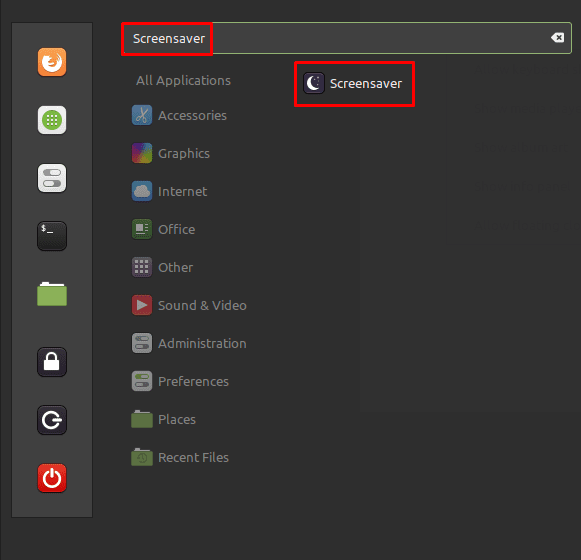
Press the Super key, then type “Screensaver” and hit enter.

Once in the screensaver settings, switch to the “Customise” tab. To manage the appearance of the clock on the lock screen, you need to configure the options in the “Date and Time” section. The clock is enabled through the “Always show the clock” option.

If you enable “Use a custom date and time format” you can configure the format of the clock and date on the lock screen. To understand the syntax for this formatting, click the “Show information on date format syntax” button that is visible once the custom format slider has been enabled.
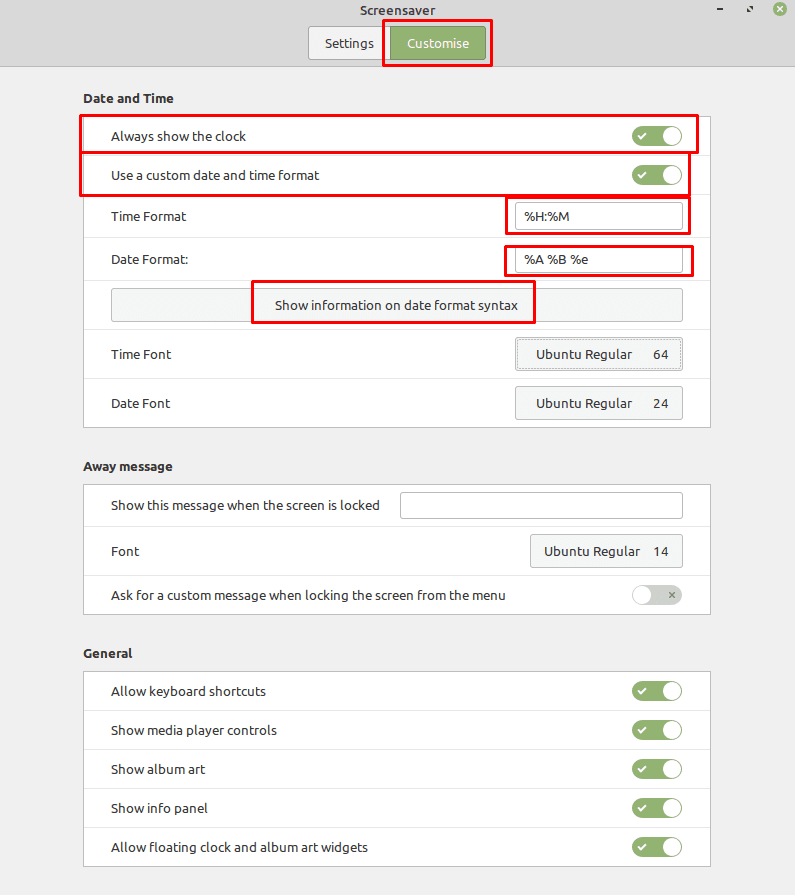
You can enable and configure the appearance of the clock on the lock screen.

The last two date and time options allow you to configure the font and font size used for the clock and date. Click on the current font to open a window that allows you to select a new font and font size.

You can configure the font and font size of the clock and date on the lock screen.

Custom Lock Screen Message

To add a custom message to the lock screen, you need to edit the options in the “Away message” section. “Show this message when the screen is locked” is a simple text box, enter any text and it will be displayed on the lock screen. Again, you can set the font and font size of the away message by clicking the “Font” option.

If you want to change or override your lock screen message as a one-off setting, you can enable the “Ask for a custom message when locking the screen from the menu” option. When you lock the screen through the start menu, you will be prompted to enter a lock screen message that will temporarily override any default lock screen message.
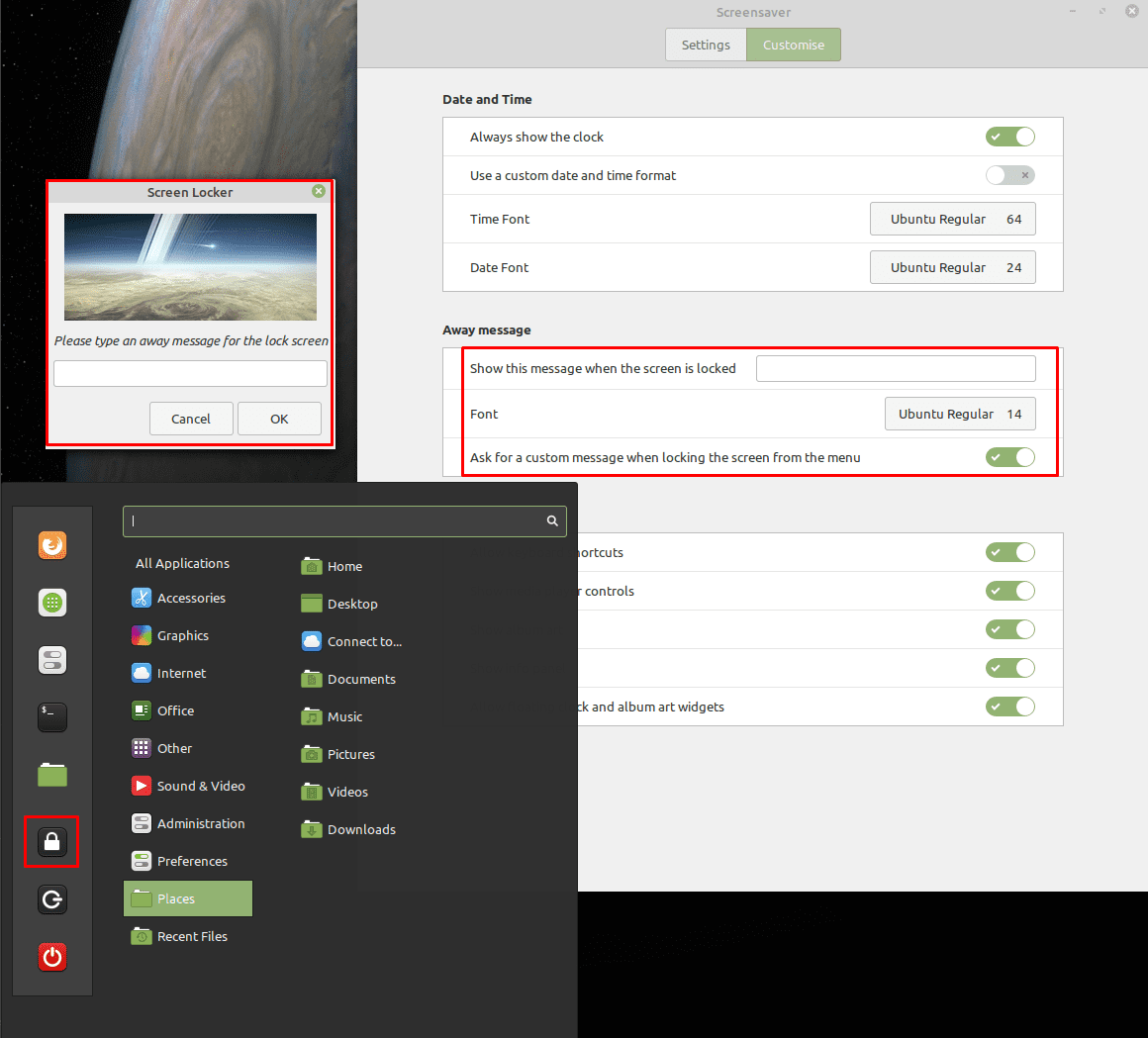
You can add a custom message to the lock screen if you want.

Categories: Linux

Author Mel Hawthorne

You Might Also Like

  • Linux Mint: How to Add New Applets

    Mel HawthorneLinux
  • Linux Mint: How to Configure How Alt-Tab Works

    Mel HawthorneLinux
  • Linux Mint: How to Manage Bluetooth Connections

    Mel HawthorneLinux
  • Linux Mint: How to Configure the Formats for Display Numbers, Dates, and Times

    Mel HawthorneLinux

Leave a Reply

Your email address will not be published. Required fields are marked *

This site uses Akismet to reduce spam. Learn how your comment data is processed.

300x600
Turning on Triple Touch Zoom on Android

Turning on Triple Touch Zoom on Android

How to Connect Outlook 2023 to Gmail

How to Connect Outlook 2023 to Gmail

Netflix: Change Password

Netflix: Change Password

Everything You Need to Know About WhatsApp Delete for Me

Step-by-Step Guide: How to Use WhatsApp on Your Computer

Android: Enable or Disable Background Data

Android: Enable or Disable Background Data

300x250
profile pic

The Experts Behind Technipages

My name is Mitch Bartlett. I've been working in technology for over 20 years in a wide range of tech jobs from Tech Support to Software Testing. I started this site as a technical guide for myself and it has grown into what I hope is a useful reference for all.

Learn More

300x250 2
technipages logo white
linkedin icon

Technipages is part of Guiding Tech Media, a leading digital media publisher focused on helping people figure out technology. Visit guidingtechmedia.com to learn more about our mission and team.

© 2026 Guiding Tech Media All Rights Reserved

  • About Us
  • Contact
  • Legal & Privacy

© 2026 Guiding Tech Media All Rights Reserved

Information from your device can be used to personalize your ad experience.
Do not sell my personal information.