Skip to content
LogoTechnipages
technipages logo
  • Topics
        • Android
        • Browsers
        • Gaming
        • Hardware
        • Internet
        • iPhone
        • Linux
        • macOS
        • Office
        • Reviews
        • Software
        • Windows
        • Definitions
  • Product Reviews
  • Downloads
  • About

Linux Mint: How to Add New Applets

Mel HawthorneDecember 2, 2020 Comments (2)

Linux Mint uses applets to add functionality to the taskbar. The default ones offered include a clock, volume manager, network manager, and even the start menu. there are plenty of other applets that you can choose to install if you want, providing you with extra information and functionality.

To manage your applets, press the Super key, then type “Applets” and hit enter.

Tip: The “Super” key is the name that many Linux distributions use to refer to the Windows key or the Apple “Command” key, while avoiding any risk of trademark issues.

Press the Super key, then type “Applets” and hit enter.

In the default “Manage” tab, you can scroll through the currently installed applets. The ones with a tick icon are currently enabled, the lock icon means they are default and can’t be uninstalled, while the cogwheel icons allow you to manage the settings for the applet once it has been enabled.

Tip: If you want to enable one of the already installed but currently disabled applets, you can skip to the last stage.
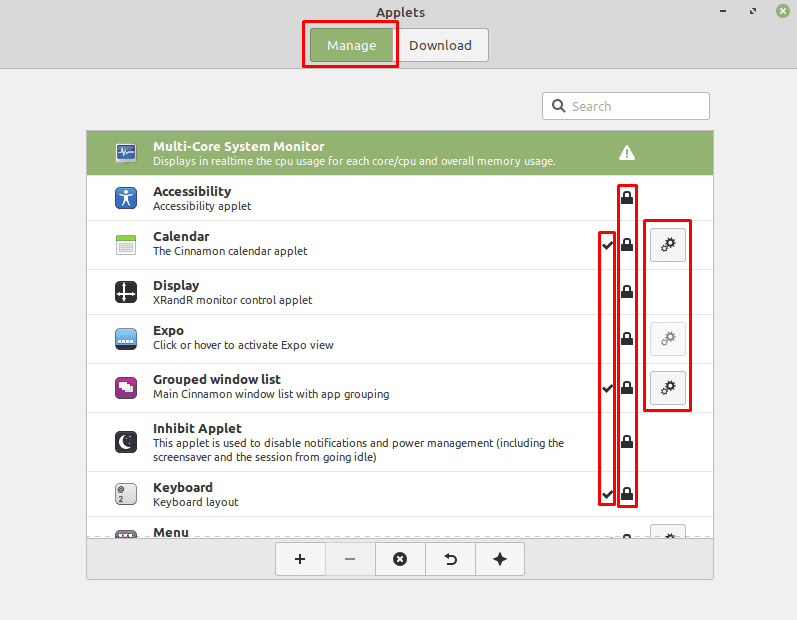
The “Manage” tab allows you to manage the currently installed applets.

To find a new applet, switch to the “Download” tab. Here you can see a list of applets that you can choose to install. Once you find one that you like and want to use, click the download icon and it will be installed. If you want to find out more information about an applet, you can select it in the list, then click on the light bulb icon in the bottom-left corner.

Tip: The applets with a tick icon are already installed.
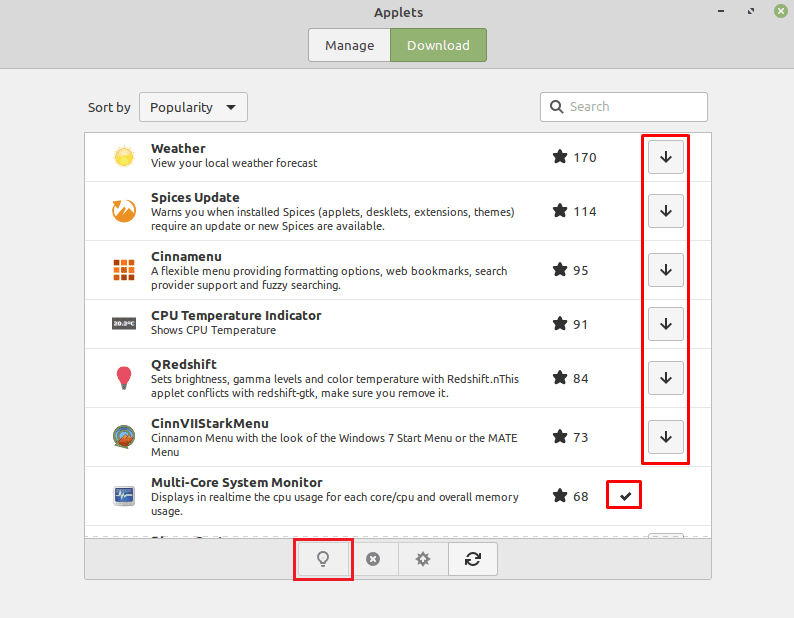
To be able to add a new applet, switch to the “Download” tab, and click the download button for an applet you like.

Once you’ve got an applet that you’ve downloaded, switch back to the “Manage” tab and click on the applet you wanted. To add the applet to the bottom panel, click the “Add” icon in the bottom-left corner.

To add the applet to the bottom bar, select it in the list, then click the add icon in the bottom-left corner.

Categories: Linux

Author Mel Hawthorne

You Might Also Like

  • Linux Mint: How to Configure How Alt-Tab Works

    Mel HawthorneLinux
  • Linux Mint: How to Configure Left Mouse Button to Perform Right-Click

    Mel HawthorneLinux
  • Linux Mint: How to Configure Workspaces

    Mel HawthorneLinux
  • Linux Mint: How to Configure the Key Repeat Delay and Speed

    Mel HawthorneLinux

Comments

  1. Not a geek says:
    June 9, 2022 at 12:07 pm

    I have a json file with cinnamenu and want to install it manually on Mint. Is it possible?

  2. Alfie Brown says:
    May 3, 2022 at 8:06 am

    No. I asked how to add new Applets. Not how to add new applets already on the menu.
    I have downloaded Force Quit applet, but have nno idea how rto add it to the Applet menu.

Leave a Reply

Your email address will not be published. Required fields are marked *

This site uses Akismet to reduce spam. Learn how your comment data is processed.

300x600
Turning on Triple Touch Zoom on Android

Turning on Triple Touch Zoom on Android

How to Connect Outlook 2023 to Gmail

How to Connect Outlook 2023 to Gmail

Netflix: Change Password

Netflix: Change Password

Everything You Need to Know About WhatsApp Delete for Me

Step-by-Step Guide: How to Use WhatsApp on Your Computer

Android: Enable or Disable Background Data

Android: Enable or Disable Background Data

300x250
profile pic

The Experts Behind Technipages

My name is Mitch Bartlett. I've been working in technology for over 20 years in a wide range of tech jobs from Tech Support to Software Testing. I started this site as a technical guide for myself and it has grown into what I hope is a useful reference for all.

Learn More

300x250 2
technipages logo white
linkedin icon

Technipages is part of Guiding Tech Media, a leading digital media publisher focused on helping people figure out technology. Visit guidingtechmedia.com to learn more about our mission and team.

© 2026 Guiding Tech Media All Rights Reserved

  • About Us
  • Contact
  • Legal & Privacy

© 2026 Guiding Tech Media All Rights Reserved

Information from your device can be used to personalize your ad experience.
Do not sell my personal information.