Skip to content
LogoTechnipages
technipages logo
  • Topics
        • Android
        • Browsers
        • Gaming
        • Hardware
        • Internet
        • iPhone
        • Linux
        • macOS
        • Office
        • Reviews
        • Software
        • Windows
        • Definitions
  • Product Reviews
  • Downloads
  • About

Link to a Specific Section of Google Doc

Mel HawthorneDecember 5, 2019 Comments (1)
Google Docs Header

In longer documents, breaking text up into chapters or sections is almost a given. In a physical document, skipping ahead or back is easy – that’s not so much the case in computer documents. That doesn’t mean it’s impossible though – in fact, in Google Docs, it’s quite easy.

Linking from one spot in your document to another place in it can be done with just a few clicks.

  1. Set your bookmark

The first step to link to a certain segment in your text is to set a bookmark within your existing text. You can do this by clicking on the point of your text you want to link to. Next, click the Insert button in the top menu, and go down to Bookmark.
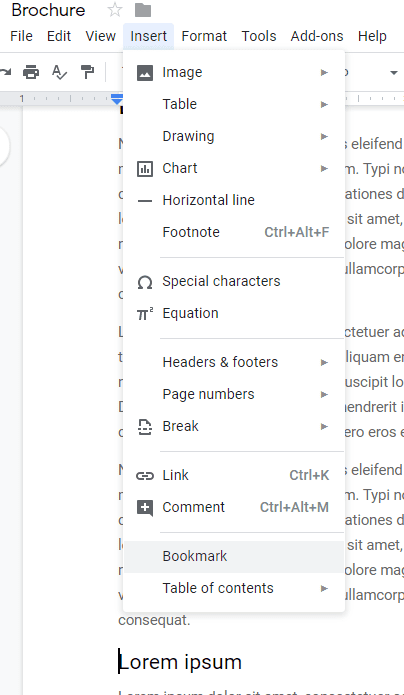
Insert menu with bookmark option

A small blue bookmark symbol will appear on the left of your text. With that, you’re ready to link to that section of text.
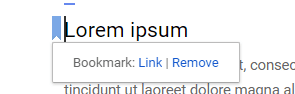
A set bookmark

  1. Set the link

In order to link to the bookmark we just set, go to the piece of text that is supposed to link to it. Mark the entire section that you want to be part of the hyperlink, whether that is a word or an entire sentence, then right-click on it. Select Link from the menu.
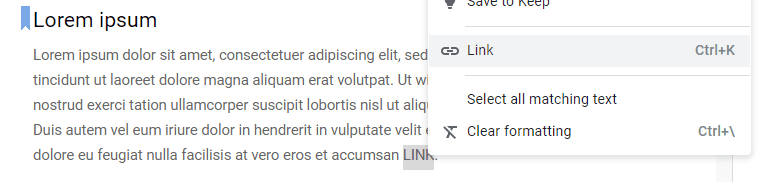
Highlighted text and the Link menu option

A new field will appear and let you pick what you want to link to. Here, you can pick from either headings or bookmarks (or external URLs). Click on Bookmarks to reveal a list of the ones you’ve set.
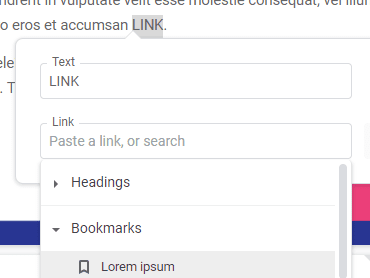
Link options including bookmarks

Simply pick the right one, and then click the blue Apply button. Your link is set, and clicking on it will take you straight to the bookmark you set!

Categories: Internet

Author Mel Hawthorne

You Might Also Like

  • 7 Chrome Extensions to Make Gmail More Productive

    Judy SanhzInternet
  • fix google maps not updating location

    How to Find the Nearest Gas Station on Google Maps

    Judy SanhzInternet
  • Bitwarden: How to Unlock the Browser Extension with a PIN or Biometrics

    Mel HawthorneInternet
  • 6 Free Online Sites to Remove the Background of an Image

    Judy SanhzInternet

Comments

  1. Clare T says:
    February 22, 2021 at 11:46 pm

    Thank you, this was exactly what I was looking for – a way to link sections in a document (other than headings). It works well!

Leave a Reply

Your email address will not be published. Required fields are marked *

This site uses Akismet to reduce spam. Learn how your comment data is processed.

300x600
Turning on Triple Touch Zoom on Android

Turning on Triple Touch Zoom on Android

How to Connect Outlook 2023 to Gmail

How to Connect Outlook 2023 to Gmail

Netflix: Change Password

Netflix: Change Password

Everything You Need to Know About WhatsApp Delete for Me

Step-by-Step Guide: How to Use WhatsApp on Your Computer

Android: Enable or Disable Background Data

Android: Enable or Disable Background Data

300x250
profile pic

The Experts Behind Technipages

My name is Mitch Bartlett. I've been working in technology for over 20 years in a wide range of tech jobs from Tech Support to Software Testing. I started this site as a technical guide for myself and it has grown into what I hope is a useful reference for all.

Learn More

300x250 2
technipages logo white
linkedin icon

Technipages is part of Guiding Tech Media, a leading digital media publisher focused on helping people figure out technology. Visit guidingtechmedia.com to learn more about our mission and team.

© 2026 Guiding Tech Media All Rights Reserved

  • About Us
  • Contact
  • Legal & Privacy

© 2026 Guiding Tech Media All Rights Reserved

Information from your device can be used to personalize your ad experience.
Do not sell my personal information.