

When your car needs gas, it’s easy to find the nearest station near your home. You can at least think of one or two that are near you, but what happens when you’re not in an area you know very well? In that case, finding the nearest gas station can take up a lot of your time. But, thanks to Google Maps, you can get all the gas info you need.
You’ve obviously used Google Maps to get directions to get somewhere, but probably not to find where the nearest gas station is. The good news is that it’s easy and you won’t have any problems knowing how to get there.
Locate Open Gas Station Near Me – Android
To get started, open Google Maps. Once the app is open, tap on the Gas option.

As soon as you tap on the Gas option, Google Maps will show you all the gas stations near you. At the top, you’ll see filters you can use to find a specific gas station. For example, you can have Google Maps only show you gas stations that you’ve visited before, Haven’t visited, or that are open at the moment. If you don’t see any filters you can use, tap on More Filters.
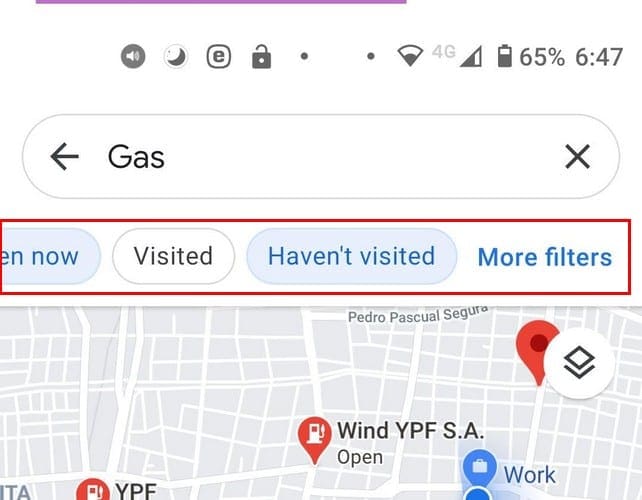
In the Filters section, you can sort the gas stations by Relevance or Distance. There’s also a section where you can see what gas stations are open now, Any or Custom. You can see what gas stations will be open at a specific time or day in the Custom option. This is a great option if you’re working late and want to know what gas station will be open, just if anything should happen.

Once the filters are set to what you’re looking for, don’t forget to tap on the blue Apply button at the bottom right. The results will change and only show you the results you want to see. The results will show you the option to share that result, Directions, and Call that specific gas station.
Keep Exploring
If you want to explore other gas stations, you can by swiping to either side. When you one that interests you, simply tap on the red balloon for more information. You’ll get info such as:
- If you’ve visited or not
- Address
- Business hours
- Phone number
- Website
- Reviews
- Photos
- Save
There are also two ways to view the search results. You can use the Map View or the View list.
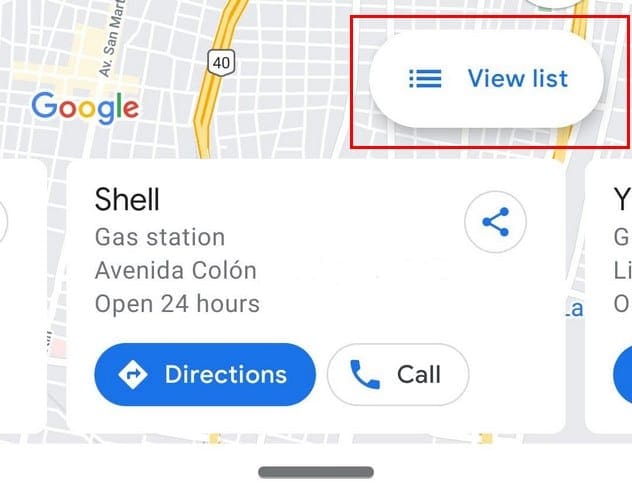
In View List, the results are easier to view. Tap the one you’re interested in, and you’ll get all the necessary information about that gas station.
Conclusion
Even if you don’t think you’re going to need it, it’s always good to know where the nearest gas station is. Thanks to Google Maps, not only will you know where it is, but also its business hours, etc. Do you think that this is a tool you’re going to be often using? Let me know in the comments below.


So, how does one find gas stations if using an iPad or a Mac or an iPhone?!