Skip to content
LogoTechnipages
technipages logo
  • Topics
        • Android
        • Browsers
        • Gaming
        • Hardware
        • Internet
        • iPhone
        • Linux
        • macOS
        • Office
        • Reviews
        • Software
        • Windows
        • Definitions
  • Product Reviews
  • Downloads
  • About

How to Show or Hide iCloud Music in iTunes

Mitch BartlettSeptember 18, 2018 Comments (3)

Control whether or not Apple iTunes shows or hides music that is not downloaded and only available via iCloud by enabling or disabling this setting.

Show iCloud music from the “View” menu by choosing “All Music” or hide iCloud music by selecting “Only Downloaded Music“.
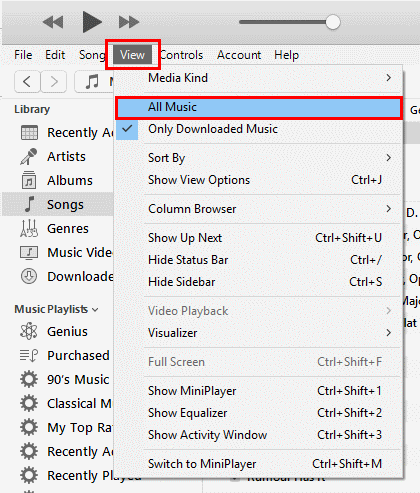
When set to show iCloud Music Purchases, a “cloud” column will be shown in iTunes. Music that is in the iCloud and not local on the computer will have an iCloud icon next to the song. This column is not shown when the setting is set to “hide”.
iTunes iCloud Music icon


Note: This tutorial was built with iTunes version 12.9

Categories: Software

Author Mitch Bartlett

My name is Mitch Bartlett. I've been working in technology for over 20 years in a wide range of tech jobs from Tech Support to Software Testing. I started this site as a technical guide for myself and it has grown into what I hope is a useful reference for all. Mitch's Favorite Gear ATX Graphics Card CanaKit Raspberry Pi 3

You Might Also Like

  • fix discord camera not working

    Discord: What is Krisp Noise Suppression?

    Mel HawthorneSoftware
  • Zoom: How to Increase the Maximum Number of Participants You Can See in the Gallery View

    Mel HawthorneSoftware
  • Slack: How To Change Your Password

    Mel HawthorneSoftware
  • Slack: How To Configure Automatic Slackbot Responses for Your Workspace

    Mel HawthorneInternet

Comments

  1. Joe Smith says:
    April 15, 2020 at 10:12 pm

    Go to Edit > Preferences > General. Unselect “Show Apple Music Features”. You will notice that some options are now missing from the top menu bar.

    Go to View. The “Only Downloaded Music” option should appear again.

  2. Jessica says:
    December 6, 2019 at 11:16 pm

    I want to let my son listen to music from my apple music on an older ipod touch (9.3.5), but I don’t want him to have access to the entire music library, only the playlists that he likes. I am finding a method for “hiding” music that I’ve purchased via itunes by using itunes (version 12.9.5.5) via my macbook (Mohave 10.14.6), but what I’m not seeing is a way to “hide” those songs that are not purchases, but rather, those that are just downloads from apple music. Does such a method exist? I appreciate any insight you have to offer.

  3. S says:
    December 14, 2018 at 1:39 pm

    I don’t see the option for “all music” or “only downloaded music” options. It goes from “media kind” to “sort by”
    I’m on version 12.9.2.6
    Windows 10

Leave a Reply

Your email address will not be published. Required fields are marked *

This site uses Akismet to reduce spam. Learn how your comment data is processed.

300x600
Turning on Triple Touch Zoom on Android

Turning on Triple Touch Zoom on Android

How to Connect Outlook 2023 to Gmail

How to Connect Outlook 2023 to Gmail

Netflix: Change Password

Netflix: Change Password

Everything You Need to Know About WhatsApp Delete for Me

Step-by-Step Guide: How to Use WhatsApp on Your Computer

Android: Enable or Disable Background Data

Android: Enable or Disable Background Data

300x250
profile pic

The Experts Behind Technipages

My name is Mitch Bartlett. I've been working in technology for over 20 years in a wide range of tech jobs from Tech Support to Software Testing. I started this site as a technical guide for myself and it has grown into what I hope is a useful reference for all.

Learn More

300x250 2
technipages logo white
linkedin icon

Technipages is part of Guiding Tech Media, a leading digital media publisher focused on helping people figure out technology. Visit guidingtechmedia.com to learn more about our mission and team.

© 2026 Guiding Tech Media All Rights Reserved

  • About Us
  • Contact
  • Legal & Privacy

© 2026 Guiding Tech Media All Rights Reserved

Information from your device can be used to personalize your ad experience.
Do not sell my personal information.