Are you an iPhone user who wants to use the Weather widget on your device? Read on to learn all the essential information about the iPhone Weather widget.
For every iPhone or iPad user, having a Weather widget on the home screen or lock screen is a blessing.
It offers you a quick look at updated information, such as the current temperature of your city or weather forecast. Moreover, you don’t have to open that app or wait for it to show you real-time updates.
Let’s learn more about the iPhone Weather widget and how to use it seamlessly.
What Is iPhone Weather Widget?
https://youtu.be/x49NAAOQyRA
The Weather widget for iPhone is a widget that keeps you updated on the weather condition of your location. It used to collect data from the Weather Channel app earlier. But it procures data from iOS 16 and iPadOS 16 from Apple’s weather app.
Remember, we are talking about the default iOS Weather widget that iPhone and iPad users get with their phones. However, you may download additional third-party weather apps that offer widget facilities.
Features of iOS Weather Widget
The Weather widget for iPhone or iPad shows your important weather data on your screen. Depending on the widget size, you can see different types of weather data. The enormous widget layout will show you the followings:
- The real-time temperature monitor
- The highest and lowest temperature of the day
- Weather alerts for severe weather conditions
- Expected temperatures and weather forecast for the next six hours
- Weather forecast for the next four days with expected maximum and minimum temperatures
How to Add Weather Widget for iPhone?
If you want to add the Weather widget on your iPhone Home Screen, this is how to do it:
- When on the Home Screen of your iPhone, touch and hold the screen background.
- Soon, the apps will start jiggling.
- Tap the plus (+) button in the top-left corner to open the Widget Gallery.
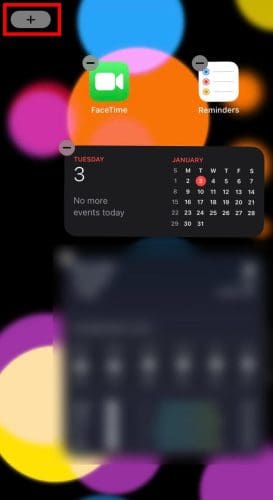
- You can either type weather in the search bar or scroll down to find the Weather widget.
- Tap it and choose your favorite layout by swiping right or left.
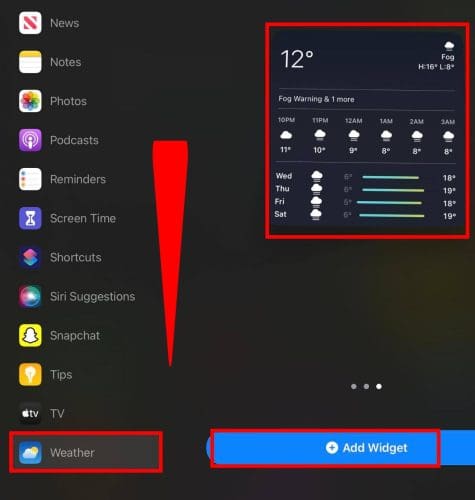
- Tap Add Widget.
- The widget will appear on your Home Screen where all apps are jiggling.
- If you like its position, you can tap Done.
- You can also change its position on the Home Screen by moving it while juggling before tapping Done.
How to Change Location on Weather Widget iPhone?
Don’t like the default location of the iPhone Weather widget? There’s no need to worry! Change it to your favorite location in simple steps:
- Long press the Weather widget.
- Tap Edit Widget, and it’ll flip.
- Select the Default Location City name.
- Choose My Location, or type the name of your preferred city to select that.
- When the new location name is added, exit the interface.
- The widget location has been changed. Now, it’ll display the weather of the updated location.
Is There Any iPad Weather Widget?
Yes, the Weather widget feature is also available on iPad. Instead of the widget, the weather data is available on the stack.
You can find it if you keep sliding your screen to the right. It’s even accessible from the Lock screen by sliding right.
If you don’t want to put that much effort, you can always add the Weather widget to your Home Screen. For that, perform these steps:
- Put your finger on the Home Screen and long press.
- When the app icons start jiggling, tap the plus (+) button on the top-left corner.
- A list of widgets will appear on your screen. Scroll down to the end for the Weather App.
- Select Weather, and choose the size.
- Tap Add Widget to add it on your Home Screen.
You can easily access the iPad Weather widget from the Today View by sliding right from the iPad Lock Screen. Hence, there is no need to add it manually to that screen.
How to Fix “iPad Weather Widget Wrong Location” Issue
One common complaint of iPad users is that they cannot change the widget’s location. As you open the widget, it will show you a city’s forecast and weather updates. You may not live there or want to get updates on a different city.
When you click on that Smart Stack widget, it’ll open a webpage in your browser. You can change the location on that webpage and see updates on that city for once.
As you recheck the Smart Stack, it still shows the default city’s updates.
If the weather app is available on the Smart Stack, this is how you can fix the wrong location:
- Long-press the Smart Stack.
- A list of options will appear. Tap Edit Weather.

- The stack will flip, and you can change the Location.
- Tap the location name to get more options.
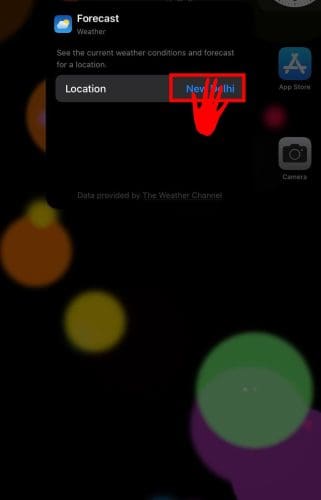
- You can select My Location, which will use GPS to share the weather of your location.
- You may also type the city name of your choice and select that.

- After the selection, the widget will automatically update it.
- Exit and check the Smart Stack to find the weather of the correct location.
The steps for the iPad Weather widget’s wrong location are similar to the above if the Weather widget is in Smart Stack. However, if you’ve added a standalone Weather widget on the Home Screen, follow these steps instead:
- Long press the Weather widget.
- Select Edit Widget.
- It’ll flip and show you the option to change the location.
- You can either choose My Location or type any city name.
- Exit the settings area.
- The widget will display the weather of the city you recently selected.
Conclusion
A widget is a handy feature that allows you to access updated information on an app instantly. If you need to stay updated on the weather of any city, you can use the iPhone Weather widget.
Here, we discussed adding a Weather widget for iPhone on its Home Screen and Lock Screen. You can also learn about setting up or changing location on this widget.
You may also want to know how to turn on precise location on iPhone and iPad.