If you’re parting ways with your iPhone or iPad, don’t forget to turn off Find My iPhone or iPad. Don’t worry about how it’s done since we’ll show what needs to be done. Below, we’ll show you how to turn off Find My iPhone/iPad.
Apple’s Find My network helps you locate a lost Apple device. Alternatively, you can delete personal stuff remotely from a stolen device. It only works if you’ve previously turned on Find My on your iPad, iPhone, Mac, etc.
Apple lets you turn off this service for many reasons. Read on to learn intuitive and effortless ways to disable Find My on iPad and iPhone.
When to Turn off Find My on Your Apple Device
Find below some reasons to deactivate Find My service:
- You’re sending the device to an authorized service center for repairs.
- You’ve opted to trade in an old iPhone/iPad and get a new one.
- You’re gifting the iPad or iPhone to someone.
- Someone has bought the iPhone or iPad from you.
How to Turn off Find My iPhone/iPad Using Settings App
- Open the Settings app from the home screen or app drawer.
- Tap your name on the left-side panel.
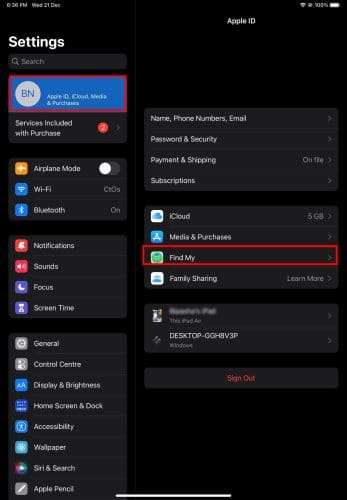
- Now, on the right-side panel, you should see Find My. Tap on it.
- It would show Find My iPhone/iPad in active state.

- Tap on it, and on the next screen, toggle the Find My iPhone/iPad option to Off mode.
- The device will ask for the Apple ID Password.
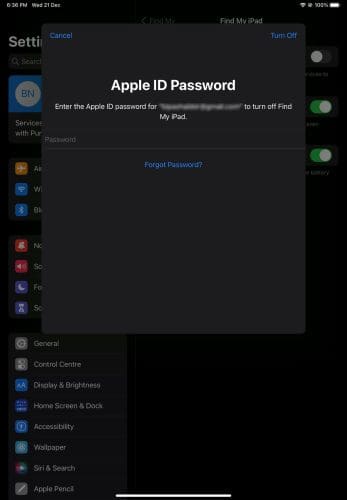
- Enter the password and tap Turn Off to deactivate Find My.
How to Turn Find My iPhone off from Apple ID
You’ll also disable Find My and other Apple ID-linked services on an iPhone or iPad if you sign out, delete, or deactivate your Apple ID from the device. Here’s how to do it:
- Open the iPhone Settings app.
- Tap on your Apple ID name or profile picture.

- On the right-side panel, you’ll find the Sign Out button.
- Tap Sign Out and authenticate it by entering your Apple ID Password.
That’s it! Find My service and a few other Apple services will stop functioning.
How to Turn Find My iPhone off Using a Web Browser
- Sign in to the Find Devices portal of Apple from any web browser.
- You’ll see all Apple devices signed in using the same Apple ID.
- Click All Devices from the top menu bar.
- Now, select the iPhone or iPad in question.

- Click Erase iPad.
- A confirmation box will appear. Click Erase again and approve the task by entering your Apple ID Password.
Find My will erase all existing data from the iPad or iPhone along with the Apple ID. It’s an indirect method to turn off Find My iPhone.
Since you’ve deleted the Apple ID from the device remotely, Find My stops functioning immediately.
How to Turn off Find My iPhone from the Computer
If you’re using your iPhone or iPad under the Apple ID that you also use on your Mac, then you can turn off Find My on your smartphone or tablet using Mac. You can follow these steps on the Mac:
- Click Launchpad on the Dock of your Mac.
- You’ll see all the applications on your device along with Find My.
- Click Find My.
- Inside the app, you should see the iPhone or iPad for which you need to deactivate Find My.
- Select the device and then click Erase.
- Confirm the data erasing process by entering your Apple ID Password.
Voilà! You’ve successfully removed the iPhone/iPad from the Find My network.
How to Turn off Find My iPhone from Another Device
If you’ve just bought a new iPhone or iPad and have set up the device using your existing Apple ID, then you can use the new device to deactivate Find My on an old iPhone or iPad. Here’s how it’s done:
- Open the Find My app on a second iPhone or iPad.

- Go to the Devices section of Find My.
- You’ll see the old iPhone or iPad here. Tap on it.
- A card will open with your device’s name.
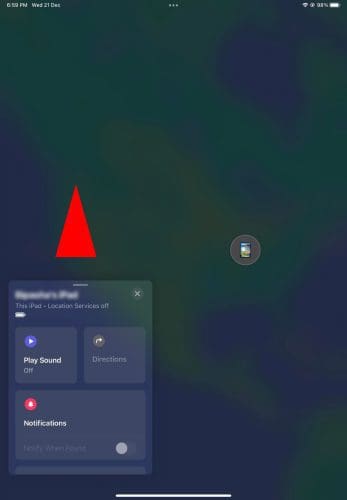
- Swipe up the card to find Erase This Device. Tap Erase.

- Tap Continue.

- Approve the process by entering your Apple ID Password.
Performing the above steps will remove all data and the Find My functionality on your iPhone or iPad.
While reviewing the above methods to deactivate Find My, you might ask the following question:
What Happens if You Turn off Find My iPhone?
When you turn off Find My on any compatible Apple device, Apple removes the device from its Find My network. Hence, you can no longer perform the following actions if you misplace the device:
- Play Sound to locate the device at the home, office, etc.
- Activate the Lost Mode functionality.
- Erase iPad/iPhone data to secure personal data.
Thus, only turn off Find My when you’re truly sure about separating yourself from your iPhone or iPad, and you’ll never need the device tracking feature.
How to Turn off Find My iPhone/iPad: Final Words
So far, you’ve explored different methods to turn off Find My iPhone/iPad. You can use any of the above methods depending on the scenario and access to other Apple or non-Apple devices. If you know more hacks of Find My, don’t forget to tip us by leaving a comment below. Don’t forget to share the article on social media.
You may also want to learn how to turn off Find My iPhone without a password.