Skip to content
LogoTechnipages
technipages logo
  • Topics
        • Android
        • Browsers
        • Gaming
        • Hardware
        • Internet
        • iPhone
        • Linux
        • macOS
        • Office
        • Reviews
        • Software
        • Windows
        • Definitions
  • Product Reviews
  • Downloads
  • About

iPhone: Disable iMessage Read Receipts

Mel HawthorneMay 20, 2020 Comments (0)

Modern messaging apps often have extra features other than just sending messages. Features such as indicators showing when someone is online, being able to delete messages and read receipts can all be useful at times. But there are scenarios where you don’t want these features either. This guide will walk you through the process of disabling read receipts in iMessage.

Read receipts are a little indication that is used to show if someone has read a message or not. It can be useful to know that someone just hasn’t seen a message yet. Unfortunately, read receipts also apply a bit of extra pressure to reply to messages instantly rather than whenever is convenient. As leaving a message that clearly needs a response as “Read” but then not responding immediately can be seen as rude, even if you just didn’t have the time to respond yet.

The iMessage settings can be found in the Settings app, under Settings > Messages. The setting is titled “Send Read Receipts”. Just tap the slider to the “Off” position to disable iMessage for all messages.

Disable the default setting by toggling the slider for “Send Read Receipts” in Settings > Messages.

You can change the setting for one specific chat by opening the chat, tapping the number at the top, then tapping the “i” info icon.

To override the default setting for a single chat, open the relevant chat’s info.

In the chat info, you can specifically override the default by toggling “Send Read Receipts” on or off.
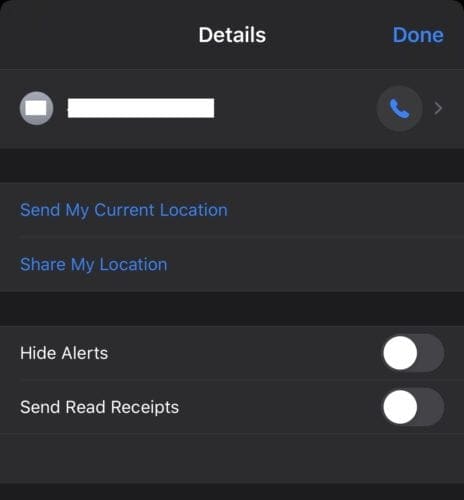
Override the default read receipt setting in a chat’s info settings.

Tip: Read receipts are an option only available to iMessage texts, you can’t enable them for SMS texts.

Categories: iPhone

Author Mel Hawthorne

You Might Also Like

  • How to Adjust iPhone Home Button Settings

    MonaiPhone
  • Can iPhone 11 Merge Phone Calls?

    MonaiPhone
  • Best Book Summary Apps for Android and iOS in 2023

    Best Book Summary Apps for Android and iOS in 2023

    Martin ClarkAndroid
  • 8 Best iOS RPG Games for iPhone and iPad in 2023

    8 Best iOS RPG Games for iPhone and iPad in 2023

    Martin ClarkGaming

Leave a Reply

Your email address will not be published. Required fields are marked *

This site uses Akismet to reduce spam. Learn how your comment data is processed.

300x600
Turning on Triple Touch Zoom on Android

Turning on Triple Touch Zoom on Android

How to Connect Outlook 2023 to Gmail

How to Connect Outlook 2023 to Gmail

Netflix: Change Password

Netflix: Change Password

Everything You Need to Know About WhatsApp Delete for Me

Step-by-Step Guide: How to Use WhatsApp on Your Computer

Android: Enable or Disable Background Data

Android: Enable or Disable Background Data

300x250
profile pic

The Experts Behind Technipages

My name is Mitch Bartlett. I've been working in technology for over 20 years in a wide range of tech jobs from Tech Support to Software Testing. I started this site as a technical guide for myself and it has grown into what I hope is a useful reference for all.

Learn More

300x250 2
technipages logo white
linkedin icon

Technipages is part of Guiding Tech Media, a leading digital media publisher focused on helping people figure out technology. Visit guidingtechmedia.com to learn more about our mission and team.

© 2026 Guiding Tech Media All Rights Reserved

  • About Us
  • Contact
  • Legal & Privacy

© 2026 Guiding Tech Media All Rights Reserved

Information from your device can be used to personalize your ad experience.
Do not sell my personal information.