
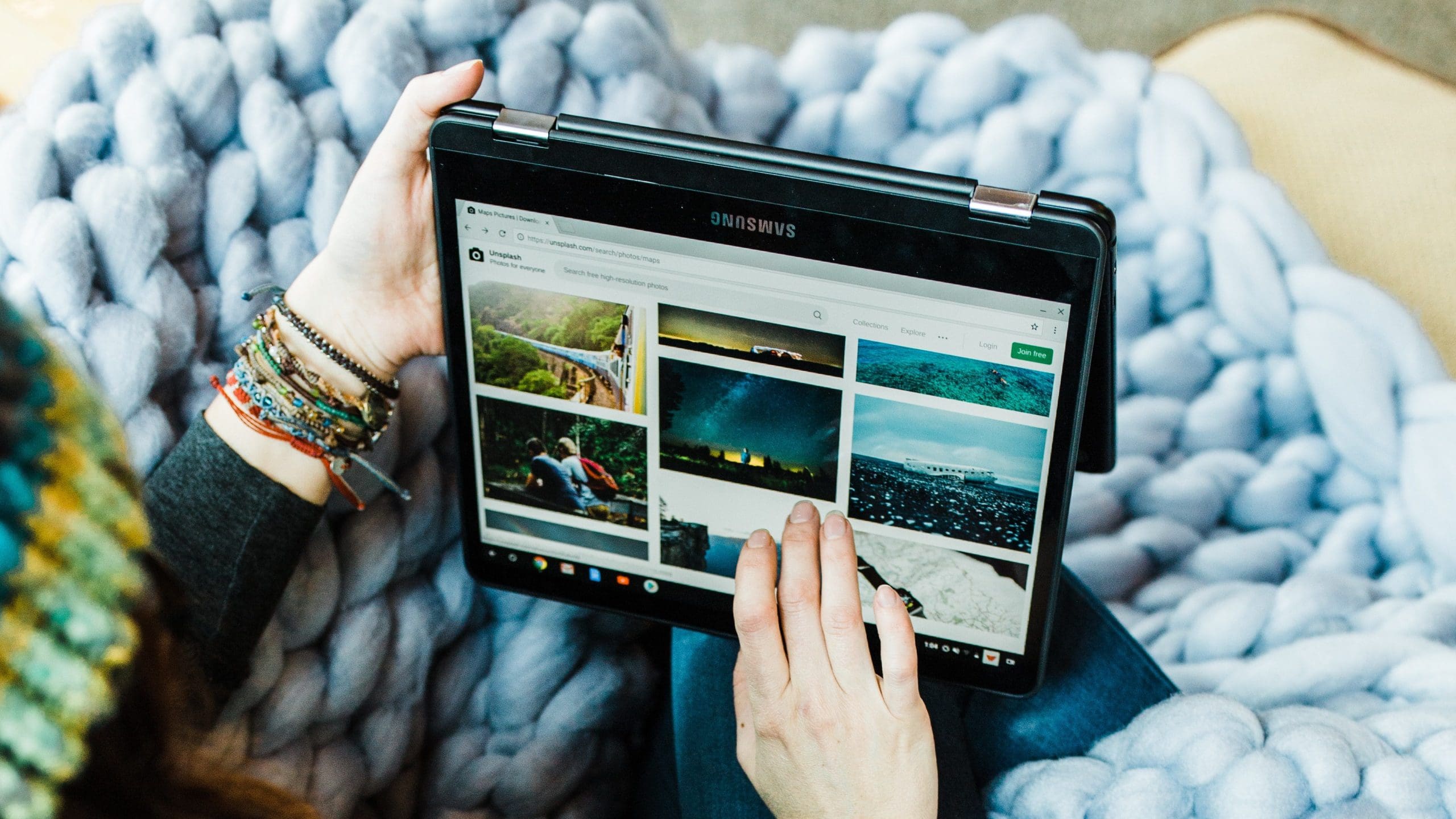
One of the most frustrating things about using a Chromebook, specifically a Chromebook in tablet mode or a ChromeOS tablet, is the lack of on-screen navigation buttons. For one reason or another, Google made the decision to ditch the dedicated navigation buttons in favor of a full-screen app launcher.
While this makes sense if you look at it from a tablet form factor perspective, not everyone likes or enjoys using the potentially frustrating gesture navigation. There are also some users who are still keeping their fingers crossed that Google provides an update to ChromeOS that will bring back a traditional desktop view even when using tablet mode on a Chromebook.
How to Use Navigation Buttons on Chromebook in Tablet Mode
Nevertheless, a recent update seems to have brought back the ability to show navigation buttons on Chromebook in tablet mode. The only “catch” is that this functionality is now hidden beneath Accessibility settings. Instead of being available under your Device settings.
Here’s how you can activate and use navigation buttons on Chromebook in tablet mode:
- Open the Settings app on your Chromebook.
- In the side panel, click Accessibility.
- Select Cursor and touchpad.
- Tap the toggle next to Show navigation buttons in tablet mode to the On position.
- Exit the Settings app.
What Comes After
After enabling the ability to use navigation buttons, you’ll see the two buttons appear in the bottom left corner of the screen. Only two buttons are available, with a ← button and a “Home” button being accessible.
There have been some users who are unable to find the on-screen navigation buttons even after enabling them within the Settings app. It’s important to note that your Chromebook must be in tablet mode for these to appear. If you own a device such as the Chromebook Duet or Pixel Slate, this can be achieved simply by detaching the keyboard from the Chromebook itself.
But if you own a convertible or 2-in-1 device such as the Acer Chromebook Spin 714, then you’ll need to rotate the hinge 180 degrees so that the screen is facing up and the keyboard is on the bottom.
Something else that’s worth pointing out is that even when you use navigation buttons on Chromebook in tablet mode, this does not turn off the gesture navigation. Instead, it gives you another option for navigating around the ChromeOS interface. So you’ll still be able to swipe up to go home, swipe and hold to show your open apps/windows, and swipe from the left or right edge to go back to the previous screen.


