Samsung’s Galaxy S23, with its impressive range of features and robust capabilities, is truly a marvel in the realm of smartphones. One of its underappreciated yet immensely useful features is the ability to serve as a mobile hotspot. By using your Galaxy S23 as a hotspot, you can share your phone’s data connection with other devices, providing them with internet access when Wi-Fi isn’t available. Let’s take an in-depth look at how to activate and use this feature.
Setting Up Your Galaxy S23 as a Hotspot
Turning your Galaxy S23 into a mobile hotspot is a straightforward process. Let’s walk through the steps:
-
-
Alternatively, you can swipe down from the top of the screen to reveal the notification panel and tap the Cog icon in the top right corner.
-
- In the Settings menu, scroll down and tap Connections.
- Here, you’ll see an array of connection settings. Tap on Mobile Hotspot and Tethering.
- On the next screen, tap Mobile Hotspot to go into the hotspot settings.
- You’ll see a switch at the top of the screen. Tap it to turn on your mobile hotspot.
- A dialogue box will appear, warning you that turning on the mobile hotspot will turn off Wi-Fi. If you’re okay with this, tap Turn on.

With these steps, you’ve successfully turned your Galaxy S23 into a mobile hotspot. However, you might want to secure and personalize your hotspot before you start using it.
Customizing Your Mobile Hotspot
To make your hotspot more secure and easier to identify, you can change the network name and password. Here’s how:
- Open the Settings app on your Galaxy S23.
- In the Settings menu, scroll down and tap Connections.
- Here, you’ll see an array of connection settings. Tap on Mobile Hotspot and Tethering.
- On the next screen, tap Mobile Hotspot to go into the hotspot settings.
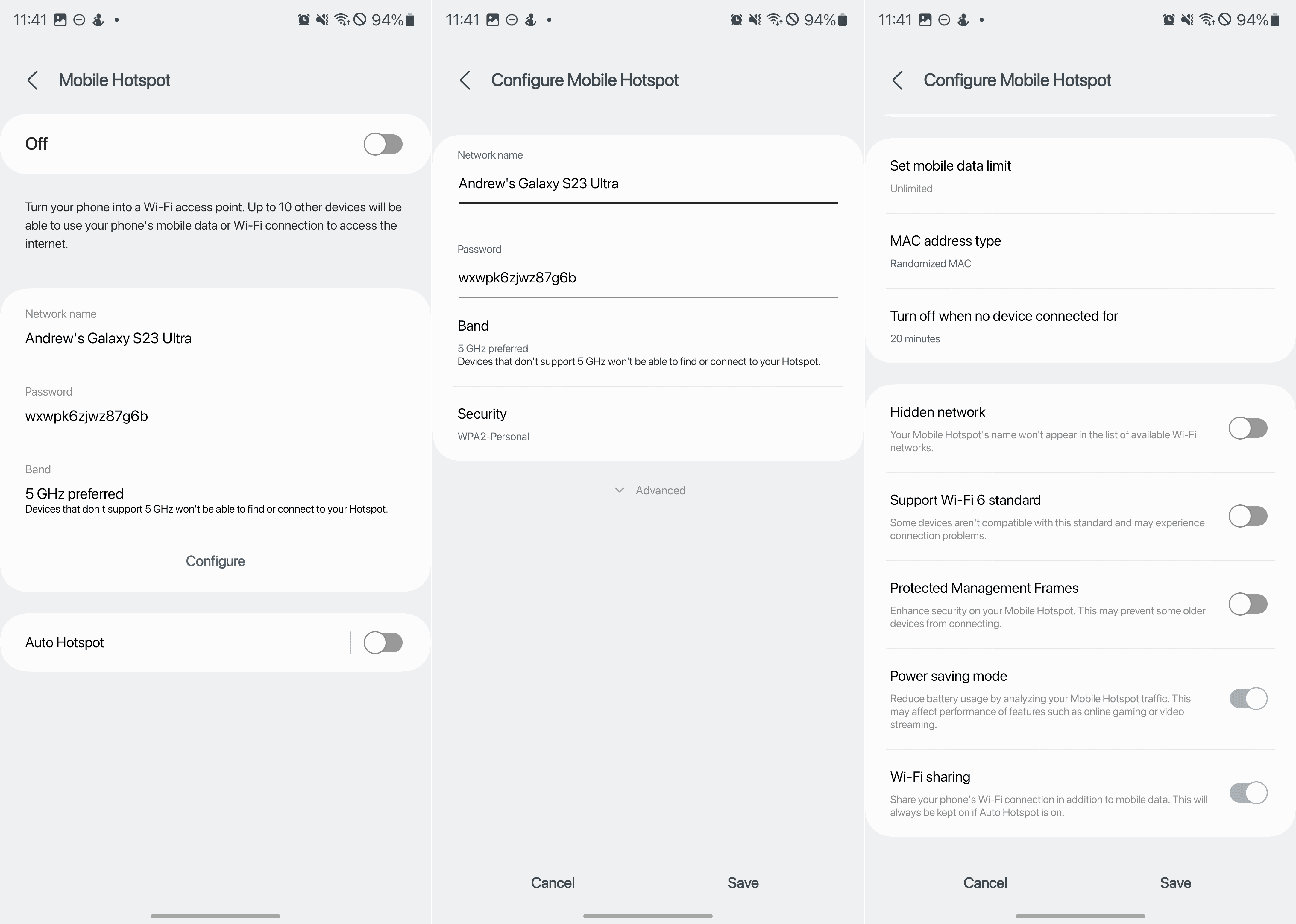
- In the Mobile Hotspot settings, tap the Configure button below the middle section.
-
-
It’s recommended to keep the security level as WPA2 PSK to provide a secure connection.
-
- If you want to further customize and configure the Mobile Hotspot, tap the Advanced button.
- From here, you can make changes for the following:
- Set mobile data limit
- MAC address type
- Turn off when no device connected for
- Hidden network
- Support Wi-Fi 6 standard
- Protected Management Frames
- Power saving mode
- Wi-Fi sharing
- Once you’ve made the changes, tap Save.
Connecting Devices to Your Hotspot
Now that your hotspot is up and running, you can connect other devices to it:
- On the device you want to connect, open the list of available Wi-Fi networks. You should see the network name of your Galaxy S23’s hotspot.
- Tap on the network name and enter the password when prompted.
- Tap Connect, and you should be connected to the internet via your Galaxy S23’s hotspot.
Remember, using your Galaxy S23 as a hotspot uses your mobile data, so keep an eye on your data usage, especially if your data plan has limits. Also, operating the hotspot can consume more battery, so ensure your device has enough charge or is plugged into a power source.
In a world increasingly reliant on internet access, knowing how to use your Galaxy S23 as a hotspot is incredibly useful. Whether you’re on the go, experiencing a home internet outage, or need to connect a Wi-Fi-only device to the internet, your Galaxy S23 has you covered.