Skip to content
LogoTechnipages
technipages logo
  • Topics
        • Android
        • Browsers
        • Gaming
        • Hardware
        • Internet
        • iPhone
        • Linux
        • macOS
        • Office
        • Reviews
        • Software
        • Windows
        • Definitions
  • Product Reviews
  • Downloads
  • About

How to Effectively Capture a Picture from a Video – Android

Judy SanhzSeptember 24, 2021 Comments (0)
Printed pics

Have you ever tried to get your dog to stay still to get the perfect picture? You take many pictures to see if one of them got him/her in the ideal position. When you check your pics, none of them got the perfect shot.

There’s something better than filling your devices gallery app with pictures you’re going to have to erase anyway. You can record a video, and when your dog, for a split second, looks right at the camera, you can get that perfect angle.

How to Extract Frames from a Video on Android

Have you ever taken a picture and thought to yourself, ¨If only  I had taken the picture a second before.¨ Thanks to an app called Video to Photo, you can get that perfect picture by taking a still from a video at the right moment.
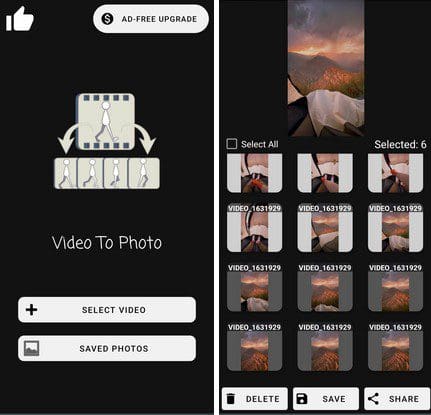
Video to Picture Android App

When you first launch the app, you’ll need to upload the video with the frame you want to extract. The app will automatically divide the video into all the available frames, but only if you choose the Time Interval Option after uploading your video. Don’t forget to select the format you want to save the frame in.

You’ll also trim your video and decide the exact time a frame is captured with this option. For example, if you want the app to show you a picture taken from the video every 4.6 seconds, simply use the slider to set it to that time. Don’t forget to tap on the Start button at the bottom.

By choosing the Manual Capture, you’ll have access to every single frame of the video. You’ll only need to swipe left, and at the bottom, you’ll see every available frame. When you see the frame, you want to save
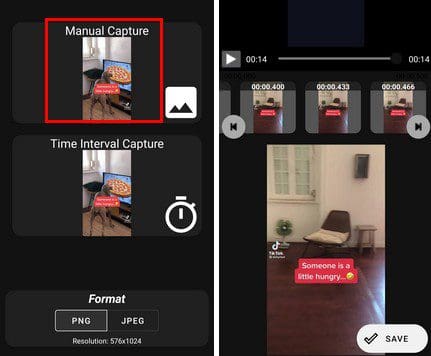
When you’re done using the app, it’ll save all the pictures you saved. You can view this picture the next time you use the app by tapping on the Saved Picture option on the app’s main page.

Conclusion

Thanks to this app, you don’t have to fill your device’s gallery with pictures you’re not going to use. All you need to do is record a video and then find the right frame. The free version will have some ads to deal with, but you can always buy the app if you want to make them disappear. Do you have a hard time finding the perfect angle? Share your thoughts in the comments below, and don’t forget to share the article with others on social media.


Categories: Android

Author Judy Sanhz

You Might Also Like

  • Connect Nexus 5X to Computer

    Mitch BartlettAndroid
  • How to Keep Your Signal Messages Safe

    Judy SanhzAndroid
  • How to Create a Channel on Telegram

    Judy SanhzAndroid
  • android-camera-not-scanning-qr-code

    What to Do If Android Camera Is Not Scanning QR Codes

    Madalina DinitaAndroid

Leave a Reply

Your email address will not be published. Required fields are marked *

This site uses Akismet to reduce spam. Learn how your comment data is processed.

300x600
Turning on Triple Touch Zoom on Android

Turning on Triple Touch Zoom on Android

How to Connect Outlook 2023 to Gmail

How to Connect Outlook 2023 to Gmail

Netflix: Change Password

Netflix: Change Password

Everything You Need to Know About WhatsApp Delete for Me

Step-by-Step Guide: How to Use WhatsApp on Your Computer

Android: Enable or Disable Background Data

Android: Enable or Disable Background Data

300x250
profile pic

The Experts Behind Technipages

My name is Mitch Bartlett. I've been working in technology for over 20 years in a wide range of tech jobs from Tech Support to Software Testing. I started this site as a technical guide for myself and it has grown into what I hope is a useful reference for all.

Learn More

300x250 2
technipages logo white
linkedin icon

Technipages is part of Guiding Tech Media, a leading digital media publisher focused on helping people figure out technology. Visit guidingtechmedia.com to learn more about our mission and team.

© 2026 Guiding Tech Media All Rights Reserved

  • About Us
  • Contact
  • Legal & Privacy

© 2026 Guiding Tech Media All Rights Reserved

Information from your device can be used to personalize your ad experience.
Do not sell my personal information.