Skip to content
LogoTechnipages
technipages logo
  • Topics
        • Android
        • Browsers
        • Gaming
        • Hardware
        • Internet
        • iPhone
        • Linux
        • macOS
        • Office
        • Reviews
        • Software
        • Windows
        • Definitions
  • Product Reviews
  • Downloads
  • About

How to Update Galaxy Tab S8

Andrew MyrickJune 5, 2023 Comments (0)

As technology rapidly advances, the need to keep our devices – phones, tablets, and computers – updated with the latest software is more pressing than ever. Even when it seems like your device is functioning flawlessly, there might be unseen glitches lurking beneath the surface. This applies even to Samsung’s latest offerings, including the cutting-edge Galaxy Tab S8. So, let’s take you through the vital steps to ensure your Tab S8 is updated and running at its best.

How to Update Samsung Galaxy Tab S8

In most cases, your Galaxy Tab S8 will notify you of available software updates through your notifications. When you have some spare time, you can tap on the notification and install the update, keeping the process simple and stress-free. However, if you want to manually check for an update, here’s how you can do that:

  1. Open the Settings app on your Galaxy Tab S8.
    • Alternatively, you can swipe down on the Home Screen and tap the Cog icon in the top right corner.
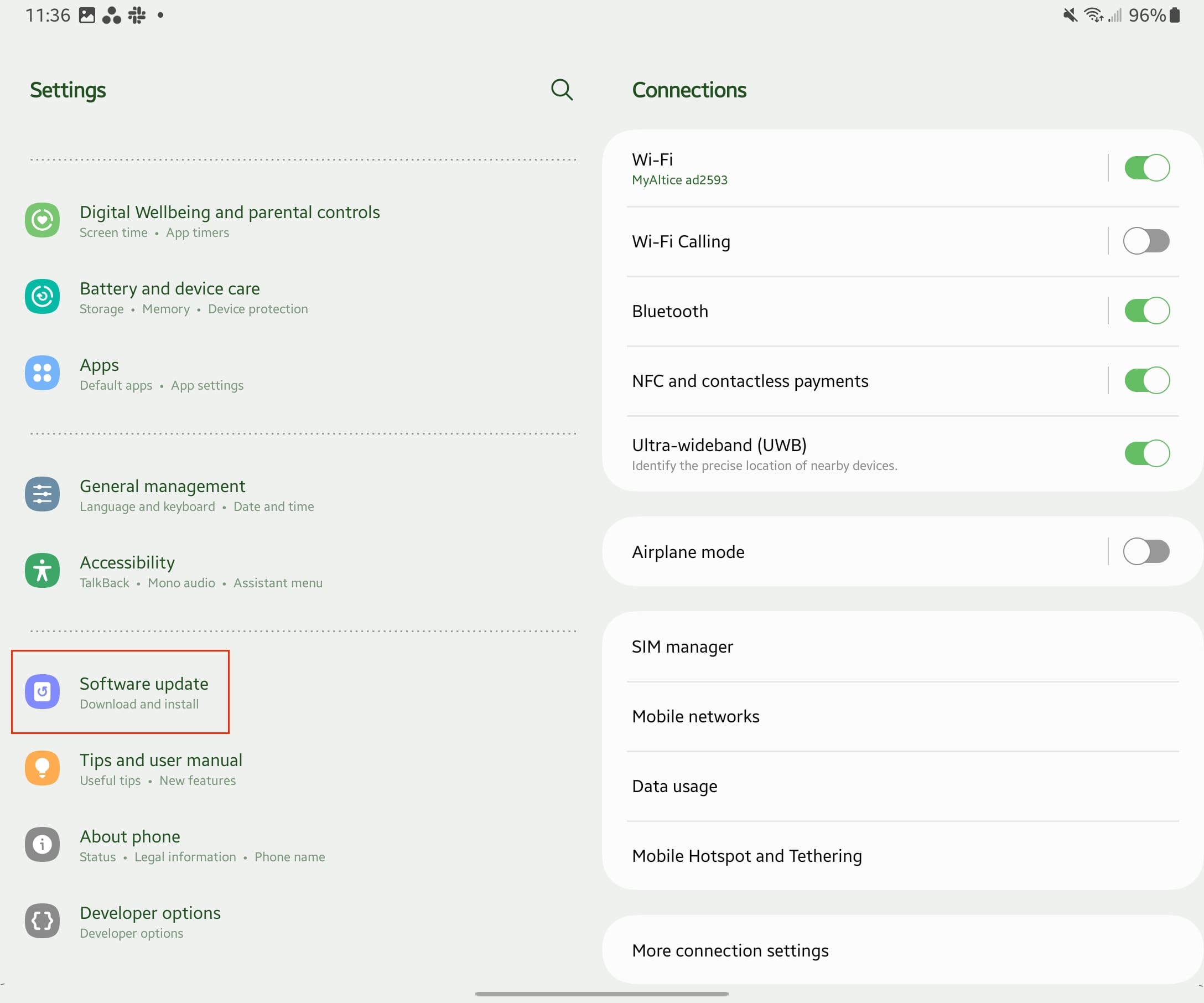
  2. Scroll down to the bottom of the Settings app.
  3. Tap Software update.
    How to Update Galaxy Tab S8 - 1
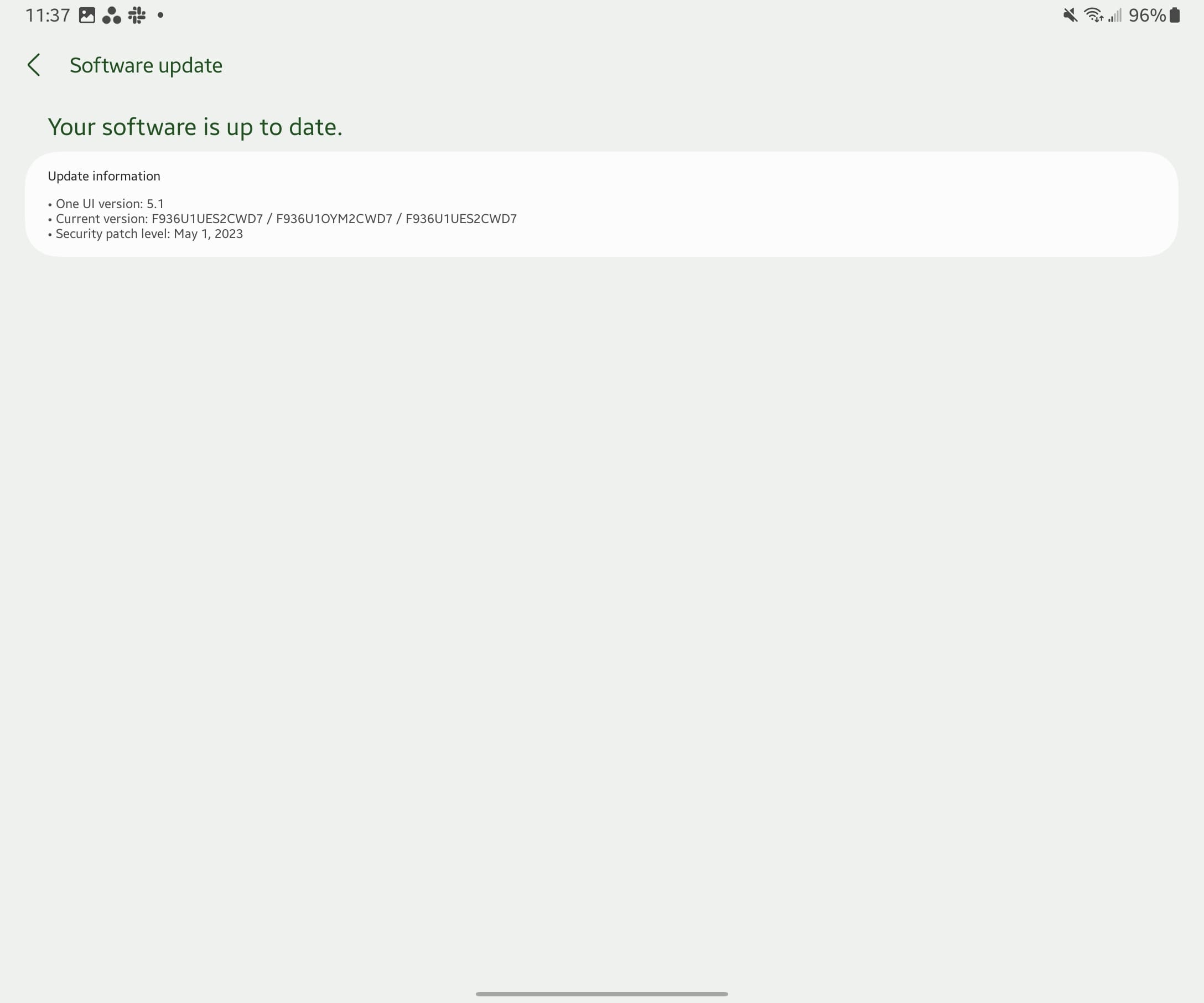
  4. Tap Download and Install.
    How to Update Galaxy Tab S8 - 2
  5. Give it a moment while your tablet checks for an update.
  6. If an update is available, tap the Install now button that appears.
How to Update Galaxy Tab S8 - 3

Bear in mind, your Galaxy Tab S8 needs to have at least 50% battery remaining for the update to download and install. This ensures your tablet doesn’t run out of power mid-update, which could lead to various complications.

Samsung also offers the convenience of scheduling software updates for a later time. If you wish to do this, tap the Schedule Install button and select a suitable time for the update to be installed. A Later button is also available for deferring the installation, but be aware, Samsung only allows you to delay the update twice before it prompts you to proceed with the installation.

Conclusion

This approach ensures your Galaxy Tab S8 doesn’t remain outdated for too long. Samsung releases monthly security patches to address any potential vulnerabilities. While many of these updates may seem minor, some carry fixes for significant bugs that could compromise your tablet’s performance. So, even if it feels like your device is being a bit pesky with the constant update reminders, know that Samsung is prioritizing your device’s security and overall functionality.
Categories: Android

Author Andrew Myrick

You Might Also Like

  • Amazon Fire Tablet Header

    Amazon Fire: How to Add and Remove Email Accounts

    Mitch BartlettAndroid
  • microsoft-teams-android-app-keeps-refreshing

    Fix: Microsoft Teams Android App Keeps Refreshing

    Madalina DinitaAndroid
  • How to Keep Your Signal Messages Safe

    Judy SanhzAndroid
  • How to Create a Channel on Telegram

    Judy SanhzAndroid

Leave a Reply

Your email address will not be published. Required fields are marked *

This site uses Akismet to reduce spam. Learn how your comment data is processed.

300x600
Turning on Triple Touch Zoom on Android

Turning on Triple Touch Zoom on Android

How to Connect Outlook 2023 to Gmail

How to Connect Outlook 2023 to Gmail

Netflix: Change Password

Netflix: Change Password

Everything You Need to Know About WhatsApp Delete for Me

Step-by-Step Guide: How to Use WhatsApp on Your Computer

Android: Enable or Disable Background Data

Android: Enable or Disable Background Data

300x250
profile pic

The Experts Behind Technipages

My name is Mitch Bartlett. I've been working in technology for over 20 years in a wide range of tech jobs from Tech Support to Software Testing. I started this site as a technical guide for myself and it has grown into what I hope is a useful reference for all.

Learn More

300x250 2
technipages logo white
linkedin icon

Technipages is part of Guiding Tech Media, a leading digital media publisher focused on helping people figure out technology. Visit guidingtechmedia.com to learn more about our mission and team.

© 2026 Guiding Tech Media All Rights Reserved

  • About Us
  • Contact
  • Legal & Privacy

© 2026 Guiding Tech Media All Rights Reserved

Information from your device can be used to personalize your ad experience.
Do not sell my personal information.