Skip to content
LogoTechnipages
technipages logo
  • Topics
        • Android
        • Browsers
        • Gaming
        • Hardware
        • Internet
        • iPhone
        • Linux
        • macOS
        • Office
        • Reviews
        • Software
        • Windows
        • Definitions
  • Product Reviews
  • Downloads
  • About

How to Set Steam to Start Automatically With Windows

Mel HawthorneSeptember 11, 2020 Comments (1)

If you’re a PC gamer, you probably have Steam installed as it is the most popular store for PC games. If you regularly play games on your computer, you may want to configure Steam to launch automatically when your computer boots up. This option won’t be for everyone, as not everyone will want Steam to open automatically and it does slow down your boot-up times a little.

If you want to configure Steam to launch as Windows boots up, then you can enable this in the Steam settings. To open the settings, click on “Steam” in the top-left corner of the main Steam window, then click “Settings” in the drop-down menu.

Open Steam’s settings by clicking “Steam” in the top-left corner of the main Steam window, then click “Settings” in the drop-down menu.

Once you’re in the Steam settings window, switch to the “Interface” tab. Here you can set Steam to start automatically with Windows by ticking the “Run Steam when my computer starts” checkbox, found roughly halfway down the page. Click “OK” in the bottom-right of the window to save the change.
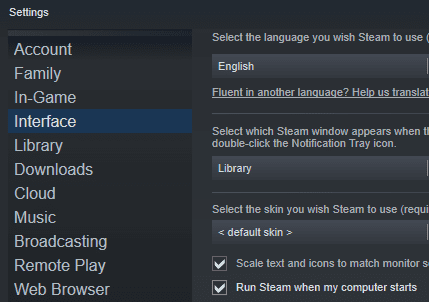
Tick the “Run Steam when my computer starts” checkbox to set steam to launch automatically when you boot-up.

Tip: Sometimes when Steam is configured to launch automatically with Windows, it struggles to correctly apply updates to the Steam client. If you see an update window pop up every time Steam launches, then you may be experiencing this issue. If the update fails, no error message is shown so it can be hard to notice this happening. To ensure that Steam updates correctly, close Steam then restart it with administrative rights. To do so, press the Windows key, type “Steam”, then click “Run as administrator”. This will ensure that Steam has the permissions it needs to update correctly.

Categories: Gaming

Author Mel Hawthorne

You Might Also Like

  • How to Stream Origin Games Over Steam

    Mitch BartlettGaming
  • Oculus

    VR Oculus Quest 2: How to Play Steam Games

    Mel HawthorneGaming
  • Switch vs Switch OLED – Who Wins?

    Mel HawthorneGaming
  • Oculus

    Oculus Quest 2 Starting Tips

    Mel HawthorneGaming

Comments

  1. James Keith says:
    April 10, 2023 at 1:28 am

    Steam running on startup was already checked and it doesn’t start when windoze boots. It starts fine when I manually double click the steam icon.

Leave a Reply

Your email address will not be published. Required fields are marked *

This site uses Akismet to reduce spam. Learn how your comment data is processed.

300x600
Turning on Triple Touch Zoom on Android

Turning on Triple Touch Zoom on Android

How to Connect Outlook 2023 to Gmail

How to Connect Outlook 2023 to Gmail

Netflix: Change Password

Netflix: Change Password

Everything You Need to Know About WhatsApp Delete for Me

Step-by-Step Guide: How to Use WhatsApp on Your Computer

Android: Enable or Disable Background Data

Android: Enable or Disable Background Data

300x250
profile pic

The Experts Behind Technipages

My name is Mitch Bartlett. I've been working in technology for over 20 years in a wide range of tech jobs from Tech Support to Software Testing. I started this site as a technical guide for myself and it has grown into what I hope is a useful reference for all.

Learn More

300x250 2
technipages logo white
linkedin icon

Technipages is part of Guiding Tech Media, a leading digital media publisher focused on helping people figure out technology. Visit guidingtechmedia.com to learn more about our mission and team.

© 2026 Guiding Tech Media All Rights Reserved

  • About Us
  • Contact
  • Legal & Privacy

© 2026 Guiding Tech Media All Rights Reserved

Information from your device can be used to personalize your ad experience.
Do not sell my personal information.